If you’ve ever seen a popup warning that your Apple ID was just used for a suspicious charge like “$277.89 via Apple Pay Pre-Authorization,” don’t panic—and definitely don’t call the number it provides. These alarming messages are a classic phishing scam designed to trick you into phoning a fake support line, where scammers try to steal your personal info or money.
Here’s the deal: real Apple alerts never come from weird domains like “bitrefill.sbs,” don’t push you to act urgently by calling random phone numbers, and always include official branding with clean, professional language. Instead, these scam popups are loaded with grammar mistakes, unprofessional layouts, and suspicious phone numbers—red flags screaming “don’t trust this.” Don’t fall for the panic tactics; if you’re worried about your Apple ID, go straight to apple.com or the official Apple Support app to verify your account securely.
Table of Contents
🕵️♂️ How the Apple ID Used At Apple Store Scam Operates
This scam targets iPhone and iMac users by claiming unauthorized Apple Store charges on their Apple ID. 🚨 It’s a phishing tactic designed to create panic, prompting victims to call a fake support number where scammers attempt to steal personal or financial information. 🔗 Step-by-Step Breakdown of the Scam:
A scam popup:
Your Apple ID was recently used at APPLE STORE for $277.89 Via Apple Pay Pre-Authorization!We have placed those request on hold to ensure safest and Security. Not you? Immediately call Apple Support +1 (801)613-8358 to Freeze it!.
⚠️ Displaying Fake Popup Alerts
Users browsing the web encounter alarming popups claiming that their Apple ID was recently used for a large purchase at the “Apple Store,” often showing amounts like $277.89 charged via Apple Pay Pre-Authorization. The popup urges immediate action to prevent unauthorized transactions.
📞 Providing a Fraudulent Support Number
The popup instructs victims to call a phone number (e.g., +1 (801) 613-8358) to “freeze” their account. This number is controlled by scammers posing as Apple Support agents.
🔍 Using Suspicious Domains
The scam originates from shady websites with unrelated or misleading domains such as bitrefill.sbs, not belonging to Apple. Official Apple pages always use apple.com domains.
📝 Containing Poor Grammar and Formatting
The messages show unprofessional writing with punctuation mistakes and awkward phrasing like “Via Apple Pay Pre-Authorization!We have placed those request on hold,” which is inconsistent with Apple’s polished communications.
🚫 Lacking Apple Branding
Unlike genuine Apple notifications, these popups usually lack official Apple logos, trademarks, or consistent design styles, making them suspicious.
😨 Creating Urgency and Fear
The scam is designed to panic users into reacting quickly without verifying claims. This pressure tactic aims to bypass rational thinking and encourage immediate contact with scammers.
🎯 Attempting to Steal Sensitive Information
When users call the provided number, scammers impersonate Apple Support to extract personal details, Apple ID passwords, payment information, or push victims to install malicious software.
🔒 Exploiting Trust in Apple
By using familiar brand names and common service processes, scammers exploit users’ trust in Apple’s security protocols, making the deception more convincing.
In summary, the “Apple ID Used At Apple Store” scam 🚫 tricks users by displaying fake security alerts and pushing them to call a fraudulent number. It leverages fear and misleading messages to steal personal information or install malware. Always double-check suspicious claims through official Apple resources and never trust urgent popup warnings from unknown websites.
In addition, the “Apple ID Used At Apple Store” pop asks visitors to allow it to display browser notifications. If enabled, this site will deliver notifications promoting untrustworthy/dangerous pages, various types of scams, and even malware.
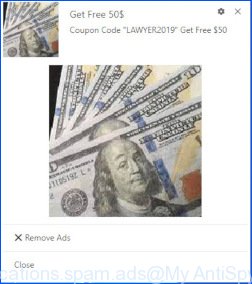
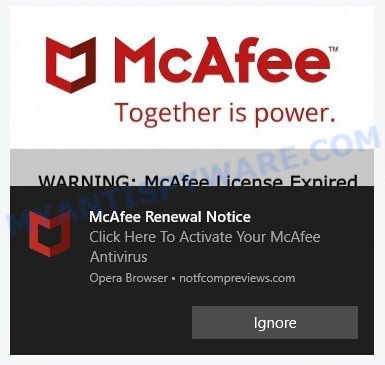
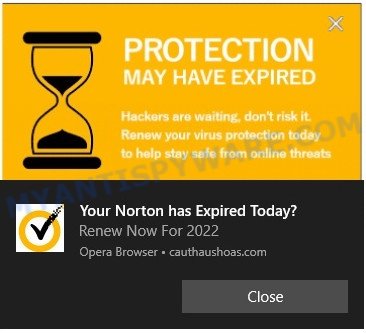
Similar Fake Alerts


Threat Summary
| Name | Apple ID Used At Apple Store Security Alert Scam |
| Type | Tech Support Scam |
| Whois Details | Recently created domain, WHOIS contact information hidden |
| Distribution | Adware, malicious websites, push notifications, social engineering |
| Damage | Misleads users to purchase fake or unnecessary antivirus software, can lead to financial loss and installation of malicious software |
| Symptoms | Pop-up messages and fake scans claiming viruses are detected on the user’s PC |
| Removal | Close pop-up windows, use ad-blockers and anti-malware software, never give out personal or financial information |
Examples of such scams
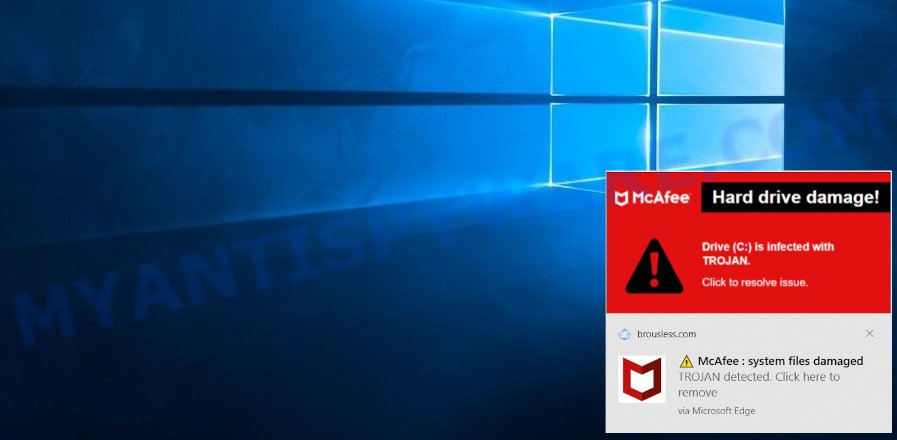
Hard Drive Damage Pop-Up Scam
In this scam, users receive a pop-up warning claiming that their hard drive is damaged or corrupted due to a virus or malware. It often includes technical jargon and error codes to appear authentic. The pop-up typically advises the user to download a ‘repair tool’ or contact a ‘support number’. However, the tool is usually malware, and the support number connects to scammers who try to gain remote access to the user’s computer or sell unnecessary services.
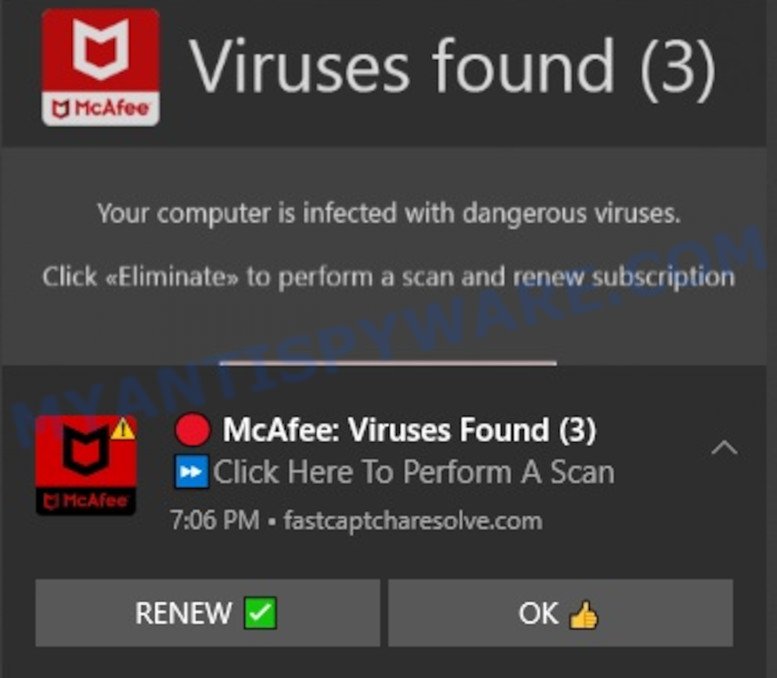
Virus Found (3) Pop-Up Scam
This particular scam involves a pop-up alert claiming that three viruses have been detected on the user’s device. It’s designed to mimic the look and feel of legitimate antivirus software alerts to convince users of its authenticity. The pop-up often includes a timer, adding a sense of urgency to the warning. Users are prompted to click on a button to remove the viruses, which either leads to the download of actual malware or redirects to a site asking for personal information or payment to ‘clean’ the computer.
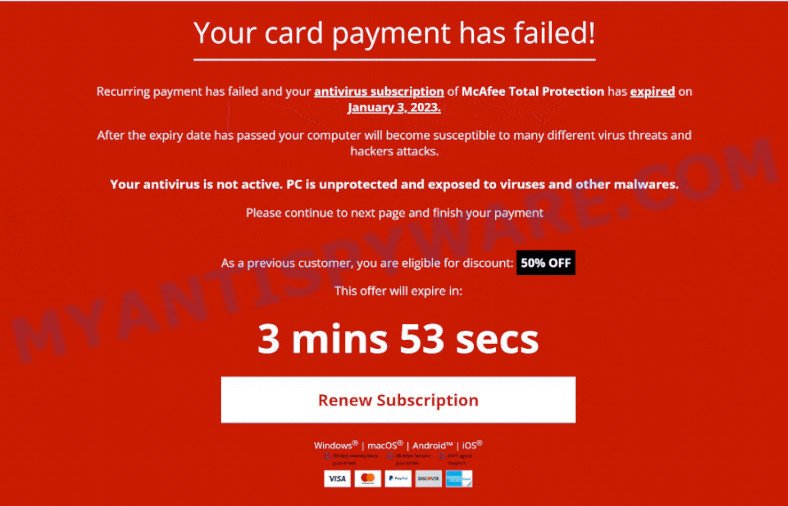
Your Card Payment Has Failed – Renew Subscription Scam
This scam targets users with a false notification that their credit card payment for a subscription service (like antivirus or streaming) has failed. The message prompts immediate action, urging the user to click on a link to ‘renew’ or ‘update’ their payment information. Once clicked, it leads to a fake website where personal and financial details are requested, putting the user at risk of identity theft and financial fraud.
All these scams share a common strategy: they create a sense of urgency and fear to compel the user to take immediate action, which often leads to compromising personal security or financial loss. It’s vital to approach such alerts with skepticism and verify their authenticity before taking any action.
Where did Apple ID Used At Apple Store scam pop-ups come from?
The Apple ID Used At Apple Store pop-ups are caused by malicious advertisements on websites you visit, spam push notifications or Adware. Browser (push) notifications are originally developed to alert the user of recently published news. Scammers use push notifications to bypass pop up blockers and display lots of unwanted ads.
Adware is a form of malicious software that displays unwanted advertisements on a personal computer, redirects search queries to scam pages, and collects sensitive information for marketing purposes. Adware may display banner ads, full-screen ads, pop-ups, videos, or other forms of online advertising. You may think that ads or pop-ups are just a small problem. But these intrusive advertisements consume system resources and slow down your PC.
Typically, adware ends up on personal computers bundled with freeware, malicious downloads, fake updates, shared files, and other unsafe software downloaded by users from the Internet. To avoid installing any adware: choose only the option of manual, custom or advanced installation and disable any third-party applications that you are not sure about.
How to Identify Scams That Imitate Security Alerts
As scams continue to evolve and become more sophisticated, it is becoming increasingly difficult to distinguish between genuine antivirus notifications and fake ones. Cybercriminals often use the names and logos of legitimate antivirus software to trick users into installing malware or purchasing fake security software. Therefore, it is important to be able to identify the signs of a fake antivirus notification and take the necessary steps to protect your computer from these types of scams.

In this section, we will discuss how to identify scams that imitate the Norton antivirus. Norton is a well-known and reputable antivirus software that has been targeted by scammers for years. These scams usually involve pop-ups or notifications that claim to have found a virus on your computer and urge you to download or purchase a security solution to fix the problem. By knowing what to look out for, you can avoid falling victim to these types of scams and keep your computer safe and secure.
- Check the URL. Scammers often use URLs that look similar to the real Norton website, but with slight variations. Always check the URL carefully to make sure it is the genuine Norton website.
- Look out for urgent warnings. Scammers often use urgent messages, such as “Your computer is infected with a virus!”, to scare people into taking immediate action. Be wary of urgent messages that require you to download software or take other actions to fix the problem.
- Verify the source. If you receive an email or message claiming to be from McAfee, verify the source before taking any action. Contact McAfee customer support directly to confirm the legitimacy of the message.
- Be wary of unsolicited pop-ups. If you see a pop-up window that appears out of nowhere claiming that your computer is infected, it is likely a scam. Legitimate antivirus software doesn’t use unsolicited pop-ups to promote their products.
- Avoid clicking on suspicious links. If you receive an email or message with a link to download software or update your antivirus, be cautious. Always hover over the link to verify the URL and avoid clicking on suspicious links.
By being aware of these warning signs, you can protect yourself from scams that imitate Norton antivirus and stay safe online.
How to remove Apple ID Used At Apple Store pop-ups
If you have encountered Apple ID Used At Apple Store pop-ups, you should not trust the message and refrain from clicking any buttons or links that appear on the page. Instead, follow the steps below to remove the pop-up and any potential malware from your computer:
To remove Apple ID Used At Apple Store pop ups, complete the steps below:
- Close the pop-up
- Clear your browsing history
- Disable push notifications
- Scan your computer for malware
- Reset your browser settings
Close the pop-up
Closing the pop-up is the first step you should take when dealing with the Apple ID Used At Apple Store scam. Although it may seem like a simple task, some users may find it challenging, especially if the pop-up is designed to be persistent and difficult to close. This step is crucial because it prevents the user from falling into the trap set by the scammers and clicking on any of the buttons or links that can lead to further harm. In this section, we will provide a detailed guide on how to close the Apple ID Used At Apple Store pop-up safely and effectively.
- Don’t click on anything within the pop-up as it could lead to further harm.
- Look for a small “X” or “Close” button within the pop-up window. Click on it to close the window.
- If there is no “X” or “Close” button, try pressing the “Esc” key on your keyboard to close the pop-up.
- If the pop-up still won’t close, try opening your computer’s Task Manager by pressing “Ctrl + Shift + Esc” on your keyboard (or “Ctrl + Alt + Delete” and then select “Task Manager”). Find the browser window that the pop-up is in, right-click on it, and select “End Task” to force close the window.
Clear your browsing history
Clearing your browsing history is an important step in removing Apple ID Used At Apple Store pop-ups. These pop-ups often come from malicious websites that can be stored in your browsing history.
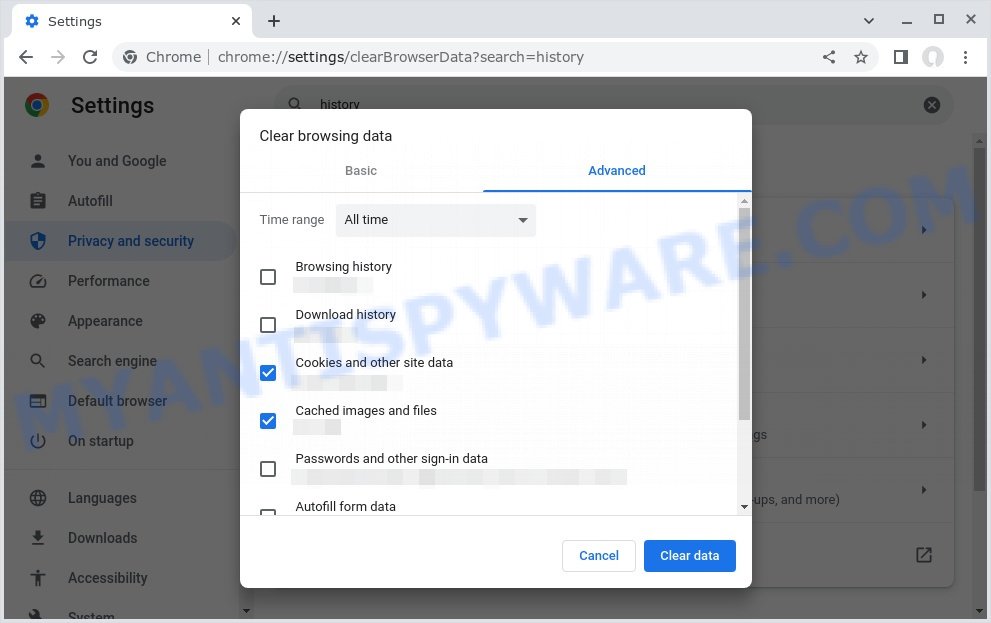
By clearing your browsing history, you can get rid of any traces of these websites and prevent the pop-ups from reappearing. In this step, we will walk you through how to clear your browsing history on different browsers.
- Open your browser’s settings or options menu. This can usually be accessed by clicking on the three dots or lines in the top right or left corner of the browser window.
- Scroll down to the “Privacy & Security” or “History” section of the settings menu.
- Click on “Clear Browsing Data” or “Clear History” (the wording may vary depending on the browser you are using).
- In the pop-up window that appears, choose the time range for which you want to clear your browsing history (e.g. “Last hour,” “Last 24 hours,” “All time,” etc.).
- Make sure that “Browsing history” or “History” is selected as one of the types of data to be cleared.
- Click on the “Clear Data” or “Clear History” button (the wording may vary depending on the browser you are using).
- Wait for the browser to finish clearing your browsing history. This may take a few moments, especially if you have a lot of browsing data stored on your computer.
- Close and restart your browser to ensure that the changes take effect.
Disable push notifications
If you’re experiencing persistent push notifications from websites that are showing Apple ID Used At Apple Store scams, the best course of action is to disable push notifications altogether. Disabling push notifications prevents malicious websites from showing you unwanted pop-ups and alerts, which can help protect your computer from further harm. In this step, we’ll walk you through the process of disabling push notifications in your web browser.
Google Chrome:
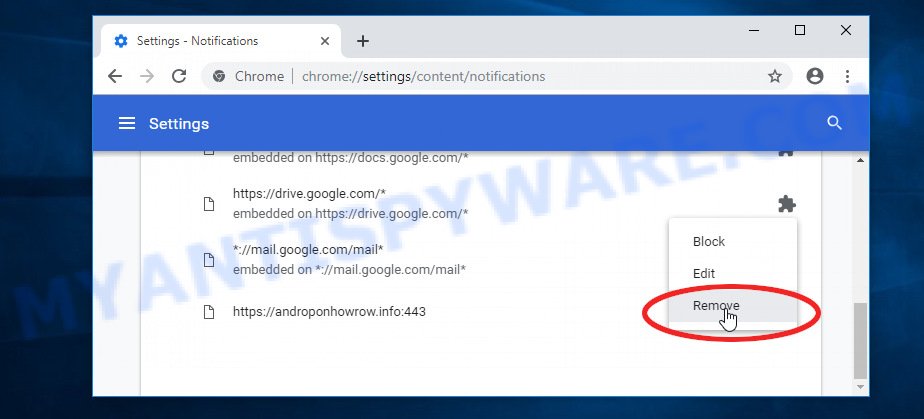
- Click on ‘three dots menu’ button at the top-right corner of the Google Chrome window.
- Select ‘Settings’, scroll down to the bottom and click ‘Advanced’.
- At the ‘Privacy and Security’ section click ‘Site settings’.
- Click on ‘Notifications’.
- Locate the Apple ID Used At Apple Store website and click the three vertical dots button next to it, then click on ‘Remove’.
Android:
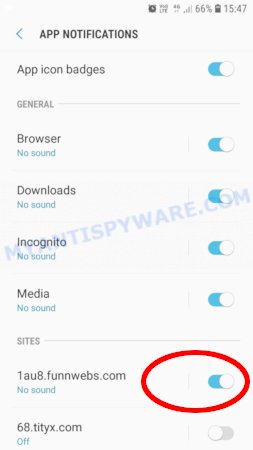
- Open Chrome.
- Tap on the Menu button (three dots) on the top right corner of the screen.
- In the menu tap ‘Settings’, scroll down to ‘Advanced’.
- In the ‘Site Settings’, tap on ‘Notifications’, locate the Apple ID Used At Apple Store URL and tap on it.
- Tap the ‘Clean & Reset’ button and confirm.
Mozilla Firefox:
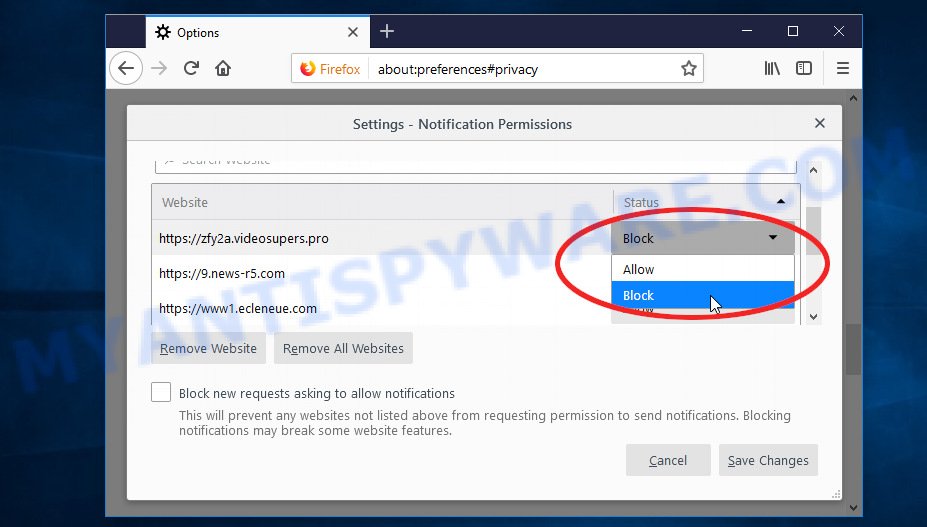
- In the top right corner, click the Firefox menu (three bars).
- In the drop-down menu select ‘Options’. In the left side select ‘Privacy & Security’.
- Scroll down to ‘Permissions’ section and click ‘Settings…’ button next to ‘Notifications’.
- Find the Apple ID Used At Apple Store website address, other suspicious URLs, click the drop-down menu and select ‘Block’.
- Click ‘Save Changes’ button.
Edge:
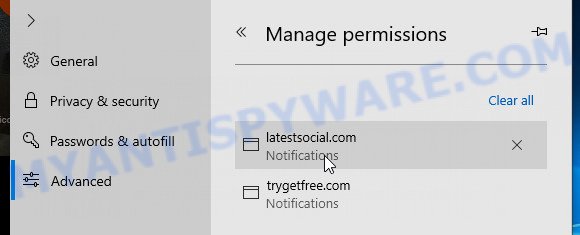
- Click the More button (three dots) in the top-right corner of the window.
- Scroll down, locate and click ‘Settings’. In the left side select ‘Advanced’.
- In the ‘Website permissions’ section click ‘Manage permissions’.
- Disable the on switch for the Apple ID Used At Apple Store domain.
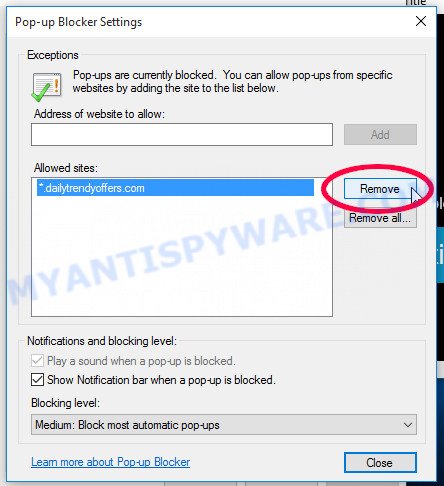
Internet Explorer:
- Click the Gear button on the top-right corner of the browser.
- Select ‘Internet options’.
- Click on the ‘Privacy’ tab and select ‘Settings’ in the pop-up blockers section.
- Locate the Apple ID Used At Apple Store website and click the ‘Remove’ button to delete the site.
Safari:
- Go to ‘Preferences’ in the Safari menu.
- Select the ‘Websites’ tab and then select ‘Notifications’ section on the left panel.
- Find the Apple ID Used At Apple Store site and select it, click the ‘Deny’ button.
Scan computer for malware
If you have encountered the Apple ID Used At Apple Store pop-up scam, it is possible that your computer has been infected with malware. In order to ensure that your system is completely clean, it is important to perform a thorough scan for malware. This will help to identify any malicious files or programs that may be hiding on your computer and remove them to prevent further damage. In this step, we will guide you through the process of scanning your computer for malware using trusted antivirus software.
Malwarebytes is a reputable anti-malware program that can effectively detect and remove adware, potentially unwanted programs and malware. It has a user-friendly interface and offers both free and paid versions, with the paid version offering real-time protection and other advanced features. To use Malwarebytes to remove malicious software, you can download and install the program, perform a scan of your system, and follow the prompts to remove any detected threats.
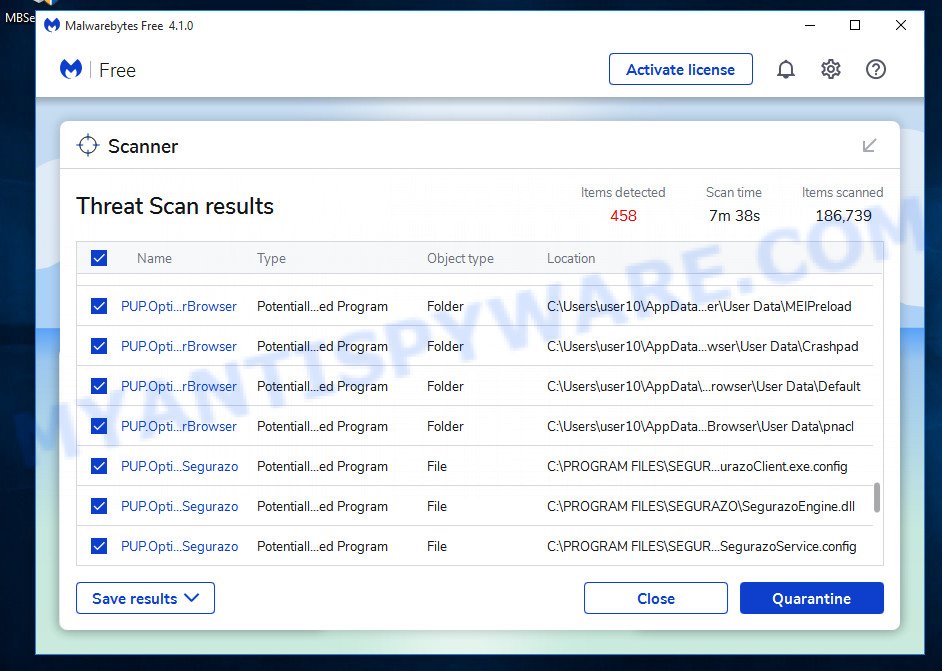
Visit the following link and download the latest version of Malwarebytes. Once the download is complete, run the installer and follow the instructions to install the program on your computer.
328345 downloads
Author: Malwarebytes
Category: Security tools
Update: April 15, 2020
Open Malwarebytes and click on the “Scan” button. The program will start scanning your computer for any malware or potentially unwanted programs. Depending on the size of your hard drive, this may take a few minutes to complete.
Once the scan is complete, Malwarebytes will display a list of any threats it has found. Review the list carefully and make sure that all the items are checked for removal. Then, click on the “Quarantine” button to remove the threats from your computer. After the removal process is complete, you may be prompted to restart your computer to complete the process.
Please follow this step-by-step video tutorial to learn how to use Malwarebytes to scan and remove any potential threats from your computer. The video will guide you through the entire process, from downloading and installing Malwarebytes to running a scan and removing any identified threats.
Reset your browser settings
If the Apple ID Used At Apple Store pop-ups persist even after clearing your browsing history, disabling push notifications, and scanning your computer for malware, resetting your browser settings might be the next step to take. Resetting your browser settings can remove any unwanted extensions or changes made to your browser that may be causing the pop-ups to appear. In this step, we will guide you through the process of resetting your browser settings in different popular browsers.
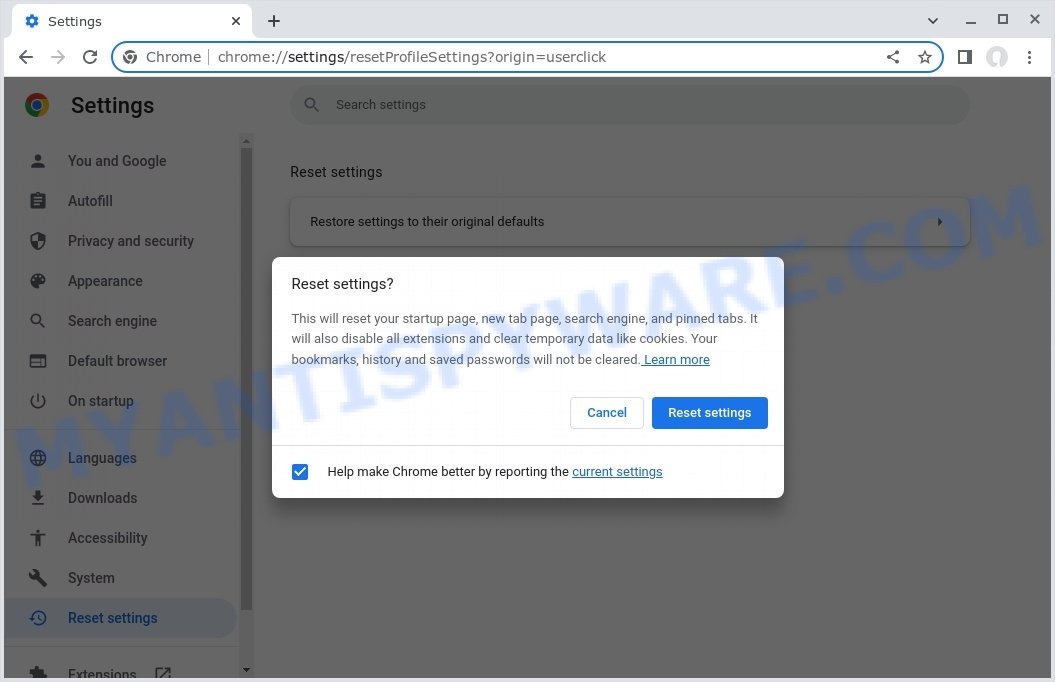
To reset your browser settings in Google Chrome:
- Open Chrome and click on the three-dot icon in the top-right corner.
- Select “Settings” from the drop-down menu.
- Scroll down to the bottom of the page and click on “Advanced.”
- Scroll down to the “Reset and cleanup” section and click on “Restore settings to their original defaults.”
- Click “Reset settings” to confirm.
To reset your browser settings in Mozilla Firefox:
- Open Firefox and click on the three-line icon in the top-right corner.
- Select “Help” from the drop-down menu and then click on “Troubleshooting Information.”
- Click on the “Refresh Firefox” button in the top-right corner.
- Click “Refresh Firefox” again to confirm.
To reset your browser settings in Microsoft Edge:
- Open Edge and click on the three-dot icon in the top-right corner.
- Select “Settings” from the drop-down menu.
- Scroll down and click on “Reset settings.”
- Click “Restore settings to their default values.”
- Click “Reset” to confirm.
After resetting your browser settings, be sure to check for any remaining suspicious extensions and remove them if necessary.
Protecting Yourself from the Apple ID Used At Apple Store Scam
Now that you know how the Apple ID Used At Apple Store scam works, how to identify similar scams, and how to remove the pop-ups, it’s important to take steps to protect yourself from falling victim to this or similar scams in the future.
Here are some additional steps you can take to protect yourself:
- Install reputable antivirus software. By installing antivirus software, you can help prevent these types of scams from infecting your computer in the first place. Make sure to keep your antivirus software up to date and run regular scans to ensure your computer remains protected.
- Be wary of emails or links that claim to be from legitimate companies, such as Norton, especially if you didn’t request any information. Don’t click on links in emails from unknown sources or download attachments from them.
- Keeping your software up to date is one of the easiest and most effective ways to prevent security breaches. Software updates often contain security patches that fix vulnerabilities, so make sure to install them as soon as they become available.
- Educate yourself on common scams. Knowledge is power, and being aware of common scams and tactics used by cybercriminals can help you recognize and avoid them. Stay informed by reading up on the latest scams and how to protect yourself against them.
By taking these steps, you can help protect yourself from falling victim to the Apple ID Used At Apple Store scam or similar scams in the future. Remember, being cautious and aware is key to staying safe online.
Conclusion
The “Apple ID Used At Apple Store” popup is a deceptive phishing attempt that preys on users’ fears by claiming unauthorized Apple Pay transactions. This scam uses urgent, alarming messages and fake contact numbers to coerce victims into calling fraudulent support lines, risking personal data theft and financial loss.
Key red flags include suspicious domain names unrelated to Apple (such as “bitrefill.sbs”), unprofessional grammar, unofficial popup design, absence of authentic Apple branding, and phone numbers that are not part of Apple’s official support channels. The use of urgent language and pressure tactics aims to prevent you from verifying genuine Apple communications.
Bottom Line: Do not call any phone number provided via suspicious popups or unsolicited messages. Always verify alerts through official Apple channels like apple.com or the official Apple Support app. Stay vigilant and skeptical of any urgent claims demanding immediate action, especially when accompanied by poorly written content and unverified website domains. If something seems off, it probably is—a hallmark of phishing scams. Protect your personal information by ignoring and reporting such fraudulent alerts.





Where are the directions for how to get this malware off of an iPhone Ios device?