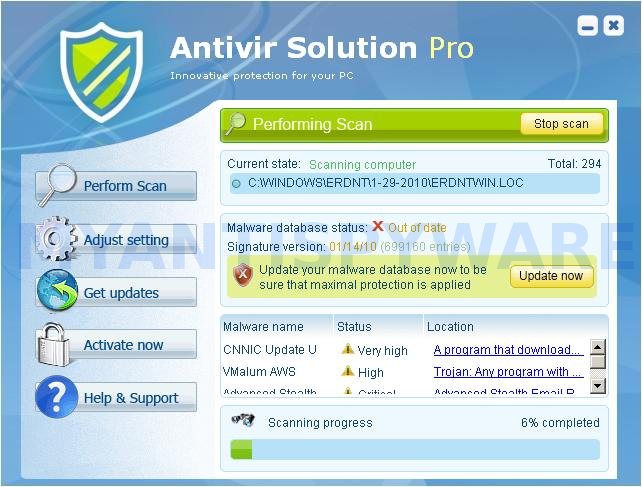
 Antivir Solution Pro is a new fake security tool from the same family of rogue antispyware programs as AV Antivirus Suite, AV Security Suite, Antispyware Soft, Antivirus Suite, etc. Like other rogues, the program is promoted and distributed with the help of trojans. When the trojan is activated, it will install this malware onto your computer and configure it to run automatically when Windows starts.
Once Antivir Solution Pro started, the rogue will perform a system scan and “detect” a lot of infected files, trojans, worms, and so on, that will not be fixed unless you first purchase the full version of the program. Of course this is not necessary. The scan results, as well as the “system scan”, is nothing but a scam. In reality Antivir Solution Pro cannot detect and remove any infections, as well as not be able to protect you from possible infections in the future. Thus, you can safely ignore all that the rogue antispyware will show you.
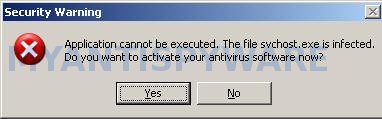
While Antivir Solution Pro is running, it will block the ability to run any programs as a method to scare you into thinking that your computer is infected with malware. The following warning will be shown when you try to run a program:
Application cannot be executed. The file {program} is infected.
Do you want to activate your antivirus software now.
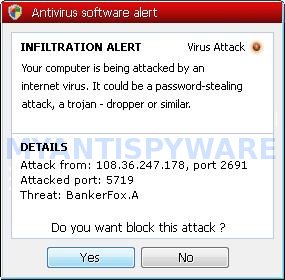
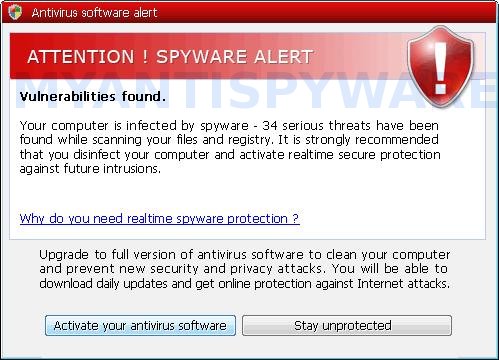
What is more, this malicious program will display a wide variety of alerts, reminders, security messages from Windows task bar that stats:
Antivirus software alert
INFILTRATION ALERT
Your computer is being attacked by an
internet virus. It could be a password-stealing
attack, a trojan-dropper or similar.
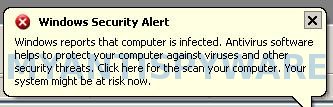
Windows Security alert
Windows reports that computer is infected. Antivirus software
helps to protect your computer against viruses and other
security threats. Click here for the scan your computer. Your
system might be at risk now.
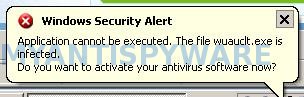
Windows Security alert
Application cannot be executed. The file {filename} is
infected.
Do you want to activate your antvirus software now?
In addition to the above-described, Antivir Solution Pro will hijack your Internet Browser by configuring it to use a malicious proxy server so, it will randomly show a warning page that stats “Internet Explorer Warning – visiting this web site may harm your computer!”. Do not trust the warnings, like false scan results, the malicious program uses them to scare you into thinking that your computer is infected with viruses and malware.
As you can see Antivir Solution Pro is a fraudulent program that you should to try to remove immediately after the discovery on the your computer. Do not be fooled into buying the program! Instead of doing so, follow the removal guidelines below in order to remove Antivir Solution Pro and any associated malware from your computer for free.
More screen shoots of Antivir Solution Pro
Symptoms in a HijackThis Log
R1 – HKCU\Software\Microsoft\Windows\CurrentVersion\Internet Settings,ProxyServer = http=127.0.0.1
O4 – HKLM\..\Run: [{RANDOM}] %UserProfile%\Local Settings\Application Data\{RANDOM}\{RANDOM}.exe
O4 – HKCU\..\Run: [{RANDOM}] %UserProfile%\Local Settings\Application Data\{RANDOM}\{RANDOM}.exe
O4 – HKLM\..\Run: [{RANDOM}] %UserProfile%\Local Settings\Application Data\{RANDOM}\{RANDOM}tssd.exe
O4 – HKCU\..\Run: [{RANDOM}] %UserProfile%\Local Settings\Application Data\{RANDOM}\{RANDOM}tssd.exe
Removal instructions for Antivir Solution Pro
Step 1.
Run Internet Explorer, Click Tools -> Internet Options as as shown in the screen below.
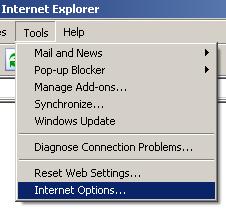
Internet Explorer – Tools menu
You will see window similar to the one below.
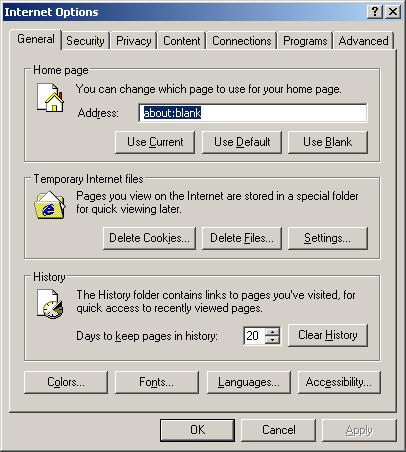
Internet Explorer – Internet options
Select Connections Tab and click to Lan Settings button. You will see an image similar as shown below.

Internet Explorer – Lan settings
Click Advanced button to open Proxy settings. Copy and paste the following text into “Do not use proxy server for addresses beginning with:”
www.myantispyware.com;myantispyware.com;www.malwarebytes.org;go.trendmicro.com;
When you finished, you will see a screen similar below:
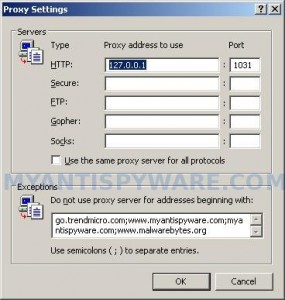
Internet Explorer – Proxy settings
Click OK to save Proxy settings, then Click OK to close Lan Settings and Click OK to close Internet Explorer settings.
Step 2.
Download HijackThis from here. Once Save dialog opens, you need first to rename hijackthis.exe to iexplore.exe. Further click Save button to save it to desktop. If you are using the Firefox, then you need right click to the above link to open a Save dialog. If you still can not download the program, the repeat first step above.
Doubleclick on the iexplore.exe on your desktop for run HijackThis. HijackThis main menu opens.
Click “Do a system scan only” button. Place a checkmark against each of lines that looks like:
R1 – HKCU\Software\Microsoft\Windows\CurrentVersion\Internet Settings,ProxyServer = http=127.0.0.1
O4 – HKLM\..\Run: [abgsckfg] c:\documents and settings\user\local settings\application data\cupilnt\drciln.exe
O4 – HKCU\..\Run: [abgsckfg] c:\documents and settings\user\local settings\application data\cupilnt\drciln.exe
Once finished you will see a screen similar to the one below.
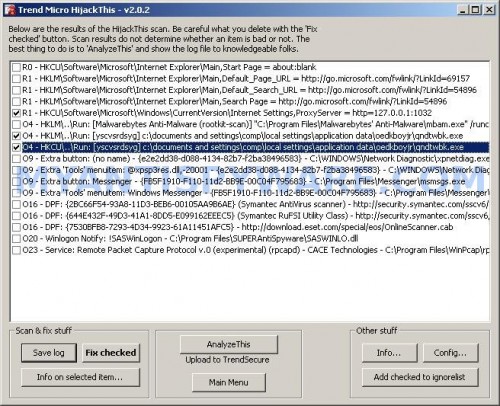
HijackThis
Note: list of infected items may be different. Template of the malicious entry:
Variant 1: [{random string 1}] C:\Documents and Settings\user\Local Settings\Application Data\{random string 2}\{random string 3}.exe;
Variant 2: [{random string 1}] C:\Documents and Settings\user\Local Settings\Application Data\{random string 2}\{random string 3}tssd.exe
Look for examples above. If you unsure, check them in Google.
Please be very careful, do NOT check any other boxes!. Once you have selected all entries, close all running programs then click once on the “Fix checked” button. Close HijackThis.
Run Internet Explorer, Click Tools -> Internet Options. Select Connections Tab and click to Lan Settings button. Uncheck “Use a proxy server” box. Click OK. Click OK.
Step 3.
Download MalwareBytes Anti-malware (MBAM). Close all programs and Windows on your computer.
Double Click mbam-setup.exe to install the application. When the installation begins, keep following the prompts in order to continue with the installation process. Do not make any changes to default settings and when the program has finished installing, make sure a checkmark is placed next to Update Malwarebytes’ Anti-Malware and Launch Malwarebytes’ Anti-Malware, then click Finish.
If an update is found, it will download and install the latest version.
Once the program has loaded you will see window similar to the one below.
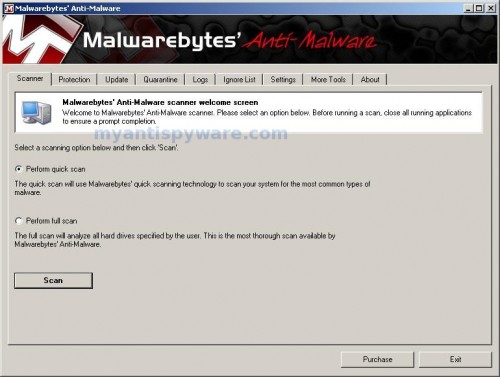
Malwarebytes Anti-Malware Window
Select Perform Quick Scan, then click Scan, it will start scanning your computer. This procedure can take some time, so please be patient.
When the scan is complete, click OK, then Show Results to view the results. You will see a list of infected items similar as shown below. Note: list of infected items may be different than what is shown in the image below.
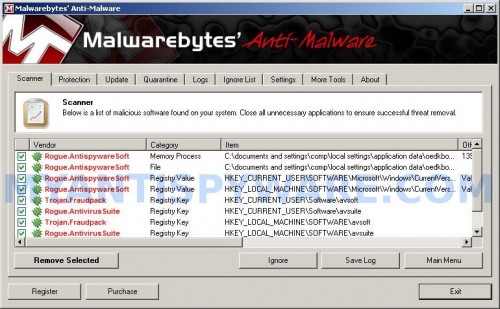
Malwarebytes Anti-malware, list of infected items
Make sure all entries have a checkmark at their far left and click “Remove Selected” button to remove Antivir Solution Pro. MalwareBytes Anti-malware will now remove all of associated files and registry keys and add them to the programs’ quarantine. When MalwareBytes Anti-malware has finished removing the infection, a log will open in Notepad and you may be prompted to Restart.
Note 1: if you can not download, install, run or update Malwarebytes Anti-malware, then follow the steps: Malwarebytes won`t install, run or update – How to fix it.
Note 2: if you need help with the instructions, then post your questions in our Spyware Removal forum.
Note 3: your current antispyware and antivirus software let the infection through ? Then you may want to consider purchasing the FULL version of MalwareBytes Anti-malware to protect your computer in the future.
Antivir Solution Pro creates the following files and folders
%UserProfile%\Local Settings\Application Data\{RANDOM}
%UserProfile%\Local Settings\Application Data\{RANDOM}\{RANDOM}.exe
Antivir Solution Pro creates the following registry keys and values
HKEY_CURRENT_USER\Software\avsoft
HKEY_CURRENT_USER\Software\avsuite
HKEY_LOCAL_MACHINE\SOFTWARE\avsoft
HKEY_LOCAL_MACHINE\SOFTWARE\avsuite
HKEY_CURRENT_USER\Software\Microsoft\Windows\CurrentVersion\Run\{RANDOM}
HKEY_LOCAL_MACHINE\SOFTWARE\Microsoft\Windows\CurrentVersion\Run\{RANDOM}
HKEY_CURRENT_USER\Software\Microsoft\Windows\CurrentVersion\Internet Settings | ProxyEnable=”1″





Thank you so much. I followed the instructions and that bloddy program was removed. I just hope someone can identify the bastards responsible for this virus.
Fred, in Firefox settings you need to select “No proxy” option.
I ran HiJackthis and malwarebytes and everything went perfectly. I restarted and it turns out my startup files got corrupted somewhere along the process and now I can’t get into windows, not even safe mode. Is this something that has ever happened?
Kyle, try select “Last good configuration” in Windows Advanced options menu.
What if you cant get in to internet options…my browser has no tools area…I can get in to controll panel but i cant reach the tab it pops up but goes away and im warned again
Thanks Patrik, I have tried that a few times but it does the same thing. Do you have any ideas of what may have went wrong? I’m running XP home edition and I’m almost certain I selected the correct files when I ran HiJackthis so I’m pretty stumped.
Wendy, follow the steps below.
1. reboot your computer in Safe mode with networking.
2. run Internet Explorer, Click Tools -> Internet Options. Select Connections Tab and click to Lan Settings button. Uncheck “Use a proxy server” box. Click OK. Click OK.
3. go to step 3 above.
Kyle, try the step from my previous comment (to Wendy). If it does not help, then start a new topic in our Spyware removal forum. I will help you to remove this malware.
Thanks so much! Worked like a charm.
Thank you patrik for this – the fix worked on my netbook and saved me from having to buy another one. may you enjoy a peaceful life. Stevie
Thanks. This helped me so much.
thank you guys so much this saved my computer and from me losing all my data and applications. I had this virus before but this is first time I was able to fix without reformatting. Thanks again!!!
I am unable to open Internet Explorer, I am certain I have the Antivirin Solution Pro spyware on my computer, all your instructions assume you can open IE, what can I do to fix my computer?
John, you can download the suggested tools above to another PC, them move them to an infected computer using a flash or cd disk.