Free Sophos Anti-Rootkit, finds and removes any rootkit that is hidden on your computer. Removing rootkits without compromising system integrity is particularly challenging and needs to be done with care.
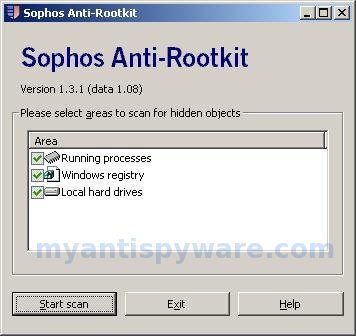
Sophos Anti-Rootkit Features
- Using Sophos Anti-Rootkit is straightforward.
- Simple graphical user interface.
- Command line support.
- Light speed quick scanning.
- Reliably detecting and removing any rootkit that might already have secreted itself onto your system.
- Can be installed to an infected machine.
- Freeware.
How to use Sophos Anti-Rootkit
Installation
Download Sophos Anti-Rootkit from here and save it to your Desktop. When file has finished downloading you will now see an icon on your desktop similar to the one below.
Sophos Anti-Rootkit Setup Icon
Double-click on the setup icon found on your desktop. You may see a Security Warning screen similar to the one below.
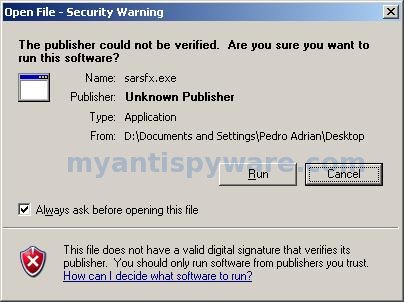
Windows is issuing “Security Warning” prompt, this is normal and safe. Cick on the Run button to continue. If you are using Windows Vista, and receive UAC prompt asking if you would like to continue running the program, you should press the Continue button.
You will now see the Sophos Anti-Rootkit End-User License Agreement as shown below.
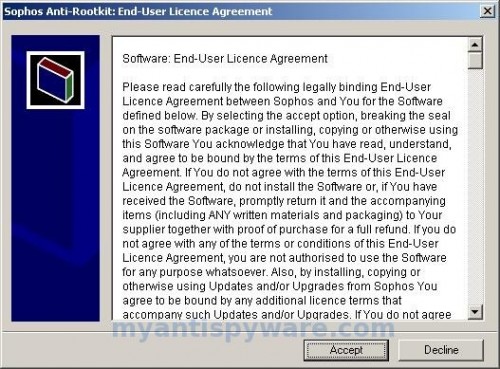
Click Accept and you will now see a screen similar to the one below.
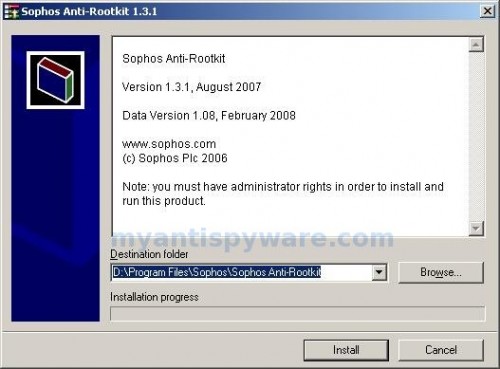
Do not make any changes to default settings. Click Install. When the program has finished installing, click Yes to start Sophos Anti-Rootkit now. You will see the antirootkit window shown below.
Detect and remove a rootkit (hidden applications and processes)
Click Scan button. Sophos Anti-Rootkit will now start scanning your computer. This procedure can take some time, so please be patient.
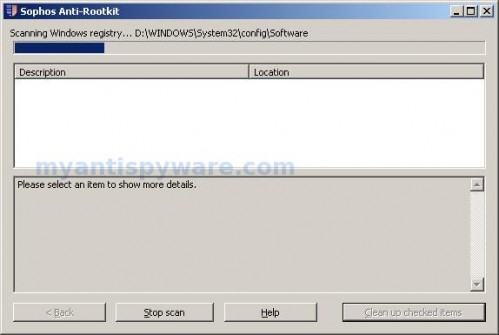
When Anti-Rootkit has finished scanning, you will see a small window with count of hidden items.
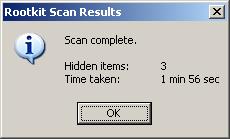
Click OK and you will see a list of hidden items similar as shown below.
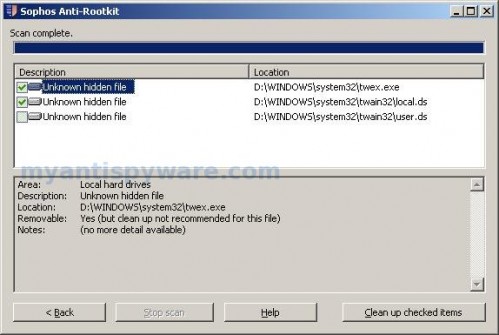
You can click on the name of a suspicious file to display more information about it in the lower panel. The information displayed includes whether the item is recommended for removal. All checked items are recommended for removal.
Click Clean up checked items to remove all the selected items. A popup screen appears informing you the system will need to be restarted to complete the removal procedure. Click Restart.





