Ad Block Wonder markets itself as a handy browser extension designed to block pop-ups and ads on your favorite sites. Sounds great, right? But a closer look reveals a different story — it actually behaves like adware. Instead of clearing your screen, it floods your browser with pesky, unwanted ads, undermining the very purpose it claims to serve.
Here’s the catch: once installed, Ad Block Wonder gains permission to read and modify data across all websites you visit. That means it can inject its own ads, track your browsing habits, and even capture sensitive info like logins or payment details. It doesn’t just slow your browser down; it exposes you to sketchy sites that might try to scam you or steal your data.
In short, Ad Block Wonder isn’t a tool that protects your browsing experience; it’s one that profits off deception and data intrusion. If you find it in your browser, it’s best to remove it ASAP—manual removal can be tricky, but reliable tools like Combo Cleaner can help clean up the mess. Stay cautious and don’t fall for extensions that promise to block ads but end up being adware themselves.
QUICK LINKS
“Ad Block Wonder” extension in detail
“Ad Block Wonder” is available for Chrome, Edge, Opera and browsers compatible with those. Once installed, this extension takes complete control of the browser. It can change browser settings, display banner ads, full-screen advertisements, pop-ups, videos, or other varieties of online advertising. Maybe you approve the idea that the ads or pop-ups are just a small problem. But these unwanted advertisements eat computer resources and slow down your web-browser performance.
Is “Ad Block Wonder” extension Safe?
Once the extension is installed, a user consent dialog opens. The browser extension requires your permission to read and change data on all visited websites. This means that this browser extension can be used to track everything you do on the web and can even change the content of web pages displayed in your browser. The creators can even sell the collected information about your search history and online habits to third parties that use it to target you with advertisements.
Attackers often use adware to redirect users to various diet pills scams, fake dating websites, pornographic content, fake virus alerts that trick users to buy or install applications that are not needed, work-at-home schemes and other questionable content. Below are some examples of such sites:
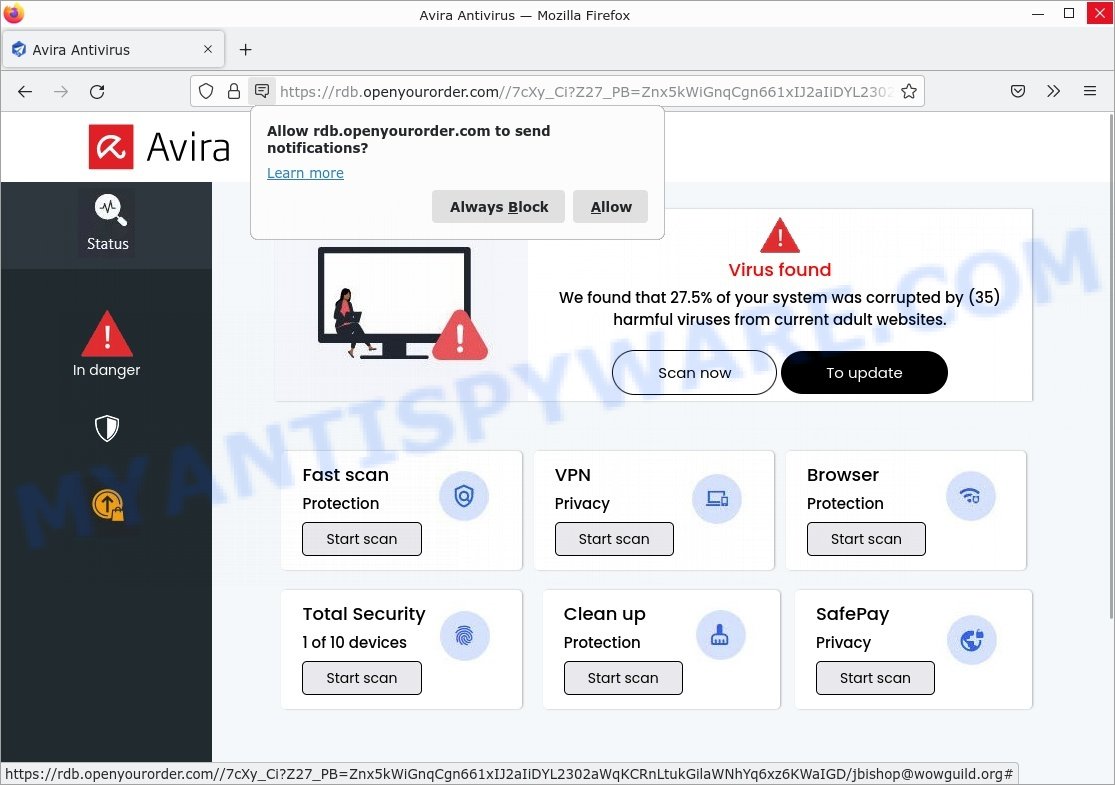
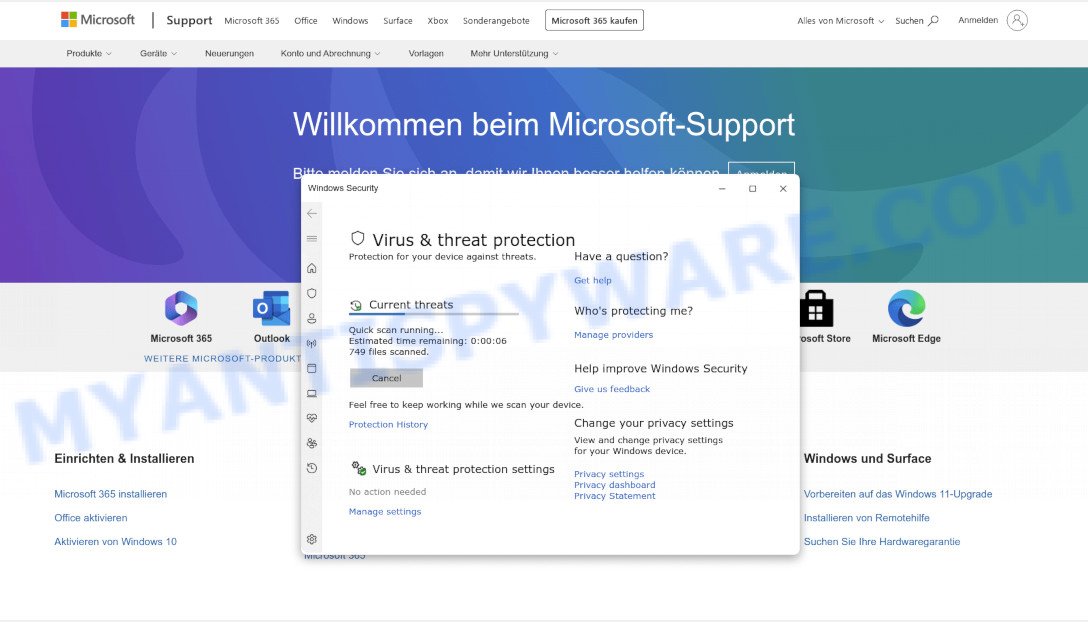
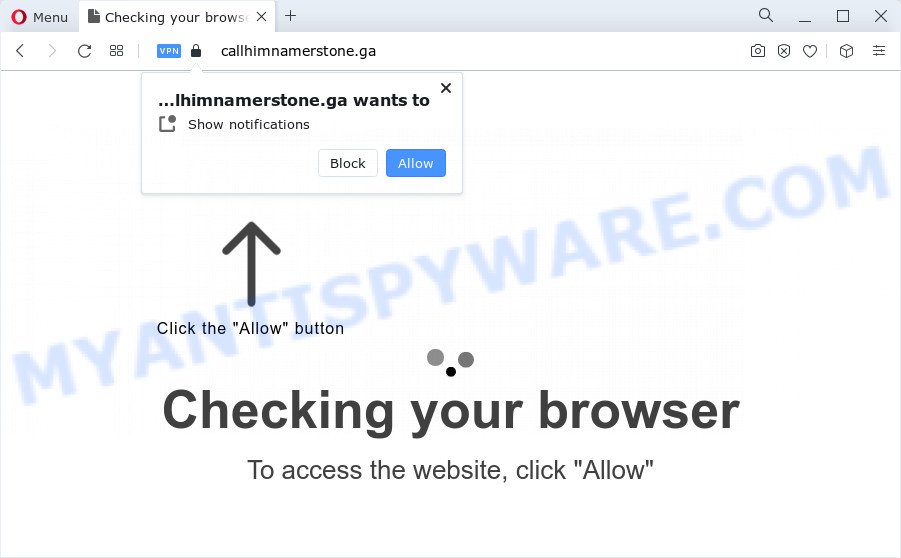

In summary, Ad Block Wonder extention can seriously affect your privacy, your computer’s performance and security.
Threat Summary
| Name | Ad Block Wonder, Chrome Extension “Ad Block Wonder” |
| Type | adware, PUP (potentially unwanted program), pop up virus, pop-ups, pop up ads |
| Distribution | phishing pages, malicious advertisements, torrent downloads and fake update tools |
| Symptoms | links redirect to a pages different from what you expected, you experience unwanted advertisements, new entries appear in your Programs folder, unwanted browser toolbars/extensions, your browser homepage has modified and you cannot change it back, low ping but slow Internet |
| Damage | malware infection, loss of personal data, disclosure of confidential information, financial losses |
| Removal | Ad Block Wonder removal guide |
How does Adware get on your computer
Most commonly, adware gets onto computers by being attached to setup files from file sharing and torrents sites. So, install software from such sources is a a good chance that you will find a bundled adware. If you don’t know how to avoid it, then use a simple trick. During the setup, choose the Custom or Advanced setup mode. Next, click ‘Decline’ button and clear all checkboxes on offers that ask you to install third-party applications. Moreover, please carefully read Term of use and User agreement before installing any new software.
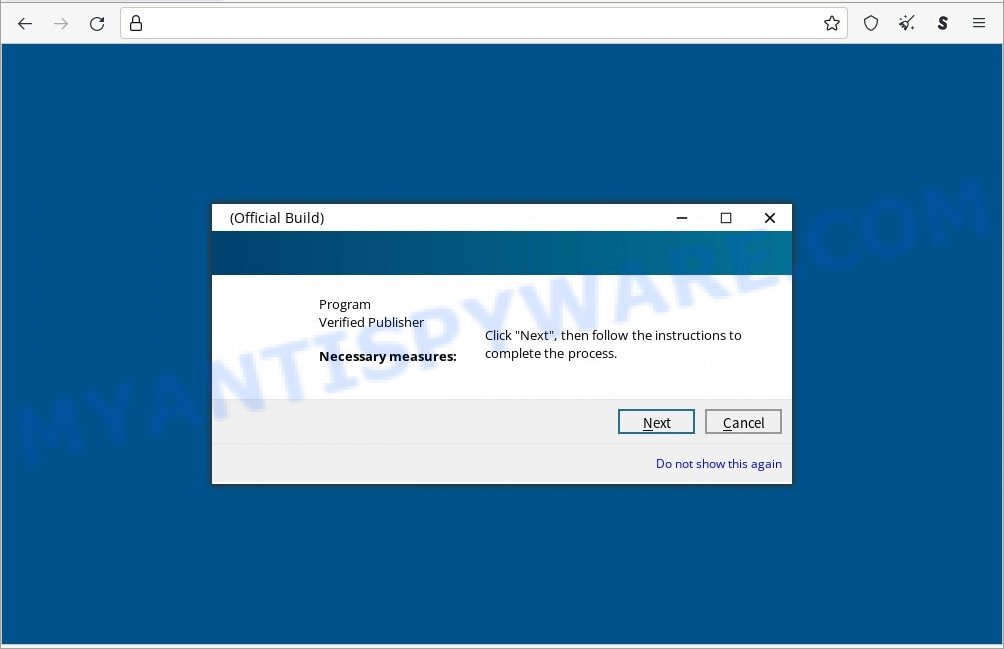
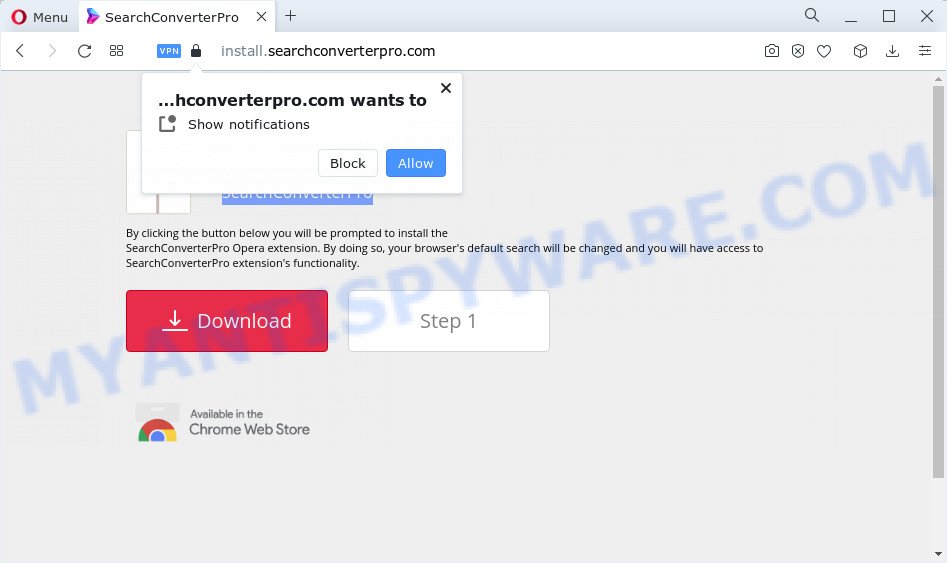
Examples of scam pages that are designed to trick users into installing adware and browser hijackers:
-
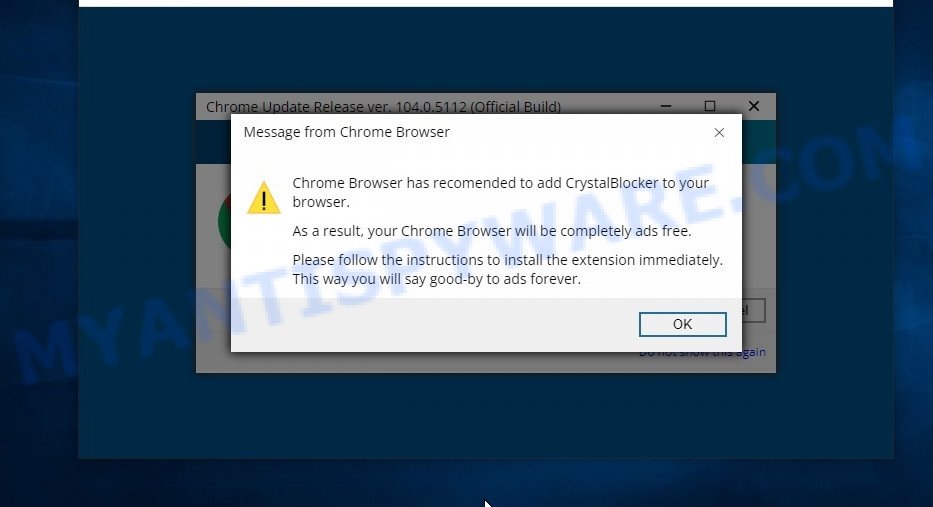
- A Scam that installs adware
-
- Scam that installs malware
-
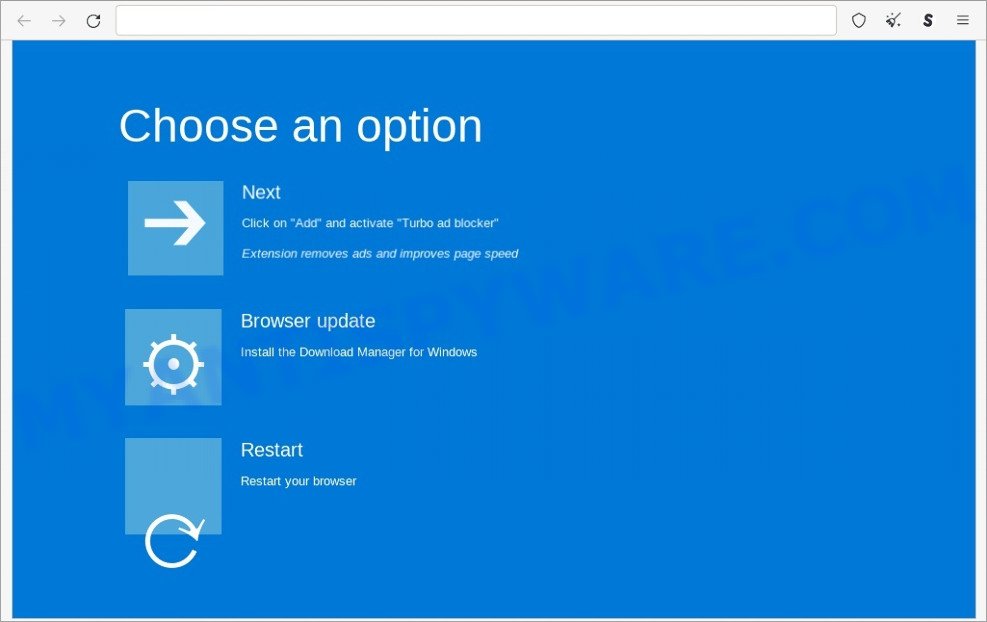
- A Scam that installs adware

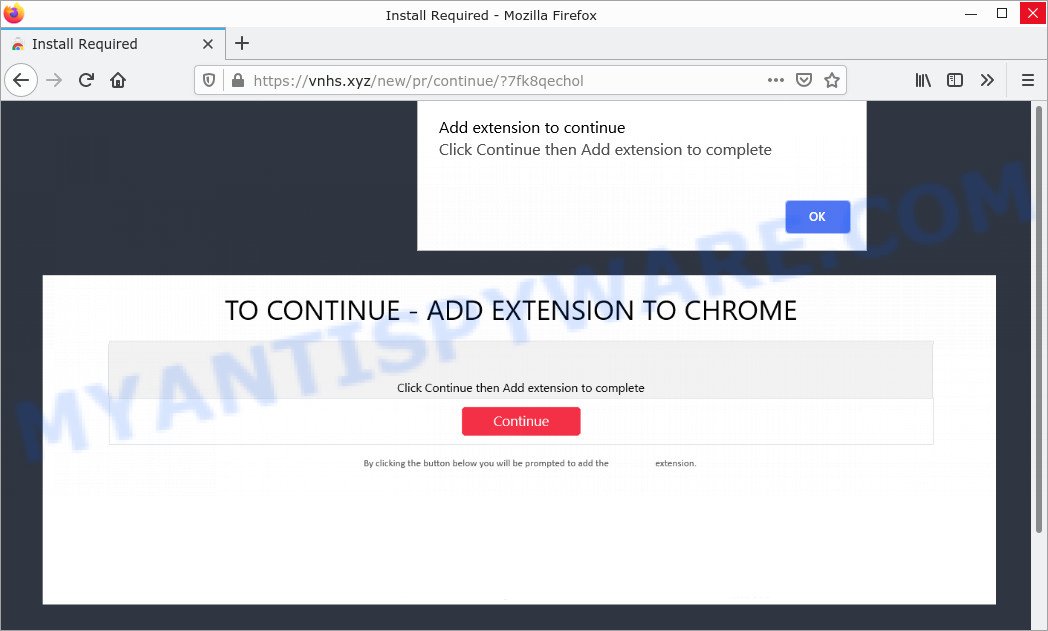
How can you protect against adware?
There are a number of methods that you can use to protect against malicious adware. It is better to use them together, this will provide stronger protection.
- Use a trusted ad blocker. Ad blockers allow you to browse sites without ads, thus eliminating the possibility of clicking on something malicious and preventing it from being downloaded to the machine.
- Pay for premium versions of popular services. The easiest way to avoid adware is to pay for the service you use. Many Internet services make it possible to use them without ads if you purchase a premium subscription. This helps ensure that malicious adware cannot reach you.
- Buy devices from trusted companies with built-in security. There have already been many cases where people who bought inexpensive Android devices found that adware was already installed on their devices. Cheap Android devices do not receive security updates and are therefore particularly susceptible to infection and should be avoided.
- Use an antivirus. Most antivirus programs can block malicious adware. Some malicious adware can block antiviruses, in which case a more aggressive method should be used, which is to use adware removal software. This software can detect and remove adware that has a negative impact on the device.
How to remove Ad Block Wonder extension (Adware removal guide)
When the Ad Block Wonder browser extension gets onto your Windows computer, it’s important to act quickly. This isn’t just about annoying changes to your web browsing; it’s a real risk to your online security. In the following steps, we’ll show you a straightforward way to get rid of Ad Block Wonder from your Windows system. Let’s get started and get your computer back to normal.
To remove Ad Block Wonder, follow the steps below:
- Check the list of installed software
- Remove Ad Block Wonder extension from Google Chrome
- Remove Ad Block Wonder from Mozilla Firefox
- Scan your computer for adware
The step by step guide developed by our team will allow you to manually remove Ad Block Wonder from your internet browser. If you are not good with computers, we recommend using the free utilities listed below.
Check the list of installed software
Take a look at the list of installed software on your computer and see if there are any suspicious and unknown programs. If you see any, you need to delete them. Of course, before doing so, you can do an Internet search to find details on the program. If it is a potentially unwanted program, adware or malware, you will likely find information that says so.
 Windows 7 Windows 7 |
 Windows 8 Windows 8 |
|---|---|
|
|
 Windows 10 Windows 10 |
 Mac OS Mac OS |
|
|
Remove Ad Block Wonder extension from Google Chrome
To remove the “Ad Block Wonder” extension, start Google Chrome. Next, click the button in the form of three horizontal dots ( ).
).
It will display the Google Chrome menu. Choose More Tools, then press Extensions. You can also type chrome://extensions into Chrome’s address bar.
Examine your list of installed extensions and find “Ad Block Wonder”, any that you don’t recognize, you know are malicious or simply want to remove. Click the “Remove” button below the extensions you want to remove. In the pop-up that comes up, click “Remove” once again. The extension box and icon should disappear from the screen.
After you uninstall this extension, it is recommended to reset your browser settings. This will restore settings changed by adware. It will also clear cookies, content and site data, temporary and cached data. However, your saved passwords and bookmarks will not be changed, deleted or cleared.
Open the Google Chrome main menu again, click “Settings”. Click Reset settings and then “Restore settings to their original defaults”.
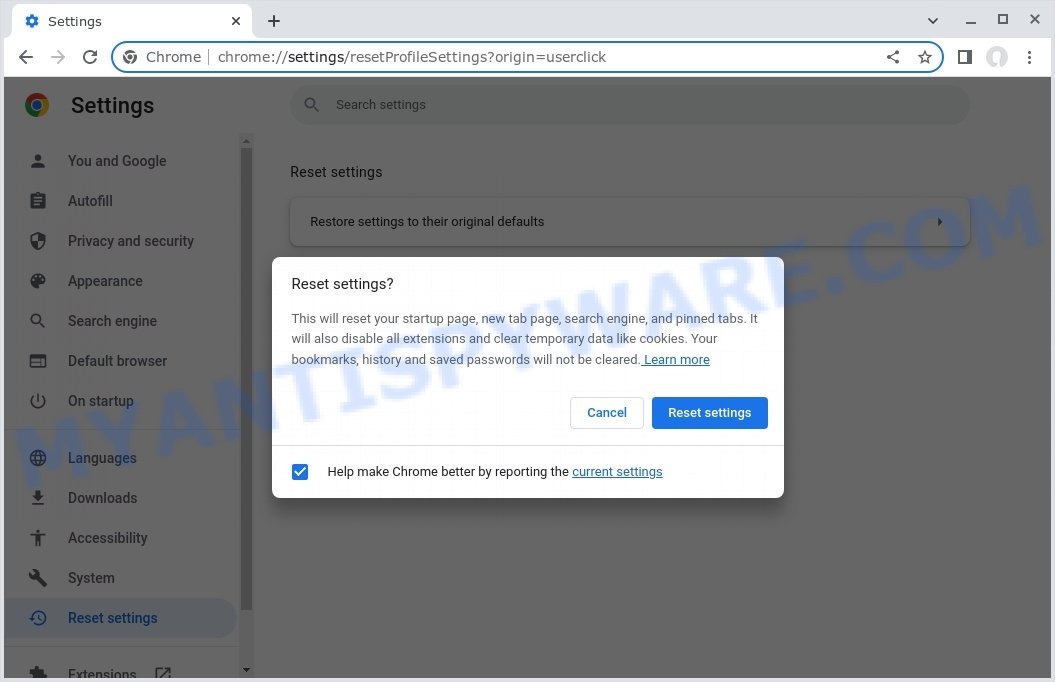
You need to confirm your action, press the “Reset” button. Chrome will start the process of cleaning. Once it is complete, the browser’s settings including default search engine, home page and new tab page back to the values which have been when the Google Chrome was first installed on your computer.
Remove Ad Block Wonder from Mozilla Firefox
This step will help you delete Ad Block Wonder and third-party toolbars, disable harmful addons and revert back your default homepage, new tab page and search engine settings.
First, launch the Mozilla Firefox. Next, press the button in the form of three horizontal stripes ( ). It will open the drop-down menu. Next, click the Help button (
 ).
).

In the Help menu press the “Troubleshooting Information”. In the upper-right corner of the “Troubleshooting Information” page click on “Refresh Firefox” button as on the image below.

Confirm your action, click the “Refresh Firefox”.
Scan your computer for adware
After you’ve tried to remove Ad Block Wonder and reset your browser, there might still be hidden problems. Some bad files can stay hidden or look like normal ones. It’s always a good idea to do a full computer scan to catch these. This way, you can be sure everything harmful is gone. Let’s make sure your computer is clean and safe!
Use MalwareBytes to get rid of Adware
We suggest using MalwareBytes AntiMalware which will completely clean your computer of adware. This free utility is an advanced malware removal program developed by (c) Malwarebytes Lab. This program uses the world’s most popular anti-malware technology. It can help you get rid of unwanted ads from your web browsers, remove PUPs, malware, browser hijackers, toolbars, ransomware and other security threats from your computer for free.
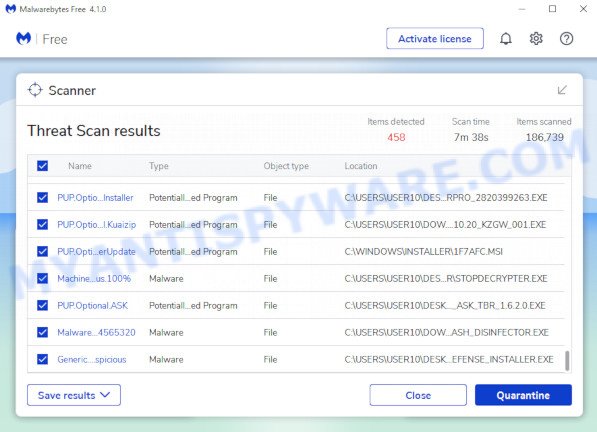
MalwareBytes can be downloaded from the following link. Save it on your Microsoft Windows desktop.

328345 downloads
Author: Malwarebytes
Category: Security tools
Update: April 15, 2020
After the downloading process is done, run it and follow the prompts. Once installed, the MalwareBytes AntiMalware will try to update itself and when this procedure is done, click the “Scan” button to perform a system scan with this utility for adware. This procedure can take some time, so please be patient. During the scan MalwareBytes Anti-Malware will find threats present on your computer. In order to remove all threats, simply click “Quarantine” button.
MalwareBytes AntiMalware is a free malware remover that you can use to remove all detected folders, files, services, registry entries and so on. To learn more about this malware removal utility, we recommend you to read the instructions or follow the video guide below.
Remove Adware with Zemana Anti-Malware
Zemana Anti-Malware is a program that is used to remove malware, adware, browser hijackers, and potentially unwanted software. The program is one of the most effective anti-malware tools. It helps in malware removal and protects against all other types of security threats. One of the biggest benefits of using Zemana is that it is easy to use and free. In addition, it constantly updates its database of virus and malware signatures. Let’s see how to install and scan your personal computer with Zemana to remove adware from your PC.
Now you can install and use Zemana to delete adware from your web-browser by following the steps below:
Visit the page linked below to download Zemana installer named Zemana.AntiMalware.Setup on your PC. Save it directly to your Windows Desktop.

166024 downloads
Author: Zemana Ltd
Category: Security tools
Update: July 16, 2019
Start the setup file after it has been downloaded successfully and then follow the prompts to setup this utility on your PC.
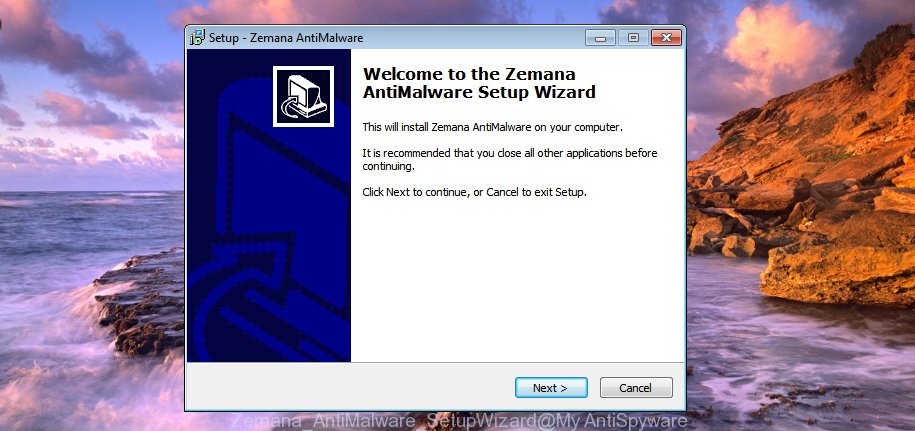
During installation you can change some settings, but we suggest you don’t make any changes to default settings.
When installation is finished, this malicious software removal tool will automatically start and update itself. You will see its main window as shown in the figure below.
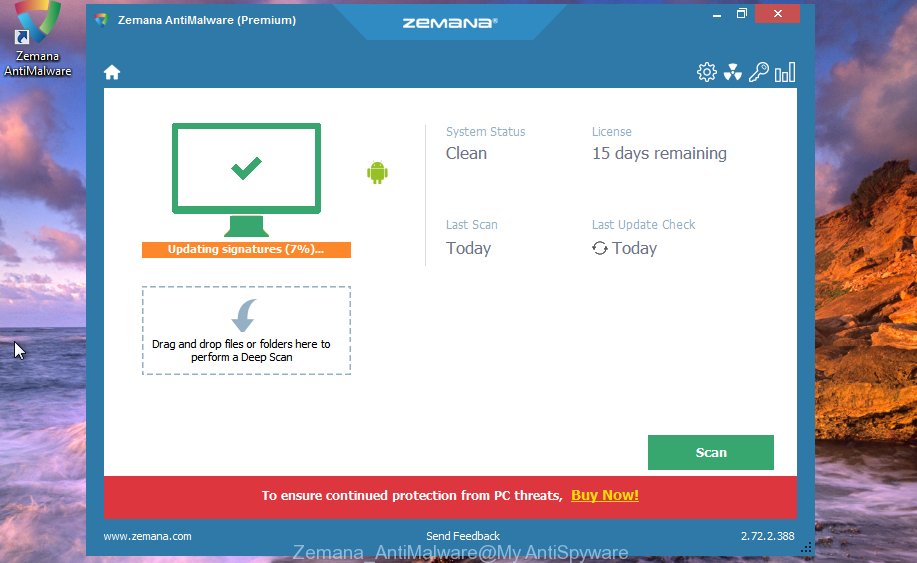
Now click the “Scan” button for scanning your PC for adware. This task can take some time, so please be patient. During the scan Zemana Anti-Malware will look for threats exist on your computer.

When Zemana AntiMalware has completed scanning, you can check all security threats detected on your personal computer. Make sure all threats have ‘checkmark’ and click “Next” button.
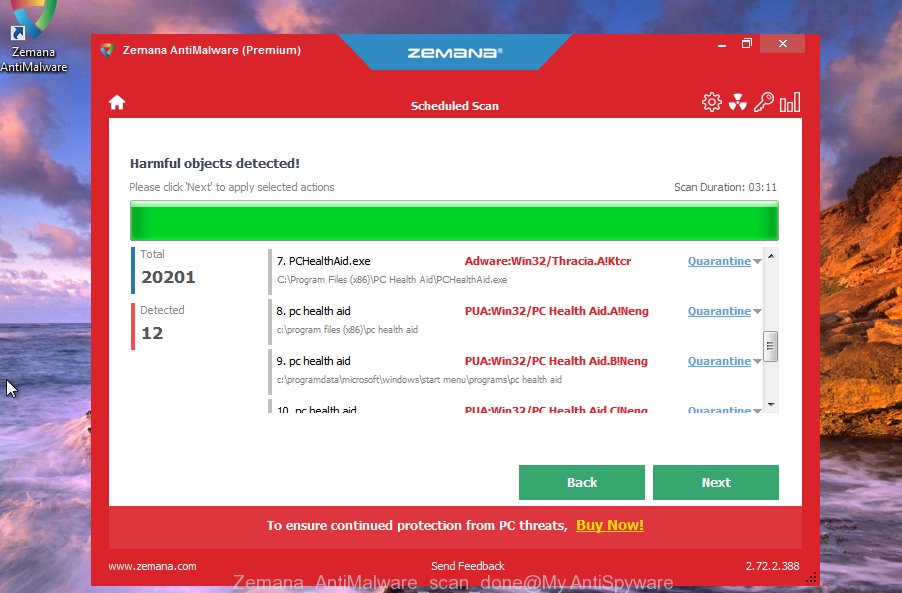
Zemana will move the selected threats to the Quarantine. When disinfection is done, you can be prompted to restart your PC to make the change take effect.
Use HitmanPro to delete Adware
Hitman Pro is a free removal tool that can scan your computer for a wide range of security threats such as malicious software, adware, potentially unwanted programs as well as browser hijackers. It will perform a deep scan of your personal computer including hard drives and Windows registry. Once a malicious program is detected, it will help you to remove this security threat from your personal computer by a simple click.
Hitman Pro can be downloaded from the following link. Save it on your Desktop.

When the downloading process is finished, open the file location. You will see an icon like below.

Double click the Hitman Pro desktop icon. After the tool is started, you will see a screen as shown below.
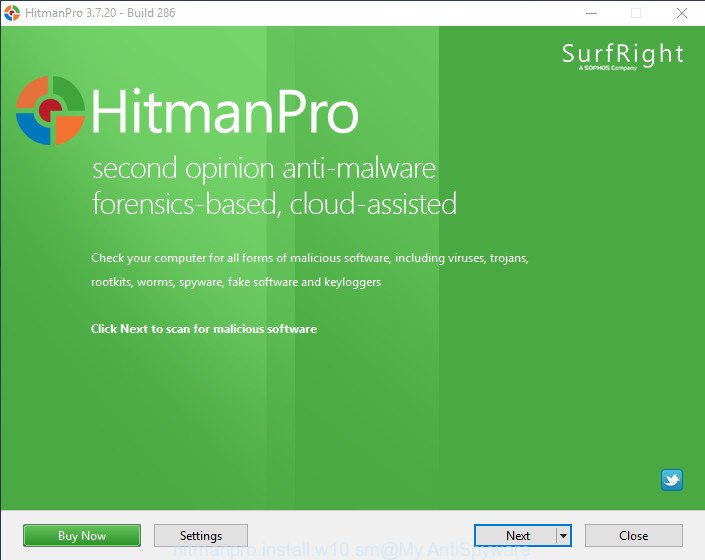
Further, click “Next” button . Hitman Pro program will scan through the whole computer for adware. When HitmanPro completes the scan, the results are displayed in the scan report as shown in the figure below.
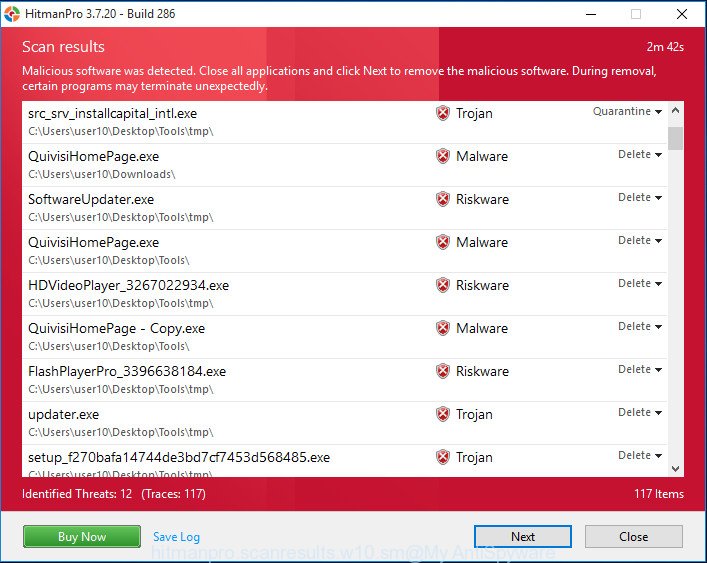
When you are ready, click “Next” button. It will display a prompt, click the “Activate free license” button.
What to Do After Removing Ad Block Wonder
After successfully removing unwanted software, especially one as deceptive as an adware, it’s crucial to take a few additional steps to ensure the safety and security of your device and data. Here are some recommended actions to take:
- It’s important to change your browser settings back to your preferred search engine and homepage. Make sure that Ad Block Wonder is completely removed from your browser’s settings and that it cannot reappear.
- If you entered any sensitive information such as login credentials or passwords while the browser hijacker was active, change them immediately. This will prevent any potential identity theft or unauthorized access to your accounts.
- To remove any traces of the adware, clear your browser history and cache. This will help ensure that any data or information collected by the hijacker is removed from your system.
- Use a reputable anti-malware program like Malwarebytes to scan your computer for any remaining malware or potentially unwanted programs (PUPs). This can help ensure that there are no hidden threats or malicious files on your computer.
- Make sure that your browser and operating system are up-to-date with the latest security patches and updates. This can help prevent future security issues and keep your system protected.
- To avoid getting infected with similar malware in the future, be cautious of downloads and only download from reputable sources. Avoid clicking on suspicious links or downloading attachments from unknown sources.
Conclusion
The Ad Block Wonder extension exhibits typical adware behavior, despite being promoted as a tool to block pop-ups and ads on favorite websites. Ad Block Wonder uses its permission to read and modify data on all websites, enabling it to inject ads, track browsing habits, and potentially capture sensitive information like login credentials and payment details. Additionally, it may redirect users to unreliable pages, slow down browser performance, and expose users to malicious sites that can further compromise security.
Bottom Line: Avoid installing Ad Block Wonder. Its deceptive advertising and adware characteristics pose privacy and security risks. If you already have it installed, it is advisable to remove it promptly. In cases where manual removal is difficult, consider using specialized security software such as Combo Cleaner to ensure complete elimination. Always be cautious when installing browser extensions—verify their credibility and read reviews carefully to avoid unwanted and harmful software.