Windows Search Process often shows up in your Task Manager running quietly in the background—but what’s it actually doing? At its core, this is a system service designed to speed up how quickly you can find files, emails, or apps by maintaining an index of your data. Sounds helpful, right?
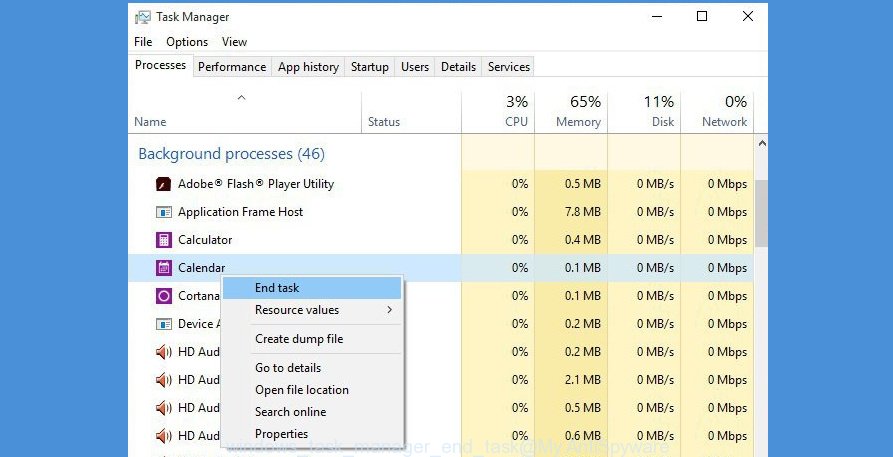
But here’s the catch: while it’s meant to make searching faster, Windows Search can sometimes hog system resources or even get exploited by malware disguising itself under the same name. This mix of utility and vulnerability makes it a frequent topic among tech forums and security experts. Before you dismiss it as harmless, digging deeper reveals there’s more to this process than meets the eye—stay tuned to learn what risks to watch for and how to manage it safely.
Table of Contents
🛡️ Windows Search Process: Is It a Virus or Legitimate?
The Windows Search process is a genuine and essential system service integrated into Microsoft Windows. It runs in the background to index files and keep your search results quick and efficient. This process is not a virus but a core component of the operating system designed to improve user experience.
Key Points to Understand About the Windows Search Process:
- ⚙️ Legitimate System Service: The Windows Search process is part of the Windows OS and helps you find files, emails, and apps faster by indexing the content on your drive.
- 📂 Background Operation: It operates quietly in the background without interfering with your everyday activities, but you might notice it appearing in Task Manager as “SearchIndexer.exe”.
- 🔍 Why It Runs: Its job is to keep the search database current, updating newly created or modified files to optimize search speed and accuracy.
- ⚠️ When to Be Cautious: Although Windows Search itself is safe, malware can sometimes disguise as Windows processes. If you notice unusual CPU or memory usage or find the file location is not in “C:\Windows\System32,” it could be suspicious.
- 🛡️ How to Verify: You can check the file location of the search process in Task Manager. Authentic Windows Search runs from the System32 folder. If it originates elsewhere, consider running a full malware scan with trusted antivirus software.
In summary, the Windows Search process is not a virus but a legitimate feature of Windows designed to enhance your search experience. However, staying vigilant and verifying the authenticity of running processes helps keep your system secure. For any suspicious activity, use reliable antivirus tools and expert guidance to protect your PC.
🕵️♂️ How the Windows Search Process Works
The Windows Search process is a legitimate Windows service. ✅ It is responsible for indexing files, emails, and other content to provide fast search results on your computer. However, some users worry it might be a virus because it runs constantly in the background. Here’s what you need to know to distinguish between the authentic Windows Search process and potential malware.
🛒 What Is the Windows Search Process?
Windows Search (SearchIndexer.exe) is a built-in system service that indexes the data on your PC to deliver quick search results. It usually consumes some CPU and disk resources, especially when indexing new or changed files.
🕸️ How to Spot Legitimate Windows Search
– Runs under system processes in Task Manager.
– Typically located in the folder: C:\Windows\System32\SearchIndexer.exe
– Uses a moderate amount of CPU or disk only during indexing.
– Shows consistent behavior after initial indexing is completed.
📢 Signs That It Is NOT a Virus
– The process name is exactly “SearchIndexer.exe” or “SearchUI.exe” for Cortana.
– It is digitally signed by Microsoft Corporation.
– Antivirus software does not flag the process.
– Your system runs normally aside from the indexing resource use.
💼 How Virus or Malware Might Masquerade as Windows Search
Some malware uses names similar to Windows Search processes to avoid detection:
– Misspelled names like “SearchIndxer.exe” or “SerachIndexer.exe”
– Processes running from unusual folders (e.g., AppData or Temp folders)
– High system resource usage long after indexing should be complete
– The process triggers warnings from antivirus or anti-malware software
💸 What to Do If You Suspect a Virus Disguised as Windows Search
– Check the file location via Task Manager > Right-click process > Open file location.
– Scan the file and your system with reputable antivirus and antimalware tools.
– Use Task Manager or Resource Monitor to monitor CPU and disk usage.
– If malware is detected, follow removal instructions or seek professional help.
🌟 Disabling Windows Search Safely
If Windows Search causes performance issues, you can temporarily disable indexing:
– Go to Services.msc and stop the “Windows Search” service.
– Use “Indexing Options” in Control Panel to reduce indexed locations.
Note: Disabling will make searches slower but won’t remove any virus if present.
⚖️ Summary: Legitimate Service vs Virus
The genuine Windows Search process is a vital, safe part of your Windows system. It should not be immediately considered a virus. Suspicious behavior, unknown file locations, and antivirus alerts are signs to investigate further.
🛍️ Stay Safe Online
Always keep your Windows system updated and run regular scans. Avoid downloading unknown programs that might disguise as system processes. Understanding how Windows Search works helps you avoid confusion and keep your PC secure.
In summary, the Windows Search process ✅ is a legitimate Windows component that helps you find files quickly. It is NOT a virus, but malware sometimes pretends to be this process. Knowing how to check its authenticity and how to respond can protect your system from infection and unnecessary worry.
Conclusion
The Windows Search process is not a virus. It is a legitimate system service that runs in the background to index files and deliver faster search results on your computer. Many users notice this process in Task Manager and may mistakenly think it’s suspicious, but this is a normal part of Windows operating system functionality.
However, it’s important to be aware that some malware may disguise itself with similar names to legitimate Windows processes to avoid detection. To differentiate between the genuine Windows Search process and a potential virus, check the process location: the legitimate executable is typically located in the “C:\Windows\System32” folder. If the file is running from a different location or consuming excessive system resources for no apparent reason, running a thorough antivirus scan is recommended.
Bottom Line: Don’t panic if you see the Windows Search process running; it is a safe and necessary system component. Always verify the process details to ensure it’s legitimate. Regularly update your antivirus software and monitor Task Manager for unusual activity to keep your system secure.