⚠️ Beware of the “Renew Your Antivirus” Pop-Up —a deceptive trick targeting internet users with fake virus alerts and bogus system scans. This scam impersonates well-known antivirus brands like McAfee and Norton, falsely claiming your computer is infected with multiple viruses to scare you into action.
The “Renew Your Antivirus” scam is cleverly designed to appear legitimate, showing fake scan results warning of serious security risks. It then urges you to click “Renew License” or “Proceed” to supposedly protect your device. Instead, you’re redirected to official sites where scammers earn commissions on sales—or worse, end up downloading malware, spyware, or other harmful software disguised as security tools.
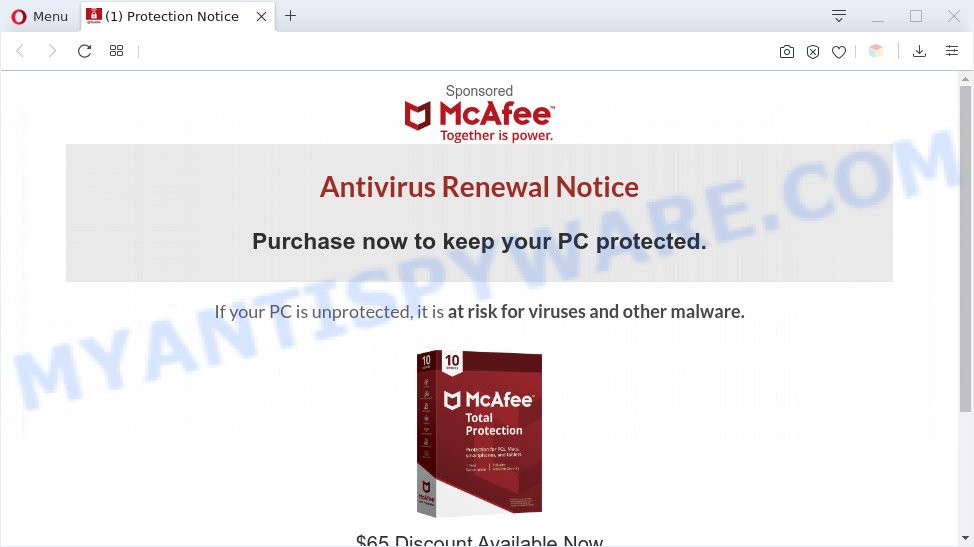
If you see a “Renew Your Antivirus” pop-up, do not click any buttons or provide payment information. Always verify your security software directly through its official app or website, and run legitimate scans to ensure your device’s safety. Stay informed, stay safe, and don’t fall for these sneaky scams.
Table of Contents
🚨 Is the “Renew Your Antivirus” Pop-Up a Scam?
The “Renew Your Antivirus” pop-up scam is a deceptive tactic targeting unsuspecting internet users by masquerading as legitimate antivirus software alerts, such as those from McAfee or Norton. These pop-ups falsely claim that your computer is infected with viruses and urge you to renew your antivirus subscription immediately to protect your system. This scam is designed to trick users into downloading unnecessary software or making fraudulent purchases.
Key Red Flags:
- 🌐 Fake Security Alerts: The pop-up mimics official antivirus scans by displaying fabricated results stating your computer is infected with multiple viruses or security risks, creating unnecessary panic.
- 🔄 Misleading Redirects: After clicking “Proceed” or “Renew License,” users are redirected to genuine antivirus company websites where scammers earn commissions from sales generated through these deceptive methods. The security companies themselves do not endorse these tactics.
- 📍 IP and Geolocation Tracking: Scam sites track your IP address to customize scam messages, change page languages, or redirect you to additional malicious websites to maximize their success.
- ⚠️ Potential Malware Delivery: Besides pushing legitimate antivirus subscriptions, the scam may also promote or distribute unreliable programs such as fake antivirus software, spyware, trojans, browser hijackers, and adware.
- 🔔 Browser Notification Abuse: Visitors are prompted to allow browser notifications, which can lead to a flood of unwanted ads, scams, and potentially harmful content.
- 📩 Common Entry Points: Users often encounter this scam via misspelled URLs, spam emails, fake push notifications, malicious ads, or adware installed unknowingly through risky downloads or visits to untrustworthy websites.
In summary, the “Renew Your Antivirus” pop-up scam is a well-crafted social engineering attack designed to alarm users into making impulsive decisions that may lead to fraud or malware infection. While the scam promotes legitimate antivirus products, its misleading strategies and potential to expose users to additional threats render it untrustworthy. To stay safe, avoid clicking on suspicious pop-ups, do not allow unsolicited browser notifications, and always purchase antivirus software directly from official vendor websites. Consult with cybersecurity professionals if you suspect your system has been compromised.
🕵️♂️ How the “Renew Your Antivirus” Scam Operates
“Renew Your Antivirus” is a deceptive online scam. 🚨 It tricks users into believing their computer is infected and pushes fraudulent software or subscription purchases. 🔗 Step-by-Step Breakdown of the Scam:
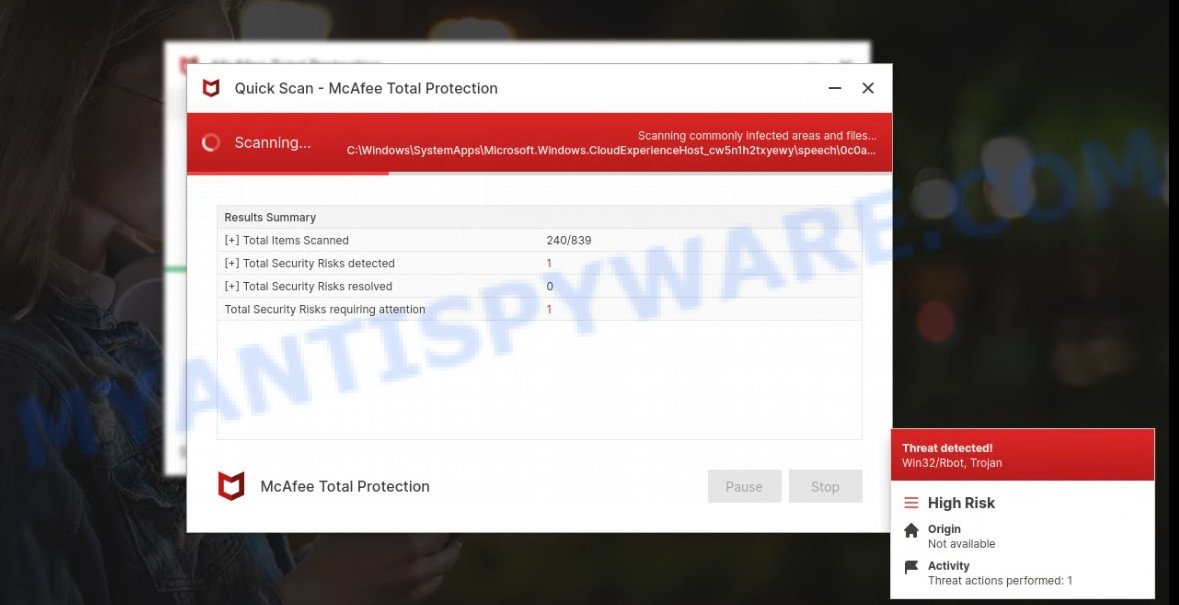
The Renew Your Antivirus scam runs a fake computer scan
🛒 Triggering Fake Virus Alerts
Users are redirected to a scam website mimicking trusted antivirus brands like McAfee or Norton. The site performs a fake system scan, falsely reporting multiple viruses or security risks detected on the user’s computer to create alarm.
🕸️ Creating a Convincing Fake Interface
The scam site uses realistic graphics, logos, and interfaces resembling legitimate antivirus software to appear credible. This includes fake scan progress bars and alarming pop-ups warning users about infections and urging immediate action.
📢 Manipulative Prompts to Renew Subscription
After faking virus detection, users are urged to “Proceed..” or “Renew License” to protect their device. Clicking these buttons redirects them to official antivirus vendor websites offering real products. However, scammers earn commissions on any purchase made through these links.
💼 Exploiting Social Engineering and Geo-Targeting
These scam pages typically identify the user’s IP address to display content in their language or direct them to localized scam pages, increasing their chances of success with tailored social engineering tactics.
💸 Pushing Unnecessary or Fraudulent Software
While the vendors promoted are legitimate, the initial scare tactic is fraudulent. Sometimes, these scams also encourage users to download fake antivirus or malware disguised as necessary tools, which can harm the system.
⚖️ False Sense of Urgency and Security
The scam instills panic with time-sensitive warnings and “expiration dates” urging immediate purchase, falsely claiming that an unprotected computer is vulnerable to ransomware and identity theft.
🛍️ Easy Purchase Redirects
Although the scam redirects users to legitimate antivirus vendors, the initial deceptive scare is designed solely to drive sales benefits to fraudulent affiliates who profit via high commissions through affiliate links.
🔁 Lack of Transparency and Support
Users misled by this scam may find it difficult to trace the source of their anxiety or get support for the questionable downloads they may have accepted during the process.
📦 Potential Delivery of Untrustworthy Software
In some variations, the scam pushes downloads of dubious security programs, including fake or rogue antivirus software, spyware, or adware that may compromise user security further.
🌟 Using Browser Notifications to Spread Further Scams
The scam often asks users to enable browser notifications. Once allowed, these notifications bombard users with ads promoting other scams, fake software, and malicious websites perpetuating the cycle. Here are some examples of the scam notifications (fake alerts, messages from fake dating sites):
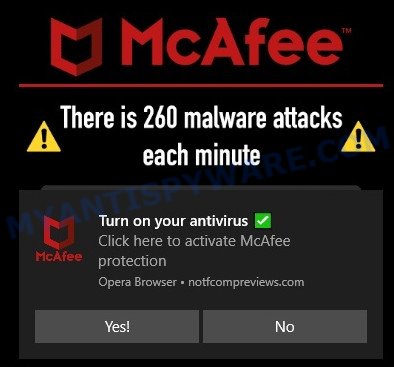
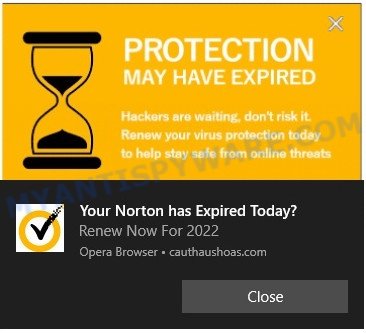
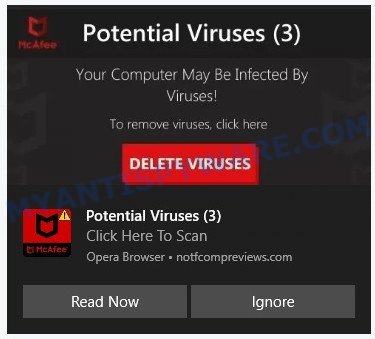
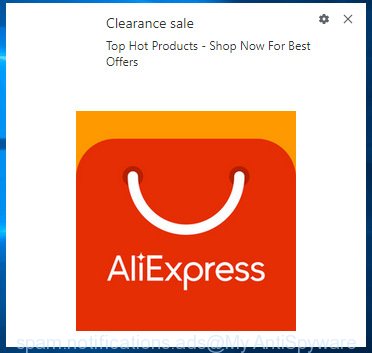

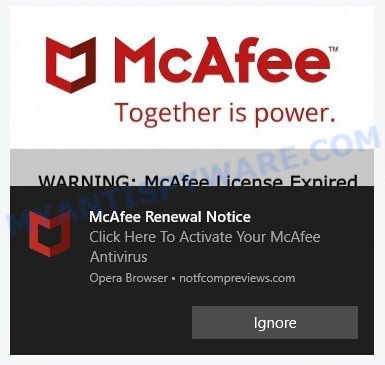
In summary, the “Renew Your Antivirus” 🚫 scam exploits fear by displaying fake virus alerts and fake system scans to pressure users into purchasing software or subscriptions through affiliate links. It features realistic counterfeit antivirus interfaces, manipulative ads, and browser notification abuse to spread further scams and malware. Users should remain cautious, avoid clicking suspicious pop-ups, and verify antivirus software status through trusted official sources only.
Threat Summary
| Name | Renew Your Antivirus Pop-Up Scam |
| Type | Tech Support Scam |
| Whois Details | Recently created domains, WHOIS contact information hidden |
| Fake claims | You have visited unsafe site with illegal content, Your PC is infected with 5 viruses, Your antivirus subscription has expired |
| Distribution | Adware, malicious websites, push notifications, social engineering |
| Damage | Misleads users to purchase fake or unnecessary antivirus software, can lead to financial loss and installation of malicious software |
| Symptoms | Pop-up messages and fake scans claiming viruses are detected on the user’s PC |
| Removal | Close pop-up windows, use ad-blockers and anti-malware software, never give out personal or financial information |
Similar scams exposed
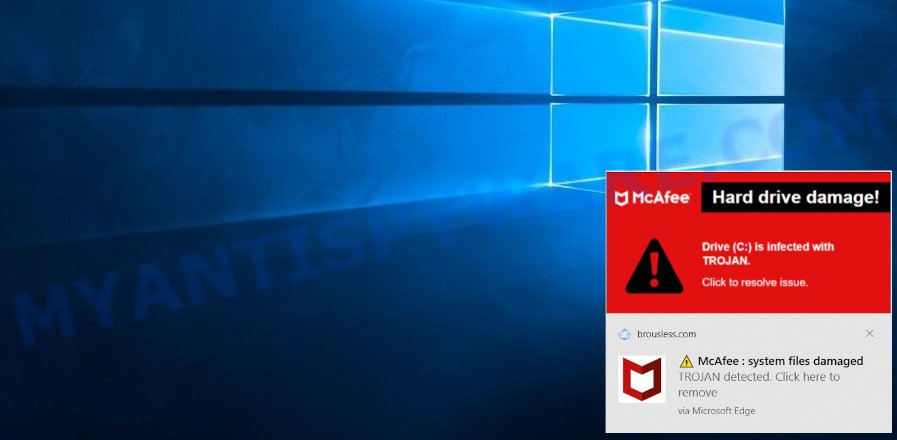
Hard Drive Damage Pop-Up Scam
In this scam, users receive a pop-up warning claiming that their hard drive is damaged or corrupted due to a virus or malware. It often includes technical jargon and error codes to appear authentic. The pop-up typically advises the user to download a ‘repair tool’ or contact a ‘support number’. However, the tool is usually malware, and the support number connects to scammers who try to gain remote access to the user’s computer or sell unnecessary services.
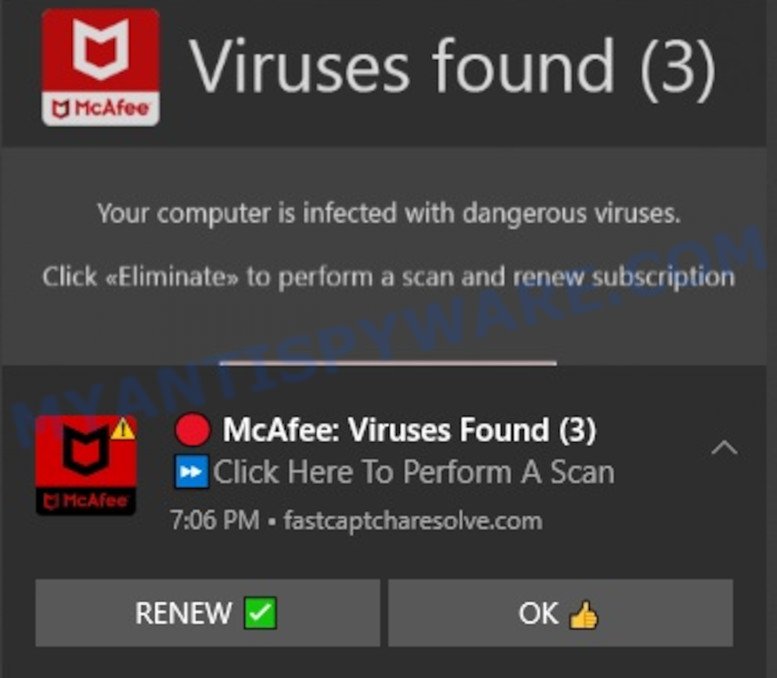
Virus Found (3) Pop-Up Scam
This particular scam involves a pop-up alert claiming that three viruses have been detected on the user’s device. It’s designed to mimic the look and feel of legitimate antivirus software alerts to convince users of its authenticity. The pop-up often includes a timer, adding a sense of urgency to the warning. Users are prompted to click on a button to remove the viruses, which either leads to the download of actual malware or redirects to a site asking for personal information or payment to ‘clean’ the computer.
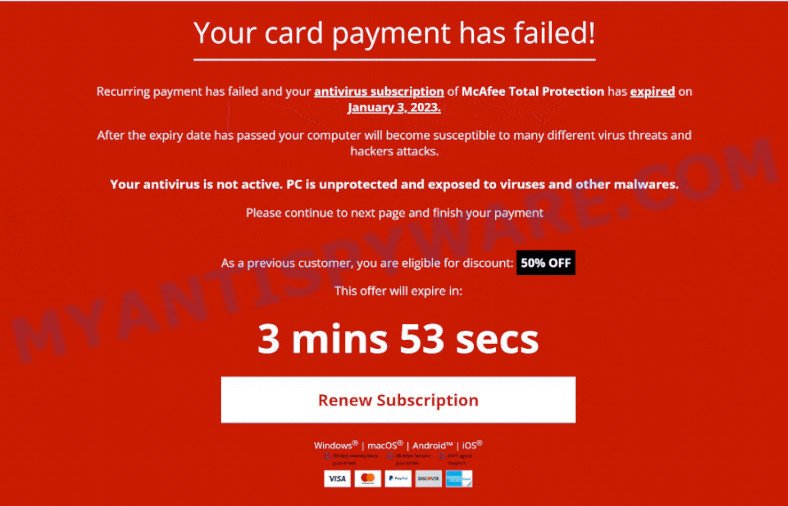
Your Card Payment Has Failed – Renew Subscription Scam
This scam targets users with a false notification that their credit card payment for a subscription service (like antivirus or streaming) has failed. The message prompts immediate action, urging the user to click on a link to ‘renew’ or ‘update’ their payment information. Once clicked, it leads to a fake website where personal and financial details are requested, putting the user at risk of identity theft and financial fraud.
All these scams share a common strategy: they create a sense of urgency and fear to compel the user to take immediate action, which often leads to compromising personal security or financial loss. It’s vital to approach such alerts with skepticism and verify their authenticity before taking any action.
Where did Renew Your Antivirus scam pop-ups come from?
The Renew Your Antivirus pop-ups are caused by malicious advertisements on websites you visit, spam push notifications or Adware. Browser (push) notifications are originally developed to alert the user of recently published news. Scammers use push notifications to bypass pop up blockers and display lots of unwanted ads.
Adware is a form of malicious software that displays unwanted advertisements on a personal computer, redirects search queries to scam pages, and collects sensitive information for marketing purposes. Adware may display banner ads, full-screen ads, pop-ups, videos, or other forms of online advertising. You may think that ads or pop-ups are just a small problem. But these intrusive advertisements consume system resources and slow down your PC.
Typically, adware ends up on personal computers bundled with freeware, malicious downloads, fake updates, shared files, and other unsafe software downloaded by users from the Internet. To avoid installing any adware: choose only the option of manual, custom or advanced installation and disable any third-party applications that you are not sure about.
How to Identify Scams That Imitate Antivirus
As scams continue to evolve and become more sophisticated, it is becoming increasingly difficult to distinguish between genuine antivirus notifications and fake ones. Cybercriminals often use the names and logos of legitimate antivirus software to trick users into installing malware or purchasing fake security software. Therefore, it is important to be able to identify the signs of a fake antivirus notification and take the necessary steps to protect your computer from these types of scams.

In this section, we will discuss how to identify scams that imitate the Norton antivirus. Norton is a well-known and reputable antivirus software that has been targeted by scammers for years. These scams usually involve pop-ups or notifications that claim to have found a virus on your computer and urge you to download or purchase a security solution to fix the problem. By knowing what to look out for, you can avoid falling victim to these types of scams and keep your computer safe and secure.
- Check the URL. Scammers often use URLs that look similar to the real Norton website, but with slight variations. Always check the URL carefully to make sure it is the genuine Norton website.
- Look out for urgent warnings. Scammers often use urgent messages, such as “Your computer is infected with a virus!”, to scare people into taking immediate action. Be wary of urgent messages that require you to download software or take other actions to fix the problem.
- Verify the source. If you receive an email or message claiming to be from McAfee, verify the source before taking any action. Contact McAfee customer support directly to confirm the legitimacy of the message.
- Be wary of unsolicited pop-ups. If you see a pop-up window that appears out of nowhere claiming that your computer is infected, it is likely a scam. Legitimate antivirus software doesn’t use unsolicited pop-ups to promote their products.
- Avoid clicking on suspicious links. If you receive an email or message with a link to download software or update your antivirus, be cautious. Always hover over the link to verify the URL and avoid clicking on suspicious links.
By being aware of these warning signs, you can protect yourself from scams that imitate Norton antivirus and stay safe online.
How to remove Renew Your Antivirus pop-ups
If you have encountered Renew Your Antivirus pop-ups, you should not trust the message and refrain from clicking any buttons or links that appear on the page. Instead, follow the steps below to remove the pop-up and any potential malware from your computer:
To remove Renew Your Antivirus pop ups, complete the steps below:
- Close the pop-up
- Clear your browsing history
- Disable push notifications
- Scan your computer for malware
- Reset your browser settings
Close the pop-up
Closing the pop-up is the first step you should take when dealing with the Renew Your Antivirus scam. Although it may seem like a simple task, some users may find it challenging, especially if the pop-up is designed to be persistent and difficult to close. This step is crucial because it prevents the user from falling into the trap set by the scammers and clicking on any of the buttons or links that can lead to further harm. In this section, we will provide a detailed guide on how to close the Renew Your Antivirus pop-up safely and effectively.
- Don’t click on anything within the pop-up as it could lead to further harm.
- Look for a small “X” or “Close” button within the pop-up window. Click on it to close the window.
- If there is no “X” or “Close” button, try pressing the “Esc” key on your keyboard to close the pop-up.
- If the pop-up still won’t close, try opening your computer’s Task Manager by pressing “Ctrl + Shift + Esc” on your keyboard (or “Ctrl + Alt + Delete” and then select “Task Manager”). Find the browser window that the pop-up is in, right-click on it, and select “End Task” to force close the window.
Clear your browsing history
Clearing your browsing history is an important step in removing Renew Your Antivirus pop-ups. These pop-ups often come from malicious websites that can be stored in your browsing history.
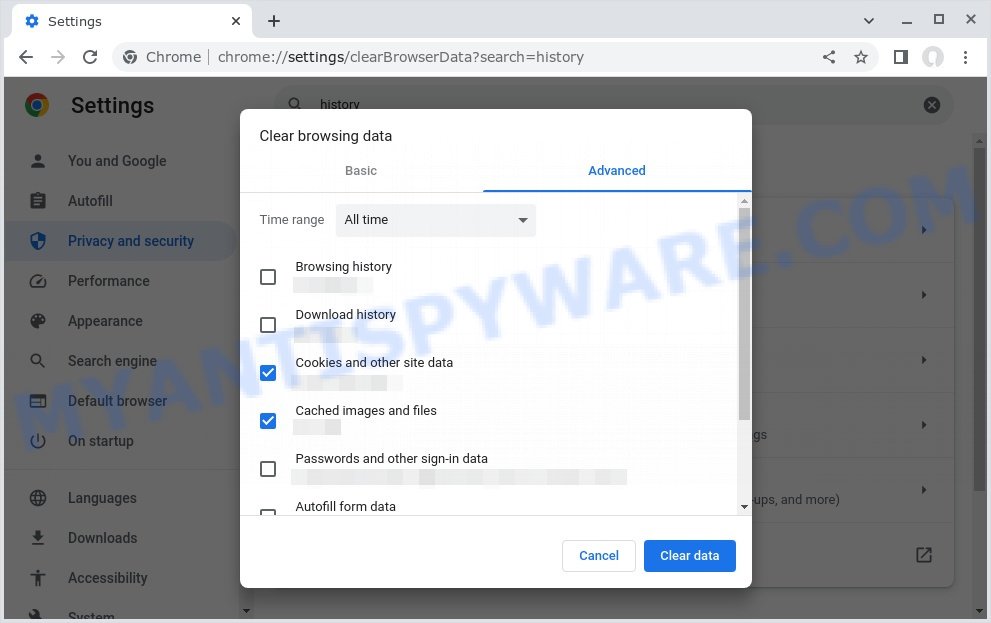
By clearing your browsing history, you can get rid of any traces of these websites and prevent the pop-ups from reappearing. In this step, we will walk you through how to clear your browsing history on different browsers.
- Open your browser’s settings or options menu. This can usually be accessed by clicking on the three dots or lines in the top right or left corner of the browser window.
- Scroll down to the “Privacy & Security” or “History” section of the settings menu.
- Click on “Clear Browsing Data” or “Clear History” (the wording may vary depending on the browser you are using).
- In the pop-up window that appears, choose the time range for which you want to clear your browsing history (e.g. “Last hour,” “Last 24 hours,” “All time,” etc.).
- Make sure that “Browsing history” or “History” is selected as one of the types of data to be cleared.
- Click on the “Clear Data” or “Clear History” button (the wording may vary depending on the browser you are using).
- Wait for the browser to finish clearing your browsing history. This may take a few moments, especially if you have a lot of browsing data stored on your computer.
- Close and restart your browser to ensure that the changes take effect.
Disable push notifications
If you’re experiencing persistent push notifications from websites that are showing Renew Your Antivirus scams, the best course of action is to disable push notifications altogether. Disabling push notifications prevents malicious websites from showing you unwanted pop-ups and alerts, which can help protect your computer from further harm. In this step, we’ll walk you through the process of disabling push notifications in your web browser.
Google Chrome:
- Click on ‘three dots menu’ button at the top-right corner of the Google Chrome window.
- Select ‘Settings’, scroll down to the bottom and click ‘Advanced’.
- At the ‘Privacy and Security’ section click ‘Site settings’.
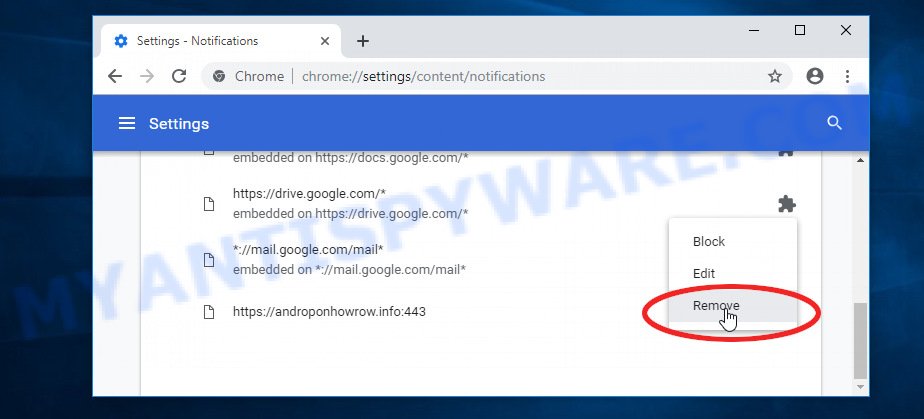
- Click on ‘Notifications’.
- Locate the Renew Your Antivirus website and click the three vertical dots button next to it, then click on ‘Remove’.
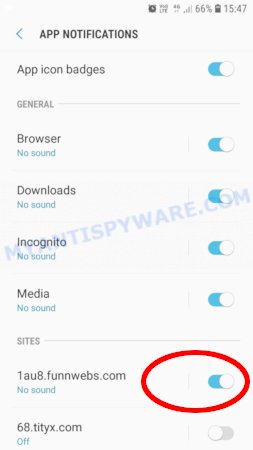
Android:
- Open Chrome.
- Tap on the Menu button (three dots) on the top right corner of the screen.
- In the menu tap ‘Settings’, scroll down to ‘Advanced’.
- In the ‘Site Settings’, tap on ‘Notifications’, locate the Renew Your Antivirus URL and tap on it.
- Tap the ‘Clean & Reset’ button and confirm.
Mozilla Firefox:
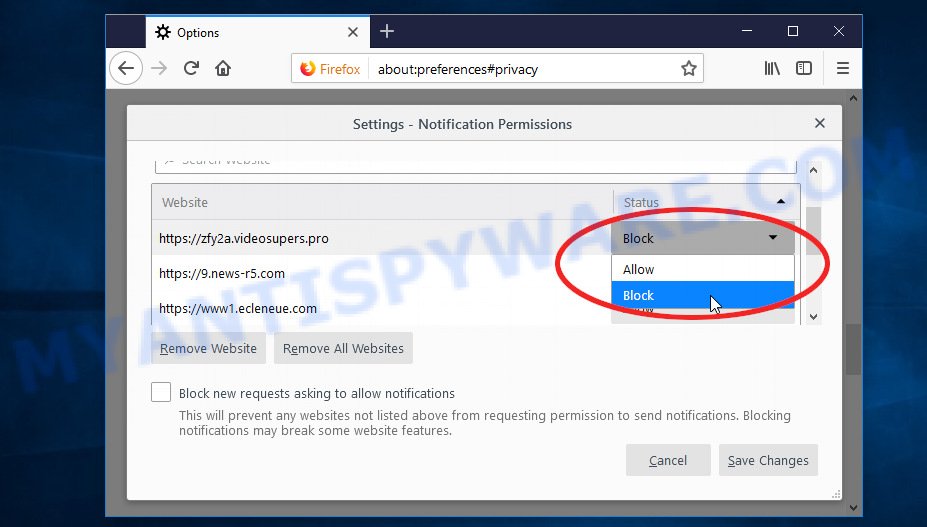
- In the top right corner, click the Firefox menu (three bars).
- In the drop-down menu select ‘Options’. In the left side select ‘Privacy & Security’.
- Scroll down to ‘Permissions’ section and click ‘Settings…’ button next to ‘Notifications’.
- Find the Renew Your Antivirus website address, other suspicious URLs, click the drop-down menu and select ‘Block’.
- Click ‘Save Changes’ button.
Edge:
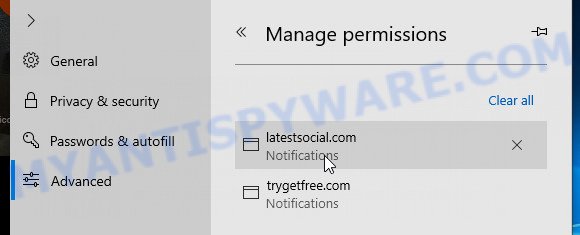
- Click the More button (three dots) in the top-right corner of the window.
- Scroll down, locate and click ‘Settings’. In the left side select ‘Advanced’.
- In the ‘Website permissions’ section click ‘Manage permissions’.
- Disable the on switch for the Renew Your Antivirus domain.
Internet Explorer:
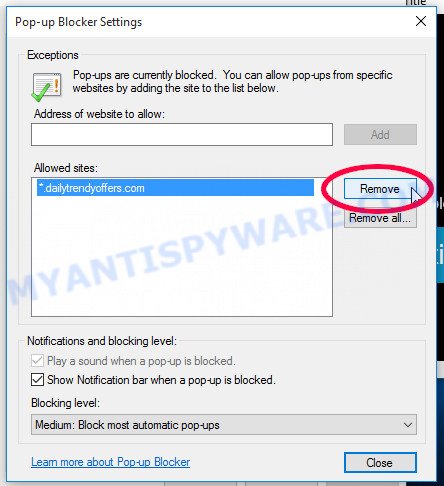
- Click the Gear button on the top-right corner of the browser.
- Select ‘Internet options’.
- Click on the ‘Privacy’ tab and select ‘Settings’ in the pop-up blockers section.
- Locate the Renew Your Antivirus website and click the ‘Remove’ button to delete the site.
Safari:
- Go to ‘Preferences’ in the Safari menu.
- Select the ‘Websites’ tab and then select ‘Notifications’ section on the left panel.
- Find the Renew Your Antivirus site and select it, click the ‘Deny’ button.
Scan computer for malware
If you have encountered the Renew Your Antivirus pop-up scam, it is possible that your computer has been infected with malware. In order to ensure that your system is completely clean, it is important to perform a thorough scan for malware. This will help to identify any malicious files or programs that may be hiding on your computer and remove them to prevent further damage. In this step, we will guide you through the process of scanning your computer for malware using trusted antivirus software.
Malwarebytes is a reputable anti-malware program that can effectively detect and remove adware, potentially unwanted programs and malware. It has a user-friendly interface and offers both free and paid versions, with the paid version offering real-time protection and other advanced features. To use Malwarebytes to remove malicious software, you can download and install the program, perform a scan of your system, and follow the prompts to remove any detected threats.
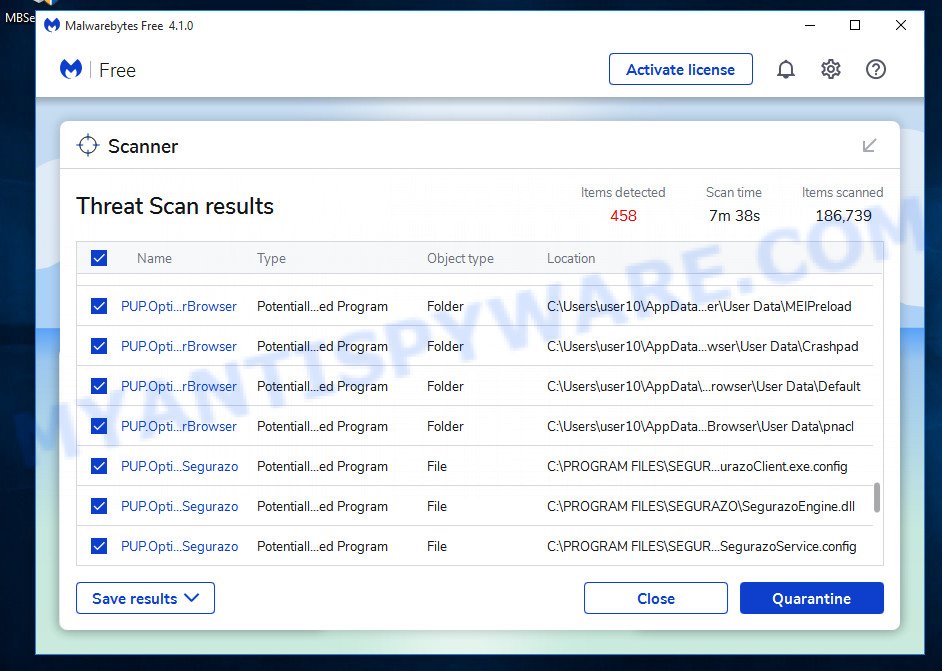
Visit the following link and download the latest version of Malwarebytes. Once the download is complete, run the installer and follow the instructions to install the program on your computer.
327779 downloads
Author: Malwarebytes
Category: Security tools
Update: April 15, 2020
Open Malwarebytes and click on the “Scan” button. The program will start scanning your computer for any malware or potentially unwanted programs. Depending on the size of your hard drive, this may take a few minutes to complete.
Once the scan is complete, Malwarebytes will display a list of any threats it has found. Review the list carefully and make sure that all the items are checked for removal. Then, click on the “Quarantine” button to remove the threats from your computer. After the removal process is complete, you may be prompted to restart your computer to complete the process.
Please follow this step-by-step video tutorial to learn how to use Malwarebytes to scan and remove any potential threats from your computer. The video will guide you through the entire process, from downloading and installing Malwarebytes to running a scan and removing any identified threats.
Reset your browser settings
If the Renew Your Antivirus pop-ups persist even after clearing your browsing history, disabling push notifications, and scanning your computer for malware, resetting your browser settings might be the next step to take. Resetting your browser settings can remove any unwanted extensions or changes made to your browser that may be causing the pop-ups to appear. In this step, we will guide you through the process of resetting your browser settings in different popular browsers.
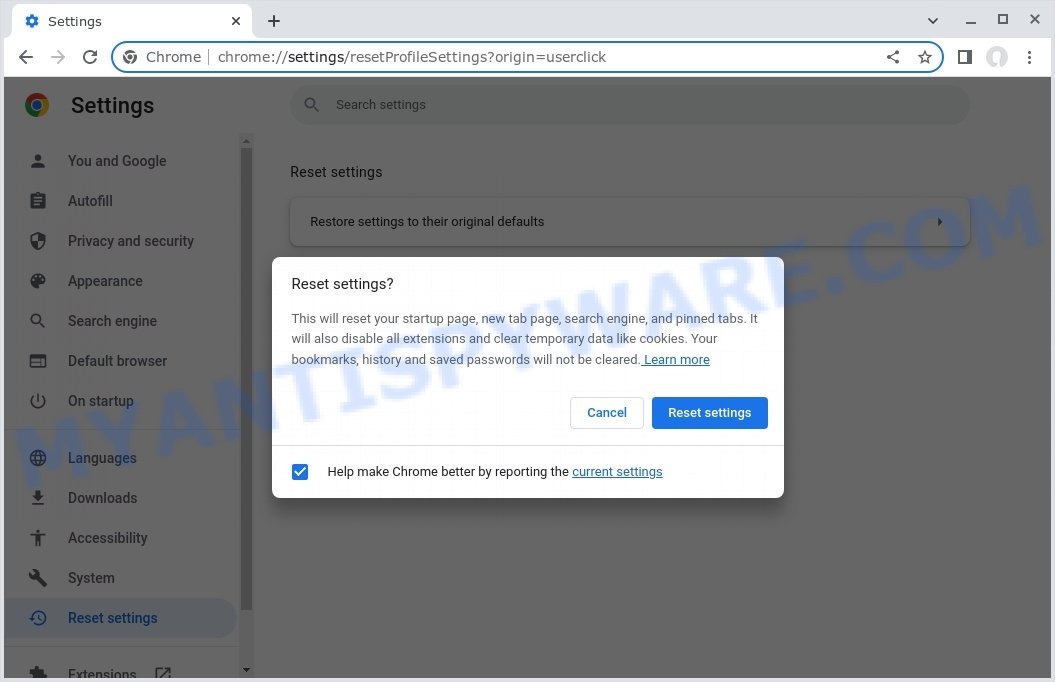
To reset your browser settings in Google Chrome:
- Open Chrome and click on the three-dot icon in the top-right corner.
- Select “Settings” from the drop-down menu.
- Scroll down to the bottom of the page and click on “Advanced.”
- Scroll down to the “Reset and cleanup” section and click on “Restore settings to their original defaults.”
- Click “Reset settings” to confirm.
To reset your browser settings in Mozilla Firefox:
- Open Firefox and click on the three-line icon in the top-right corner.
- Select “Help” from the drop-down menu and then click on “Troubleshooting Information.”
- Click on the “Refresh Firefox” button in the top-right corner.
- Click “Refresh Firefox” again to confirm.
To reset your browser settings in Microsoft Edge:
- Open Edge and click on the three-dot icon in the top-right corner.
- Select “Settings” from the drop-down menu.
- Scroll down and click on “Reset settings.”
- Click “Restore settings to their default values.”
- Click “Reset” to confirm.
After resetting your browser settings, be sure to check for any remaining suspicious extensions and remove them if necessary.
Protecting Yourself from the Renew Your Antivirus Scam
Now that you know how the Renew Your Antivirus scam works, how to identify similar scams, and how to remove the pop-ups, it’s important to take steps to protect yourself from falling victim to this or similar scams in the future.
Here are some additional steps you can take to protect yourself:
- Install reputable antivirus software. By installing antivirus software, you can help prevent these types of scams from infecting your computer in the first place. Make sure to keep your antivirus software up to date and run regular scans to ensure your computer remains protected.
- Be wary of emails or links that claim to be from legitimate companies, such as Norton, especially if you didn’t request any information. Don’t click on links in emails from unknown sources or download attachments from them.
- Keeping your software up to date is one of the easiest and most effective ways to prevent security breaches. Software updates often contain security patches that fix vulnerabilities, so make sure to install them as soon as they become available.
- Educate yourself on common scams. Knowledge is power, and being aware of common scams and tactics used by cybercriminals can help you recognize and avoid them. Stay informed by reading up on the latest scams and how to protect yourself against them.
By taking these steps, you can help protect yourself from falling victim to the Renew Your Antivirus scam or similar scams in the future. Remember, being cautious and aware is key to staying safe online.
Conclusion
The “Renew Your Antivirus” pop-up scam is a deceptive and harmful scheme designed to trick users into believing their computers are infected with viruses. Using fake McAfee or Norton scan results, this scam creates a false sense of urgency, prompting users to click on false alerts and potentially purchase unnecessary or harmful software.
Rather than providing genuine protection, these pop-ups manipulate users by mimicking official antivirus interfaces and issuing fraudulent warnings. The scammers behind this scheme often redirect victims to legitimate antivirus websites through affiliate links, earning commissions without authorization from companies like McAfee or Norton.
Bottom Line: Avoid interacting with any unsolicited “Renew Your Antivirus” alerts. Do not click on links or buttons within these pop-ups, and never grant permission for suspicious sites to send browser notifications, as this can lead to exposure to additional scams, malware, or unwanted software. Always verify your antivirus subscription status directly through official vendor websites and use trusted security programs to safeguard your device. Stay vigilant and report any suspicious activity to help protect yourself and others from such misleading tactics.





