If the MS Edge, Google Chrome, Internet Explorer and Mozilla Firefox constantly shows the Safeguardedoffers.club, then it is possible that your browser has been hijacked with a program from the ‘ad-supported’ software (also known as adware) family. The ad-supported software will alter your internet browser’s homepage, newtab and search provider or install an unwanted web-browser extension so that it will randomly show a lot of intrusive Safeguardedoffers.club popups. If you would like to free your personal computer of ad-supported software and thereby remove Safeguardedoffers.club pop-up ads and are unable to do so, you can follow the steps below to detect and remove this adware and any other malware for free.
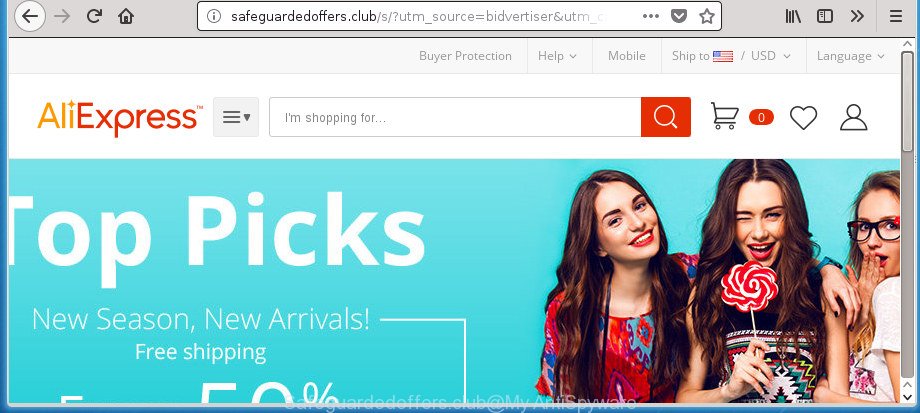
http://safeguardedoffers.club/s/?utm_source= …
As well as undesired web-browser redirections to Safeguardedoffers.club, the ad supported software may gather your World Wide Web surfing activity by recording URLs visited, IP addresses, web-browser version and type, cookie information, Internet Service Provider (ISP) and pages visited. Such kind of behavior can lead to serious security problems or confidential info theft. This is another reason why the adware that responsible for web browser redirect to the undesired Safeguardedoffers.club web page, is classified as potentially unwanted application (PUA).
In addition to that, as was mentioned earlier, some adware to also change all web browsers shortcuts which located on your Desktop or Start menu. So, every affected shortcut will try to redirect your web browser to unwanted ad web-pages such as Safeguardedoffers.club, some of which might be harmful. It can make the whole machine more vulnerable to hacker attacks.
So, obviously, you need to delete the ad supported software as quickly as possible. Use the free steps below. This guide will allow you clean your system of ad-supported software and thereby delete the Safeguardedoffers.club intrusive popup ads.
Remove Safeguardedoffers.club popup ads
The following step-by-step guide will allow you to get rid of Safeguardedoffers.club pop ups from the Microsoft Edge, FF, Internet Explorer and Chrome. Moreover, the few simple steps below will allow you to remove malicious software, browser hijackers, potentially unwanted programs and toolbars that your PC system may be infected. Please do the instructions step by step. If you need help or have any questions, then ask for our assistance or type a comment below. Read it once, after doing so, please print this page as you may need to close your browser or reboot your computer.
To remove Safeguardedoffers.club, use the steps below:
- How to remove Safeguardedoffers.club popup advertisements without any software
- Delete dubious applications using Windows Control Panel
- Delete unwanted Scheduled Tasks
- Fix hijacked web-browsers shortcuts to get rid of Safeguardedoffers.club redirect
- Remove Safeguardedoffers.club pop ups from Chrome
- Remove Safeguardedoffers.club redirect from IE
- Remove Safeguardedoffers.club from Mozilla Firefox by resetting web browser settings
- How to delete Safeguardedoffers.club pop up ads with freeware
- Block Safeguardedoffers.club advertisements and other undesired pages
- How to Safeguardedoffers.club advertisements get installed onto computer
- To sum up
How to remove Safeguardedoffers.club popup advertisements without any software
Read this “How to remove” section to know how to manually remove ad supported software responsible for redirecting your web browser to Safeguardedoffers.club page. Even if the instructions does not work for you, there are several free malicious software removers below that can easily handle such adware which causes intrusive Safeguardedoffers.club popups.
Delete dubious applications using Windows Control Panel
First, you should try to identify and delete the program that causes the appearance of unwanted ads or web browser redirect, using the ‘Uninstall a program’ which is located in the ‘Control panel’.
Windows 8, 8.1, 10
First, press the Windows button
 , then press Search
  . Type “Control panel”and press Enter.
Windows XP, Vista, 7
First, press “Start” and select “Control Panel”.
It will open the Windows Control Panel as displayed on the screen below.
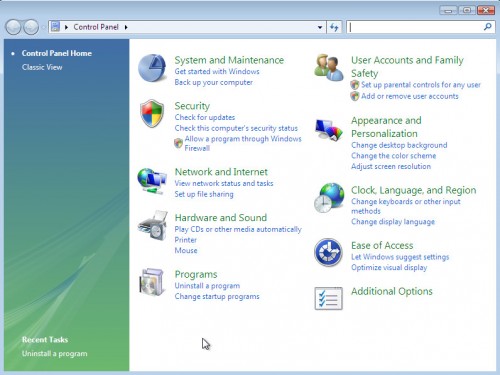
Next, press “Uninstall a program” 
It will show a list of all programs installed on your PC system. Scroll through the all list, and delete any suspicious and unknown programs. To quickly find the latest installed apps, we recommend sort programs by date in the Control panel.
Delete unwanted Scheduled Tasks
Once installed, the ad-supported software can add a task in to the Windows Task Scheduler Library. Due to this, every time when you boot your computer, it will show Safeguardedoffers.club unwanted web page. So, you need to check the Task Scheduler Library and delete all harmful tasks that have been created by malicious program.
Press Windows and R keys on the keyboard together. This shows a prompt that titled with Run. In the text field, type “taskschd.msc” (without the quotes) and click OK. Task Scheduler window opens. In the left-hand side, click “Task Scheduler Library”, as displayed below.
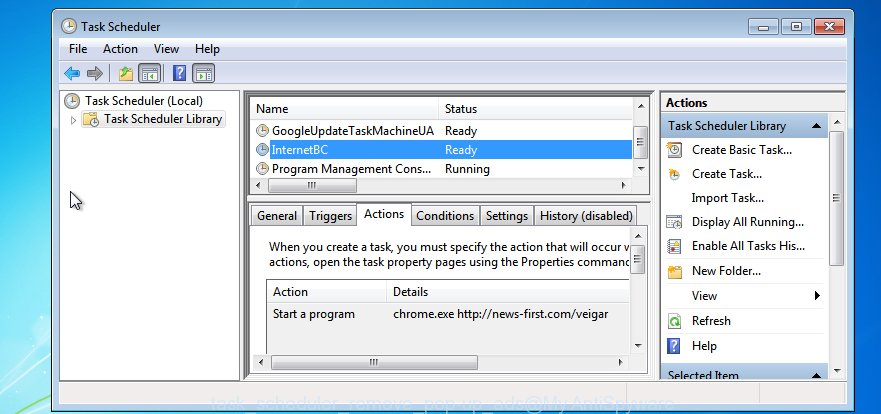
Task scheduler
In the middle part you will see a list of installed tasks. Please select the first task, its properties will be show just below automatically. Next, click the Actions tab. Pay attention to that it launches on your PC. Found something like “explorer.exe http://site.address” or “chrome.exe http://site.address”, then delete this malicious task. If you are not sure that executes the task, check it through a search engine. If it is a component of the malicious apps, then this task also should be removed.
Having defined the task that you want to remove, then press on it with the right mouse button and choose Delete like below.
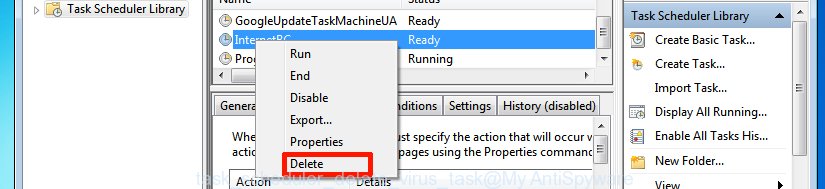
Delete a task
Repeat this step, if you have found a few tasks that have been created by malicious program. Once is complete, close the Task Scheduler window.
Fix hijacked web-browsers shortcuts to get rid of Safeguardedoffers.club redirect
The ‘ad supported’ software which causes unwanted Safeguardedoffers.club pop up ads, can hijack various Windows shortcuts on your desktop (most often, all web-browsers shortcuts), so in this step you need to check and clean them by removing the argument such as http://site.address/.
Right click to a desktop shortcut file for your infected browser. Select the “Properties” option. It’ll show the Properties window. Select the “Shortcut” tab here, after that, look at the “Target” field. The adware that responsible for the appearance of Safeguardedoffers.club pop up advertisements can modify it. If you are seeing something similar to “…exe http://site.address” then you need to remove “http…” and leave only, depending on the internet browser you are using:
- Google Chrome: chrome.exe
- Opera: opera.exe
- Firefox: firefox.exe
- Internet Explorer: iexplore.exe
Look at the example as displayed in the figure below.

Once is done, click the “OK” button to save the changes. Please repeat this step for web-browser shortcut files which redirects to an annoying pages. When you have completed, go to next step.
Remove Safeguardedoffers.club pop ups from Chrome
Run the Reset browser utility of the Google Chrome to reset all its settings such as newtab page, start page and default search provider to original defaults. This is a very useful utility to use, in the case of browser redirects to annoying ad sites like Safeguardedoffers.club.

- First start the Chrome and press Menu button (small button in the form of three dots).
- It will display the Chrome main menu. Select More Tools, then click Extensions.
- You’ll see the list of installed extensions. If the list has the plugin labeled with “Installed by enterprise policy” or “Installed by your administrator”, then complete the following tutorial: Remove Chrome extensions installed by enterprise policy.
- Now open the Chrome menu once again, click the “Settings” menu.
- You will see the Chrome’s settings page. Scroll down and click “Advanced” link.
- Scroll down again and click the “Reset” button.
- The Chrome will display the reset profile settings page as shown on the image above.
- Next click the “Reset” button.
- Once this procedure is finished, your web browser’s new tab, home page and search engine by default will be restored to their original defaults.
- To learn more, read the post How to reset Chrome settings to default.
Remove Safeguardedoffers.club redirect from IE
By resetting Microsoft Internet Explorer web-browser you restore your web browser settings to its default state. This is first when troubleshooting problems that might have been caused by adware that redirects your web browser to undesired Safeguardedoffers.club web-page.
First, start the Microsoft Internet Explorer, then click ‘gear’ icon  . It will display the Tools drop-down menu on the right part of the internet browser, then press the “Internet Options” as shown on the image below.

In the “Internet Options” screen, select the “Advanced” tab, then press the “Reset” button. The Internet Explorer will show the “Reset Internet Explorer settings” dialog box. Further, press the “Delete personal settings” check box to select it. Next, click the “Reset” button as displayed on the screen below.

When the process is complete, click “Close” button. Close the IE and reboot your PC for the changes to take effect. This step will help you to restore your web browser’s search engine by default, new tab and home page to default state.
Remove Safeguardedoffers.club from Mozilla Firefox by resetting web browser settings
If the Firefox settings like search provider by default, start page and newtab have been changed by the ad-supported software, then resetting it to the default state can help.
First, run the Firefox and click  button. It will show the drop-down menu on the right-part of the browser. Further, press the Help button (
 ) as displayed in the figure below.

In the Help menu, select the “Troubleshooting Information” option. Another way to open the “Troubleshooting Information” screen – type “about:support” in the web-browser adress bar and press Enter. It will display the “Troubleshooting Information” page like below. In the upper-right corner of this screen, click the “Refresh Firefox” button.

It will open the confirmation dialog box. Further, click the “Refresh Firefox” button. The Firefox will begin a process to fix your problems that caused by the ‘ad supported’ software that responsible for the appearance of Safeguardedoffers.club redirect. After, it is complete, click the “Finish” button.
How to delete Safeguardedoffers.club pop up ads with freeware
Manual removal is not always as effective as you might think. Often, even the most experienced users may not completely delete ‘ad supported’ software that causes a ton of undesired Safeguardedoffers.club pop-up ads. So, we suggest to scan your personal computer for any remaining malicious components with free ‘ad supported’ software removal programs below.
Automatically remove Safeguardedoffers.club advertisements with Zemana Anti-malware
Zemana Anti-malware is a tool which can delete adware, potentially unwanted software, hijackers and other malware from your PC easily and for free. Zemana Anti-malware is compatible with most antivirus software. It works under Windows (10 – XP, 32 and 64 bit) and uses minimum of PC resources.
Installing the Zemana is simple. First you will need to download Zemana Anti Malware on your MS Windows Desktop by clicking on the link below.
166024 downloads
Author: Zemana Ltd
Category: Security tools
Update: July 16, 2019
After downloading is complete, close all software and windows on your machine. Open a directory in which you saved it. Double-click on the icon that’s called Zemana.AntiMalware.Setup as on the image below.
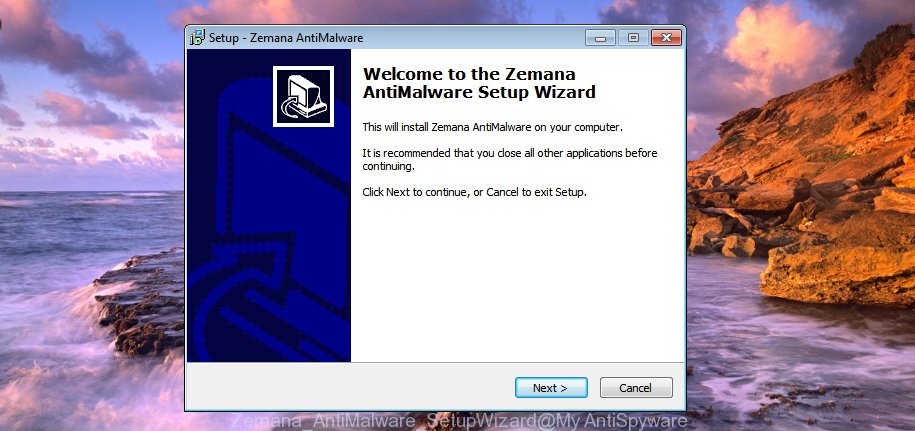
When the installation begins, you will see the “Setup wizard” that will help you install Zemana AntiMalware on your machine.
Once installation is done, you will see window as displayed in the following example.
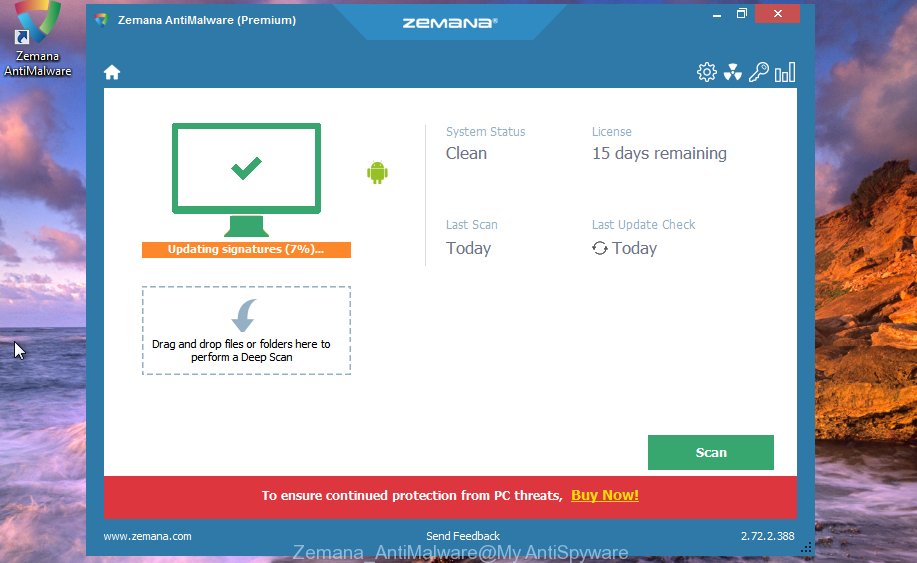
Now click the “Scan” button to start scanning your personal computer for the adware that causes tons of annoying Safeguardedoffers.club pop-up ads. Depending on your computer, the scan can take anywhere from a few minutes to close to an hour. When a threat is found, the number of the security threats will change accordingly. Wait until the the checking is complete.

As the scanning ends, you will be shown the list of all found items on your computer. You may move threats to Quarantine (all selected by default) by simply click “Next” button.
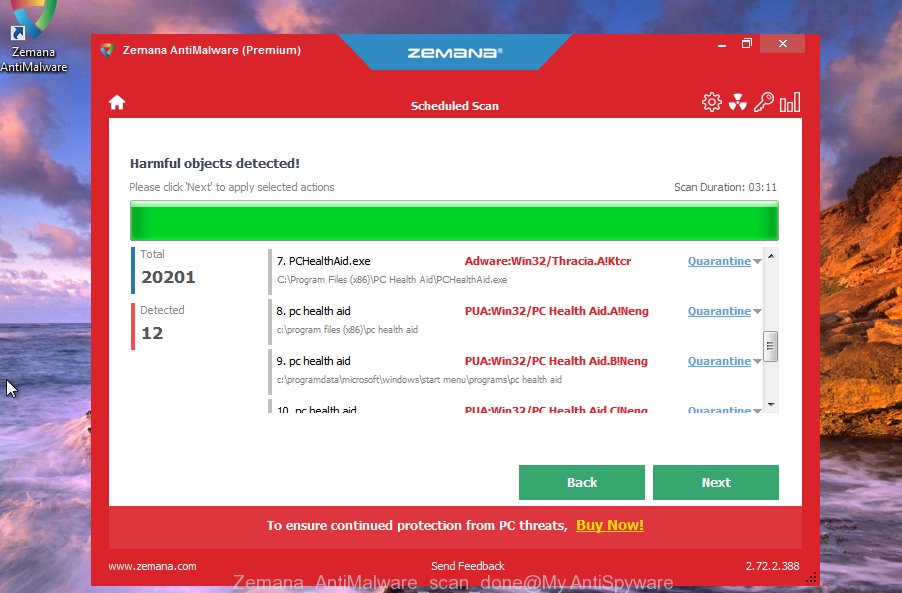
The Zemana will get rid of ad supported software that causes multiple annoying ads.
Use Malwarebytes to delete Safeguardedoffers.club pop up ads
You can remove Safeguardedoffers.club advertisements automatically with a help of Malwarebytes Free. We recommend this free malware removal utility because it can easily delete browser hijackers, ad-supported software, potentially unwanted applications and toolbars with all their components such as files, folders and registry entries.
Visit the following page to download MalwareBytes. Save it on your Microsoft Windows desktop.
328348 downloads
Author: Malwarebytes
Category: Security tools
Update: April 15, 2020
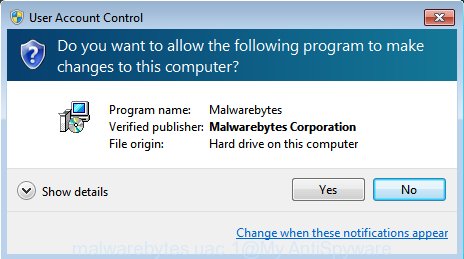
When the downloading process is complete, close all windows on your system. Further, open the file named mb3-setup. If the “User Account Control” prompt pops up as shown in the following example, click the “Yes” button.
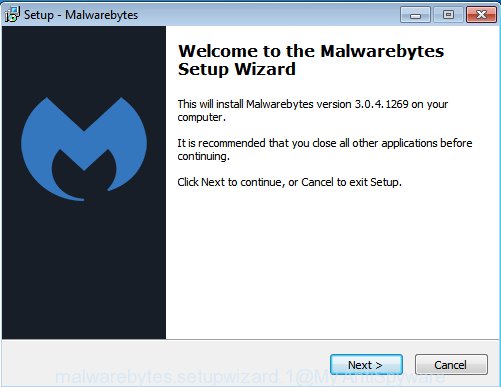
It will display the “Setup wizard” that will help you setup MalwareBytes Free on the PC. Follow the prompts and don’t make any changes to default settings.

Once installation is finished successfully, press Finish button. Then MalwareBytes Anti Malware will automatically start and you can see its main window as shown in the following example.
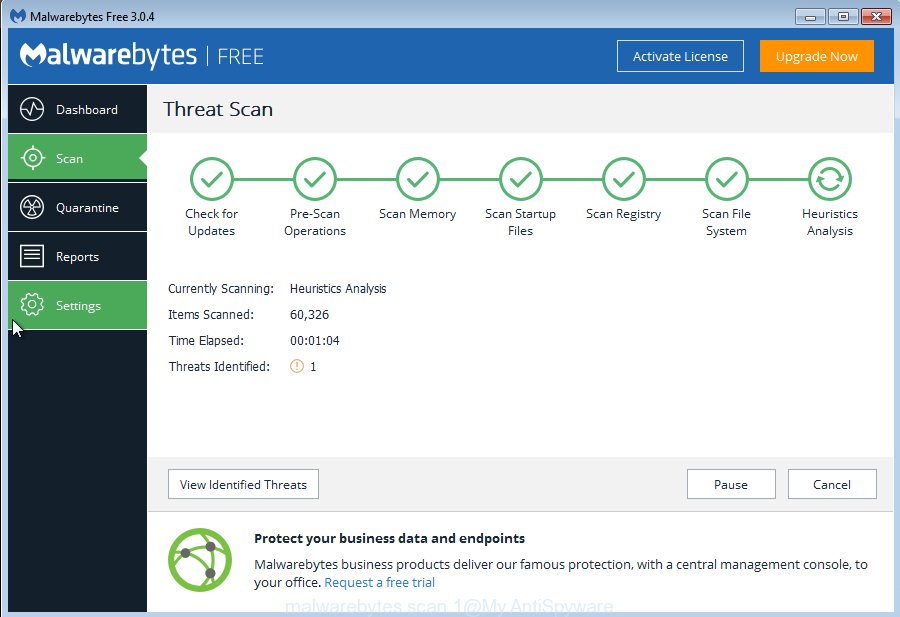
Next, press the “Scan Now” button to perform a system scan for the adware that causes web-browsers to show unwanted Safeguardedoffers.club pop up advertisements. A system scan can take anywhere from 5 to 30 minutes, depending on your computer. While the MalwareBytes Anti-Malware (MBAM) is checking, you can see how many objects it has identified either as being malware.
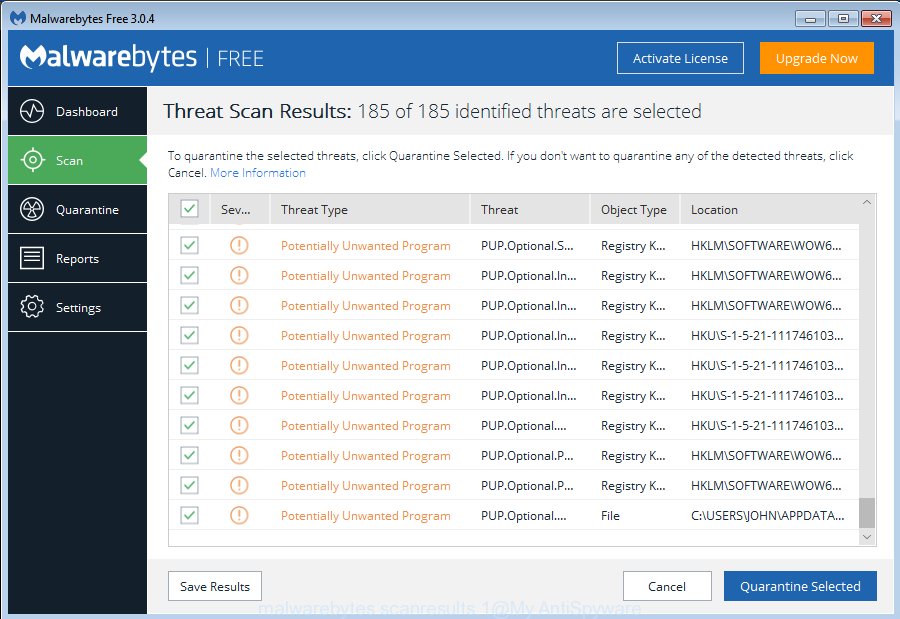
Once the system scan is finished, MalwareBytes Free will produce a list of unwanted and adware applications. Review the report and then press “Quarantine Selected” button.
The MalwareBytes will start to delete ad-supported software that causes web browsers to display unwanted Safeguardedoffers.club pop-ups. Once the clean up is done, you can be prompted to reboot your system. We advise you look at the following video, which completely explains the procedure of using the MalwareBytes Free to get rid of hijacker infections, ad-supported software and other malware.
Scan and clean your computer of ‘ad supported’ software with AdwCleaner
AdwCleaner is a free tool that can identify adware that causes web browsers to show intrusive Safeguardedoffers.club popup advertisements. It’s not always easy to locate all the undesired apps that your personal computer might have picked up on the Web. AdwCleaner will detect the ‘ad supported’ software, browser hijackers and other malicious software you need to delete.
Please go to the link below to download AdwCleaner. Save it on your Windows desktop.
225892 downloads
Version: 8.4.1
Author: Xplode, MalwareBytes
Category: Security tools
Update: October 5, 2024
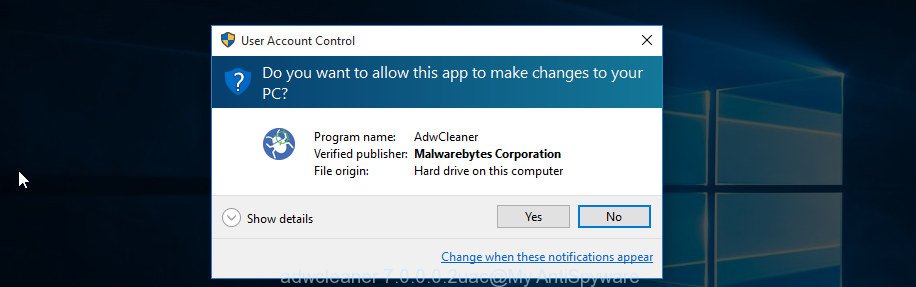
After downloading is finished, open the file location and double-click the AdwCleaner icon. It will launch the AdwCleaner utility. If the User Account Control prompt will ask you want to run the program, click Yes button to continue.
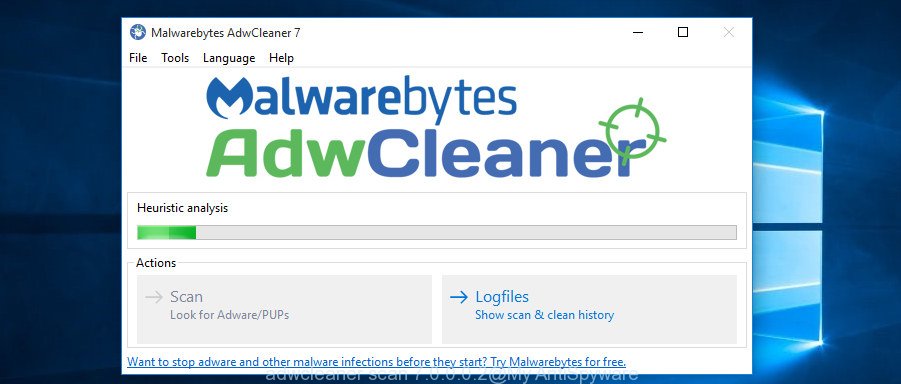
Next, press “Scan” for checking your machine for the ‘ad supported’ software responsible for redirections to Safeguardedoffers.club. Depending on your personal computer, the scan can take anywhere from a few minutes to close to an hour. While the AdwCleaner tool is scanning, you can see number of objects it has identified as being affected by malicious software.
After that process is done, the results are displayed in the scan report as displayed on the image below.
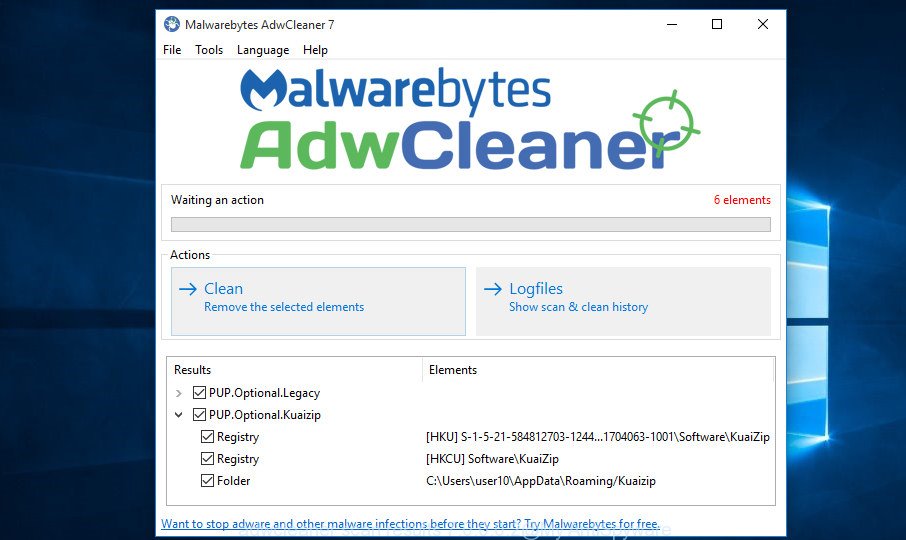
In order to delete all items, simply click “Clean” button. It will display a dialog box. Click “OK” button. The AdwCleaner will delete ad supported software that causes intrusive Safeguardedoffers.club popups and move items to the program’s quarantine. When the cleaning procedure is done, the tool may ask you to reboot your personal computer. After reboot, the AdwCleaner will show the log file.
All the above steps are shown in detail in the following video instructions.
Block Safeguardedoffers.club advertisements and other undesired pages
We recommend to install an ad blocking application which may stop Safeguardedoffers.club and other intrusive pages. The ad blocking utility like AdGuard is a application that basically removes advertising from the Internet and blocks access to malicious web sites. Moreover, security experts says that using ad blocker software is necessary to stay safe when surfing the Net.
Installing the AdGuard is simple. First you’ll need to download AdGuard from the link below.
27374 downloads
Version: 6.4
Author: © Adguard
Category: Security tools
Update: November 15, 2018
Once the downloading process is done, double-click the downloaded file to launch it. The “Setup Wizard” window will show up on the computer screen as displayed in the figure below.
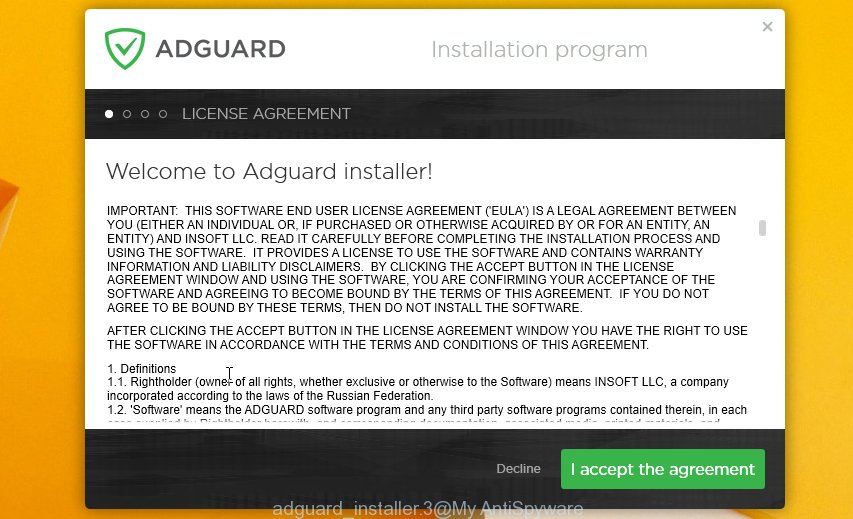
Follow the prompts. AdGuard will then be installed and an icon will be placed on your desktop. A window will show up asking you to confirm that you want to see a quick guide as displayed in the following example.

Press “Skip” button to close the window and use the default settings, or press “Get Started” to see an quick instructions that will help you get to know AdGuard better.
Each time, when you run your PC system, AdGuard will start automatically and block pop-up advertisements, Safeguardedoffers.club redirect, as well as other harmful or misleading sites. For an overview of all the features of the program, or to change its settings you can simply double-click on the AdGuard icon, which is located on your desktop.
How to Safeguardedoffers.club advertisements get installed onto computer
Usually, adware gets into your computer as part of a bundle with freeware, sharing files and other unsafe programs that you downloaded from the Net. The authors of this adware pays software makers for distributing ad-supported software within their apps. So, bundled applications is often included as part of the installation package. In order to avoid the installation of any adware responsible for redirecting your internet browser to Safeguardedoffers.club site: select only Manual, Custom or Advanced installation mode and uncheck all third-party apps in which you are unsure.
To sum up
After completing the step by step guide shown above, your PC system should be clean from ad-supported software that causes web browsers to display unwanted Safeguardedoffers.club pop-up advertisements and other malicious software. The FF, Internet Explorer, Microsoft Edge and Google Chrome will no longer redirect you to various undesired sites such as Safeguardedoffers.club. Unfortunately, if the guide does not help you, then you have caught a new ‘ad supported’ software, and then the best way – ask for help in our Spyware/Malware removal forum.





