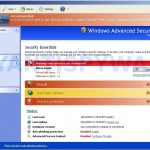
 Smart Engine is a latest rogue antispyware program from Virus Doctor rogues family as Smart Security , My Security Shield, Security Master AV, etc. The misleading program is distributed through the use of advertisement which pretends to be an online malware scanner. When you open this advertisement, it will simulate a system scan and state your computer is infected with a lot of viruses and you need to download and install Smart Engine to remove the infections. Important to know, this online scanner is a fake and cannot detect any viruses or infections on your computer. The scan results that are displayed are totally fabricated!
Immediately after launch Smart Engine will configure itself to run automatically every time when Windows loads. Next, the rogue will add a few entries into the HOSTS file so that when you open Google, Yahoo or Bing, you will be redirected to various misleading websites. And last, but not least, Smart Engine will create several fake malware files, that absolute harmless, but later during the scan, the fake security tool will label them as worms, trojans and viruses.
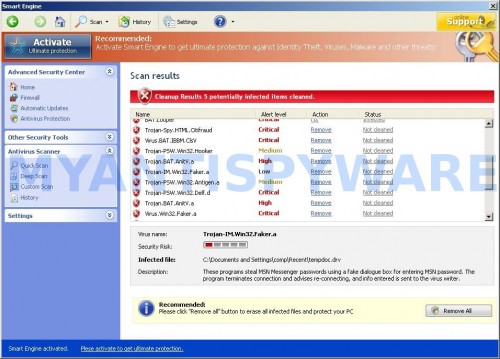
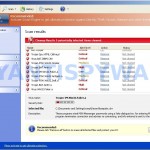
Smart Engine scan results
Smart Engine want to trick you into thinking that your computer in danger. It hopes that you then will purchase its full version. Important to note, Smart Engine is unable to detect or remove any infections and nor will be protect you from legitimate future threats. So you can safely ignore the false scan results.
While Smart Engine is running, it will display a variety of fake security warnings and alerts. Some of the alerts are:
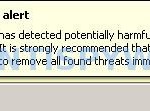
System alert
Smart Engine has detected potentially harmful software in
your system. It is strongly recommended that you register
Smart Engine to remove all found threats immediately.
System warning
No real-time malware, spyware and virus protection was
found. Click here to activate.
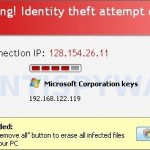
Warning! Identity theft attempt detected
Hidden connection IP: 128.154.26.11
Target: Microsoft Corporation keys
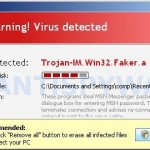
Warning
Warning! Virus detected
However, like false scan results above, all of these security messages and alerts are just a fake and has been displayed to trick you into thinking your computer is infected with all sorts of malicious programs.
In addition to the above-described, Smart Engine will also block the Windows Task Manager and most antivirus and antispyware tools.
As you can see, Smart Engine is a scam that has been created with one purpose – to scare you into thinking that your computer is infected, so you will then purchasing its so-called full version. Do not be fooled into buying the program! Instead of doing so, follow the removal guidelines below in order to remove Smart Engine and any associated malware from your computer for free.
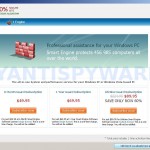
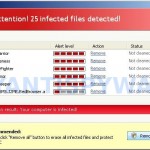
More screen shoots of Smart Engine
Symptoms in a HijackThis Log
O4 – HKCU\..\Run: [Smart Engine] “C:\Documents and Settings\All Users\Application Data\da2933\SMda2_2121.exe” /s /d
Automatic removal instructions for Smart Engine
Step 1. Reboot your computer in Safe mode with networking
Restart your computer.
After hearing your computer beep once during startup, start pressing the F8 key on your keyboard. On a computer that is configured for booting to multiple operating systems, you can press the F8 key when the Boot Menu appears.
Instead of Windows loading as normal, Windows Advanced Options menu appears similar to the one below.
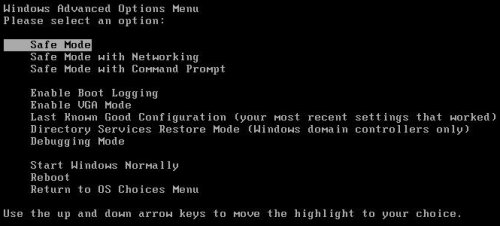
Windows Advanced Options menu
When the Windows Advanced Options menu appears, select Safe mode with networking and then press ENTER.
2. Reset proxy settings of Internet Explorer
Run Internet Explorer, Click Tools -> Internet Options as as shown in the screen below.
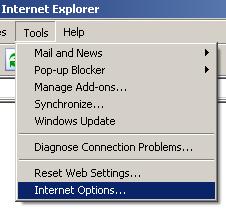
Internet Explorer – Tools menu
You will see window similar to the one below.
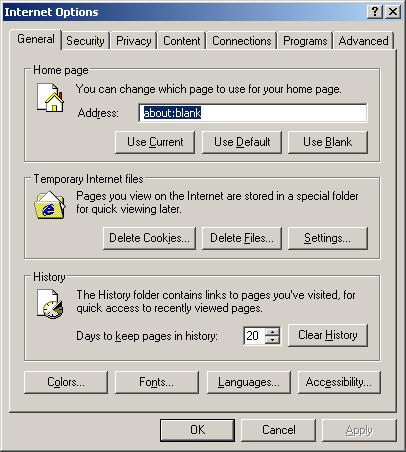
Internet Explorer – Internet options
Select Connections Tab and click to Lan Settings button. You will see an image similar as shown below.

Internet Explorer – Lan settings
Uncheck “Use a proxy server” box. Click OK to close Lan Settings and Click OK to close Internet Explorer settings.
Step 3. Remove Smart Engine and any associated malware
Download MalwareBytes Anti-malware (MBAM). Once downloaded, close all programs and windows on your computer.
Double-click on the icon on your desktop named mbam-setup.exe. This will start the installation of MalwareBytes Anti-malware onto your computer. When the installation begins, keep following the prompts in order to continue with the installation process. Do not make any changes to default settings and when the program has finished installing, make sure a checkmark is placed next to “Update Malwarebytes’ Anti-Malware” and Launch “Malwarebytes’ Anti-Malware”. Then click Finish.
MalwareBytes Anti-malware will now automatically start and you will see a message stating that you should update the program before performing a scan. If an update is found, it will download and install the latest version.
As MalwareBytes Anti-malware will automatically update itself after the install, you can press the OK button to close that box and you will now be at the main menu. You will see window similar to the one below.
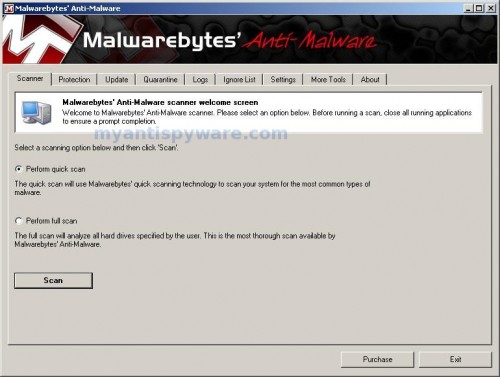
Malwarebytes Anti-Malware Window>
Make sure the “Perform quick scan” option is selected and then click on the Scan button to start scanning your computer for Smart Engine infection. This procedure can take some time, so please be patient.
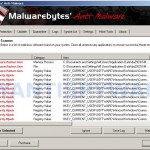
When the scan is finished a message box will appear that it has completed scanning successfully. Click OK. Now click “Show Results”. You will see a list of infected items similar as shown below.
Note: list of infected items may be different than what is shown in the image below.
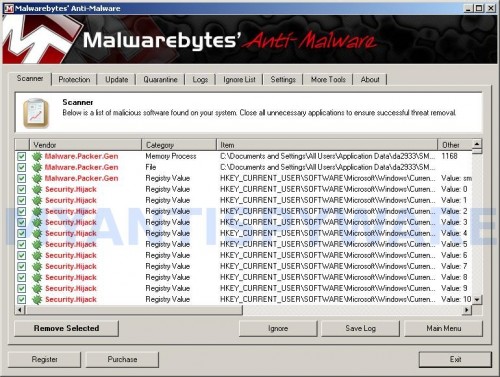
Malwarebytes Anti-malware, list of infected items
Make sure all entries have a checkmark at their far left and click “Remove Selected” button to remove Smart Engine. MalwareBytes Anti-malware will now remove all of associated Smart Engine files and registry keys and add them to the programs’ quarantine. When MalwareBytes Anti-malware has finished removing the infection, a log will open in Notepad and you may be prompted to Restart.
Step 4. Reset HOSTS file
Please download OTM by OldTimer from here and save it to desktop. Run OTM, copy, then paste the following text in “Paste Instructions for Items to be Moved” textarea (under the yellow bar):
:Commands

[resethosts]
Click the red Moveit! button. Close OTM.
Smart Engine removal notes
Note 1: if you can not download, install, run or update Malwarebytes Anti-malware, then follow the steps: Malwarebytes won`t install, run or update – How to fix it.
Note 2: if you need help with the instructions, then post your questions in our Spyware Removal forum.
Note 3: your current antispyware and antivirus software let the infection through ? Then you may want to consider purchasing the FULL version of MalwareBytes Anti-malware to protect your computer in the future.
Smart Engine creates the following files and folders
%UserProfile%\Application Data\Smart Engine
%UserProfile%\Application Data\Smart Engine\cookies.sqlite
%UserProfile%\Desktop\Smart Engine.lnk
%UserProfile%\Start Menu\Smart Engine.lnk
%UserProfile%\Application Data\Smart Engine\Instructions.ini
%UserProfile%\Start Menu\Programs\Smart Engine.lnk
%UserProfile%\Application Data\Microsoft\Internet Explorer\Quick Launch\Smart Engine.lnk
C:\Documents and Settings\All Users\Application Data\da2933\SMda2_2121.exe
Smart Engine creates the following registry keys and values
HKEY_CURRENT_USER\SOFTWARE\Microsoft\Windows\CurrentVersion\Run | Smart Engine
HKEY_USERS\.DEFAULT\Software\Microsoft\Internet Explorer\SearchScopes | URL = “http://findgala.com/?&uid=1002&q={searchTerms}”
HKEY_CURRENT_USER\Software\Classes\Software\Microsoft\Internet Explorer\SearchScopes | URL = “http://findgala.com/?&uid=1002&q={searchTerms}”
HKEY_CURRENT_USER\Software\Microsoft\Internet Explorer\Download | RunInvalidSignatures = “1″
HKEY_CLASSES_ROOT\Software\Microsoft\Internet Explorer\SearchScopes | URL = “http://findgala.com/?&uid=1002&q={searchTerms}”





This didn’t work for me, and I did all of this.
Me, start a new topic in our Spyware removal forum. I will help you to remove this malware.
Thanks, so far it looks like it worked. I had tried everything to remove it and not exactly sure ha
Did all this and it is not popping up but the icon is still on my desk top? I want to move it to my recycling bin but I’m afraid it will just pop up all over again. Shouldn’t this be gone if all this worked? HELP!
lety, remove the icon manually.
Please Help! I uninstalled smart enginge from the add/remove programs menu before I started this process…so when the step came to remove smart engine from the add/ remove programs the icon was gone and it could not be removed. so now the uninstallation wont work? what should i do?
Nicole, you have completed the instructions above ?
I tried everything…had just gotten a virus removed from my laptop and tried to install anti-virus on desktop. Tried this, and it worked! Thanks!
I need some help! I almost got the process except the step 4. When I put the text in step 4, some massage poped up like \cannot open file C:/windows/system32/drivers/etc/Hosts\ What is wrong? What should I do? Please, help me~
Patrick,
Thank you very much, this is really working. The only thing is that icons of this smart engine were still on my desktop. I have just deleted them and after deleted again from recycling bin. Is it correct? Also the internet explorer stopped working so I use mozilla now which is ok.
Kim, reboot your computer in Safe mode and try the step 4 once again.
Artur, 1) its ok, 2) try repeat the step 2.
I think that the OTM program is bloked. I could not download the program. Despite I did not perfome the step 4, my laptop works very well.
Thanks to Patrik, by the way. ^^
Kim, if you can`t download OTM, then probably your PC is still infected. Start a new topic in our Spyware removal forum. I will help you to check your PC.
Patrick, I ran through everything bypassing running in Safe Mode with Networking, and resetting my Proxy settings. It seemed to find everything, but told me certain items could not be removed. The Smart Engine desktop icon is still there. Are steps 1 and 2 vital to the successful removal?
smart engine disabled my internet so I can download Malwarebytes Anti-Malware from another computer onto a flash drive, load it onto the infected computer, run the scan, but can’t purchase the software so I’m still screwed.
I actually bought this today thinking my computer was really infected and now my Internet doesn’t work or anything? What can I do do get my money back and my computer to get rid of it?
It apparently did remove 788 infections and put them in quarantine but is still infected. Can’t update. HELLLLP!
thanks for your help
Tony, try manually to remove Smart Engine icons from desktop and Start button menu.
John, if Malwarebytes does not fix it, then open a new topic in our Spyware removal forum. I will help you to remove this malware.
Anne, contact your credit card company and tell them what has happened. Also follow the steps above to remove this malware.
Worked for me! Much easier than it looks to someone who has no knowledge of this kind of stuff. Thanks so much!
I did everything as it said to do, but when I go to download otm it tells me that I can’t download to whatever folder it wants to go to and that I must download it to my desktop but I have no clue how to do that.
I tried to reboot in safe mode and it would not let me connect to the internet. Now what do I do ? Is my laptop still infected ? HELP !!!
i’m not sure what you mean when you say open up OTM and then copy and paste the text. which text are you referring to?
This was successful. Thank you so much. My McAffee wasn’t able to detect Smart Engine or give me a fix when I went to their website. When my contract is complete with them, I will be using your service. Thanks again.
Bonnie,
1. Save OTM to any location. It is not important.
2. You have used Safe mode with networking ? Its very important.
Gege, look the video guide above.
Re: Smart Engine which disabled my antivirus and pc. Out of desperation, I did a system restore. I was then able to update my antivirus and do a full scan which found what I guess was Smart Engine. I removed it and scanned again which was clean. The pc worked normally after that but should I also do additional steps? Did it really remove Smart Engine? Thanks.