 Windows registry contains settings, big amount of various information for the the Windows XP, Windows Vista, Windows 7 and others Microsoft Operating Systems. Before you make changes to the Windows registry or start a manual procedure of malware cleaning, I recommend that you make a backup copy of the Windows registry. You can save the backup copy to a location you specify, such as a folder on your hard disk or a removable storage device. If you make changes that you want to undo, you can restore the backup copy.
To backup the Windows registry I suggest you to use ERUNT. It is a free Windows registry backup and restore program. ERUNT can backup the Windows NT/2000/2003/XP/Vista/Win7 registry and important system files to a folder of your choice.
How to backup Windows Registry
Download ERUNT installer from one of the following sites: 1, 2, 3 and save it to your desktop. Once finished, you will now see an icon on your desktop similar to the one below.

ERUNT Setup icon
Double-click erunt-setup.exe icon to run it and you will see a prompt similar to the figure below.
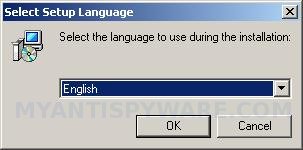
ERUNT Setup – Select the language
Select the language to use during installation and click OK. Follow the prompts. Do not make any changes to default settings, but say no to the question that asks you to add ERUNT to the StartUp folder. You can enable this option later if you wish. When the program has finished installing, make sure a checkmark is unchecked next to Show documentation and placed next to Launch ERUNT as shown below.
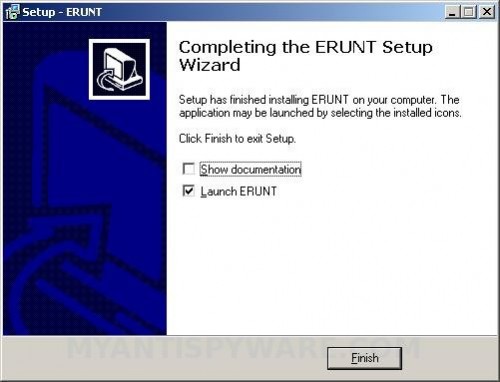
ERUNT Setup – Finish
Click Finish button and you will see the Welcome prompt. Click OK and will see a backup options screen similar to the figure below.
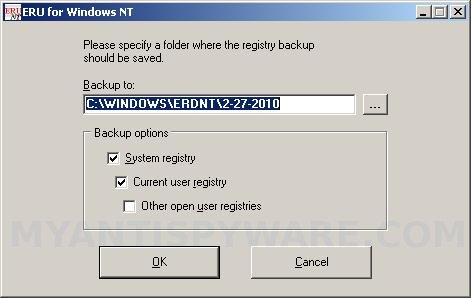
ERUNT Backup Options
Choose a location for the backup. Note: the default location is C:\WINDOWS\ERDNT which is acceptable. Click OK, then YES to start backing up the Windows registry.
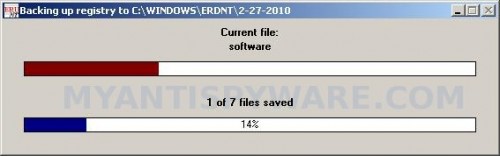
ERUNT Backing Up
When the backup is complete a message box will appear that it has completed scanning successfully.
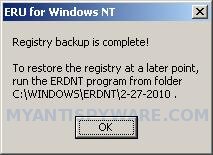
ERUNT Backup complete
Click Ok to close ERUNT.





