Do you have pop-ups or your computer infected with trojan or spyware ? Learn how to ask us for help, click here!

Cannot View Hidden Files And Folders. How to fix

As a result of viruses/trojans activity can be blocked showing hidden files. In Folder options can not take the “Show hidden files and folders” option. You choice the radio button for, then press Apply and OK, but hidden files do not be shown by windows explorer. The changes would just disappear upon opening the dialog again. Or more, no Folder Options in the Tools menu.

There are two methods to restore back the showing hidden files.
1. Manually.

  • Click Start -> Run.
  • Type regedit and press OK.
  • In the left panel navigate to the following keys by expanding the + at left of each key at left:

    HKEY_CURRENT_USER
    Software
    Microsoft
    Windows
    CurrentVersion
    Policies
    Explorer

  • In the right panel Right click NoFolderOptions, choose “delete”. OK the prompt.
  • In the left panel navigate to the following keys by expanding the + at left of each key at left:

    HKEY_CURRENT_USER
    Software
    Policies
    Microsoft
    Internet Explorer
    Restrictions

  • In the right panel Right click NoBrowserOptions, choose “delete”. OK the prompt.
  • In the left panel navigate to the following keys by expanding the + at left of each key at left:

    HKEY_LOCAL_MACHINE
    SOFTWARE
    Microsoft
    Windows
    CurrentVersion
    Explorer
    Advanced
    Folder
    Hidden
    SHOWALL

  • In the right panel Right click CheckedValue, choose “Edit”. This should be a DWORD key. If it isn’t, delete the key. Create a new key called “CheckedValue” as a DWORD (hexadecimal) with a value of 1.
  • Reboot your PC.

2. Automatically.

  • Open notepad and copy/paste the text in the quotebox below into it:

    REGEDIT4

    [HKEY_CURRENT_USER\Software\Microsoft\Windows\CurrentVersion\Policies\Explorer]
    “NoFolderOptions”=-

    [HKEY_CURRENT_USER\Software\Policies\Microsoft\Internet Explorer\Restrictions]
    “NoBrowserOptions”=-

    [HKEY_LOCAL_MACHINE\SOFTWARE\Microsoft\Windows\CurrentVersion\Explorer\Advanced\Folder\Hidden\SHOWALL]
    “CheckedValue”=-

    [HKEY_LOCAL_MACHINE\SOFTWARE\Microsoft\Windows\CurrentVersion\Explorer\Advanced\Folder\Hidden\SHOWALL]
    “CheckedValue”=dword:00000001

  • Save this as fix.reg to your Desktop (remember to select Save as file type: All files in Notepad.).
  • Double-click on the fix.reg. When it asks if you would like to merge the information, press the Yes button and then the OK button when it is done.
  • Reboot your PC.

If none of the above methods work, then probably you infected with virus or trojan, that blocked of show hidden files. Then I would recommend you follow the instructions.

Related article: How to show hidden files in Windows.

November 26, 2007 on 9:49 pm | In Tips | 12 Comments |


Hijacker will not let me download anti spyware program – how to fix

If you can`t download an antispyware software, open an anti virus vendors sites, then try Hosts Xpert – Free hosts file manager for restore Windows HOSTS file.

  • Download Hosts Xpert
  • Extract to your Desktop.
  • Run Hosts Xpert
  • Click “Restore MS Hosts File”
  • Reboot your PC

After these simple steps you should to get access to all blocked sites, if you still have a problem, then create a free forum account, and create a new topic with your more information about problem.

November 26, 2007 on 10:28 am | In Tips | No Comments |


How to remove shell.exe, spoolvs.exe trojan

Shell.exe and spoolvs.exe are components of trojan known as TROJ_RENOS.BX, Trojan.Win32.Qhost.abh , Trojan.Dropper, TR/Crypt.XDR.Gen, W32/Blocker-based!Maximus, Mal/TinyDL-T.

Shell.exe and spoolvs.exe trojan symptoms:

  • Start > Settings -> Control panel is missing
  • Task bar icons informing you of an infection and taking you to legit looking security panel
  • System pop ups and IE pop ups
  • When you start PC, you can get a message: “Windows cannot find ‘C:\Windows\shell.exe’ Make sure you typed the file name correctly….”

Continue reading How to remove shell.exe, spoolvs.exe trojan…

November 26, 2007 on 9:53 am | In Trojan, Tutorials - HowTo | 10 Comments |


AD-aware Definition File Update

035.0000 is now available, new definition file for Ad-Aware 2007.
SE1R204 21.11.2007 is now available, new definition file for Ad-Aware SE.

New definitions:
====================
RegistryCleanerXP

Updated definitions:
====================
AdwareAlert
IEDefender +5
Win32.Trojandownloader.Zlob +6

Download Ad-aware

November 22, 2007 on 9:28 am | In Updates | No Comments |


SpyBot Definition File Update

Adware
+ MeMedia.AdVantage
Malware
+ CoolToolBar + MalwareScanner + AntiSpyZone + IEDefender + KazaapAdwareAndSpywareRemover + FroggieScan + SpyRemover + Vcodec.eMedia + SpyBouncer + Vario.AntiVirus + NoAdware + BPS.SpyEliminator
PUPS
+ CleanSpaceUltimate + Spy-Killer + SynergeticSoft.PrivacyDefender
Trojan
+ IE-Improver + Zlob.Downloader.iec + Win32.IrcContact + Win32.Agent.ekn + Smitfraud-C.MSVPS + Zlob.Downloader.oid + Fraud.ProtectionBar + Zlob.Downloader + NSIS Media.VB (22)

Download SpyBot

November 22, 2007 on 9:26 am | In Updates | No Comments |


How to remove beautyscreens.com/jokes.php popups

Symptoms:

  • IE pop-up windows, mostly to a sites www.beautyscreens.com/jokes.php, winantivirus.com, www.winantiviruspro.com, winantispyware.com, partypoker.com.
  • SpyBot found Smitfraud-C.Toolbar888, SearchClickAds, Win32.Small.dp

Download HijackThis and save the file to your desktop. Double click on the file for install.
Download CCleaner. Double click on the file for install.
Download SmitfraudFix (by S!Ri) Extract the content (a folder named SmitfraudFix) to your desktop.

Reboot your computer in Safe Mode by doing the following:

1. Restart your computer
2. After hearing your computer beep once during startup, but before the Windows icon appears, press F8.
3. Instead of Windows loading as normal, a menu should appear
4. Select the first option, to run Windows in Safe Mode.

Start HijackThis. Click “Do a system scan only.” and put a checkmark next to the following items:

O2 – BHO: ofb1 – {3E1500AC-87A5-416b-A211-82E848649DA9} – C:\PROGRA~1\Ofb1\Ofb1.dll
O4 – HKLM\..\Run: [setup] rundll32.exe “C:\WINDOWS\system32\****.dll”,realset
O4 – HKCU\..\Run: [Firewall auto setup] C:\DOCUME~1\YOUR_USER_NAME\LOCALS~1\Temp\winlogon.exe
O20 – AppInit_DLLs: C:\WINDOWS\system32\perfc000.dat

Where **** is a random chars, as ‘utgboudx’, YOUR_USER_NAME – your windows username
Now close all browser and other windows except for HijackThis, and click “Fix Checked” to have HijackThis fix the entries you checked.

Open the SmitfraudFix folder and double-click smitfraudfix.cmd. Press the number 2 on your keyboard and the press the enter key to choose the option Clean (safe mode recommended).

You will be prompted : “Registry cleaning – Do you want to clean the registry ?“; answer “Yes” by typing Y and press “Enter” in order to remove the Desktop background and clean registry keys associated with the infection.

The tool will now check if wininet.dll is infected. You may be prompted to replace the infected file (if found); answer “Yes” by typing Y and press “Enter”.

The tool may need to restart your computer to finish the cleaning process; if it doesn’t, please restart it into Normal Windows.

Run CCleaner.

Click Analyze button. After scan your system, click Run Cleaner.

Reboot your PC.

Disable system restore to flush out infected restore points. Reboot your computer again. Turn on Windows System Restore. After that click START > ALL PROGRAMS > ACCESSORIES > SYSTEM TOOLS > SYSTEM RESTORE. click on “create new restore point” > click on NEXT and follow the prompts.

If you are still having problems with spyware after completing these instructions, it`s possible, then please follow the steps outlined in the topic linked below:
Spyware removal – Read Before Posting

November 22, 2007 on 9:01 am | In Tutorials - HowTo | 2 Comments |


Combofix has expired! What you can do…

If after run Combofix you got message:

This copy Combofix has expired!
Please download an updated copy


You can do:

1. Download an updated copy from here
2. Change your PC system time to some days ago (7days for example). Warning, only if first option don`t work.

November 21, 2007 on 10:01 am | In Tips | 2 Comments |


How to remove savetheinformation.com and secirityonpage.com hijackers

Symptoms:

  • IE pop-up windows, mostly to a site called www.savetheinformation.com but also to some other sites
  • Yellow baloons from taskbar prompting to download antispyware software.
  • Grey pop-ups, like error messages, also prompting to download antivirus/spyware software.
  • 2 programs added to start menu program list: online security guide and live safety center
  • when you open an IE window it goes to www.savetheinformation.com

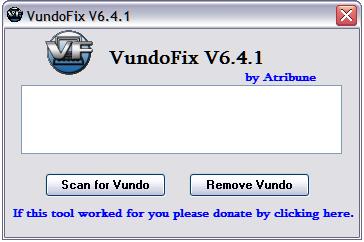
Download VundoFix and save the file to your desktop.
Download HijackThis and save the file to your desktop. Double click on the file for install.
Download CCleaner. Double click on the file for install.

Disable your Anti-Spyware Program, once your PC is clean you can re-enable.

Double-click VundoFix.exe to run it.

When VundoFix opens, click the Scan for Vundo button.
Once it’s done scanning, click the Remove Vundo button.
You will receive a prompt asking if you want to remove the files, click YES
Once you click yes, your desktop will go blank as it starts removing Vundo.
When completed, it will prompt that it will reboot your computer, click OK.

If you still have a problems, the follow steps:

Download FixSTI.reg to your desktop.

Double-click on the FixSTI. When it asks if you would like to merge the information, press the Yes button and then the OK button when it is done.

Run HijackThis, Close all programs leaving only HijackThis running. Place a check against each of the following if found, making sure you get them all and not any others by mistake:

O2 – BHO: (no name) – {33BF7E26-185B-46C7-87FB-A8F94C7E696C} – C:\WINDOWS\system32\pmnlk.dll
O2 – BHO: (no name) – {5a2e9fa3-5acd-4013-961b-aae311cdb902} – C:\WINDOWS\system32\****.dll (file missing)
O2 – BHO: (no name) – {60D97635-E582-E002-F541-EA2B589ED998} – C:\WINDOWS\system32\****.dll (file missing)
O2 – BHO: (no name) – {89AD4D75-2429-462e-BD4E-443F233F6033} – C:\WINDOWS\system32\****.dll
O2 – BHO: (no name) – {A95B2816-1D7E-4561-A202-68C0DE02353A} – C:\WINDOWS\system32\****.dll
O2 – BHO: (no name) – {BACEB7AF-8D88-456E-82D0-7BEB9A4410FE} – C:\WINDOWS\system32\****.dll
O3 – Toolbar: Security Toolbar – {11A69AE4-FBED-4832-A2BF-45AF82825583} – C:\WINDOWS\system32\****.dll
O20 – Winlogon Notify: **** – C:\WINDOWS\SYSTEM32\****.dll

Where **** a random chars, for example: xjegktl, nuyix, ldbvcpwu, khcmkrws …

Now close all others windows except for HijackThis, and click “Fix Checked” to have HijackThis fix the entries you checked.

Run CCleaner.

Click Analyze button. After scan your system, click Run Cleaner.

If you still have a problems with your PC or cannot remove hijackers follow the steps outlined in the topic linked below:
Spyware removal – Read Before Posting.
savetheinformationcom & secirityonpagecom-hijackers

Don`t forget, we want help you, make logs and post to spyware removal forum!

November 18, 2007 on 6:00 am | In Browser Hijacking, Malware removal, Tutorials - HowTo | 3 Comments |


VundoFix – freeware removal tool for Trojan.Vundo

VundoFix is a freeware removal tool for many of the known variants of Trojan.Vundo, Trojan.Conhook and other similar infections.

Continue reading VundoFix – freeware removal tool for Trojan.Vundo…

November 18, 2007 on 3:52 am | In Free Software, Trojan | 24 Comments |


October malware toplist by viruslist.com

# Greediest Trojan targeting banks: This month’s leader is a modification of Trojan-Spy.Win32.Banker.ezn, which targets 45 banks. This seems positively modest in comparison to last month’s leader, which set its sights on 134 banks simultaneously.
# Greediest Trojan targeting payment systems: Backdoor.Win32.Xhaker.c is very equitable in its approach – it attacks three e-payment systems and three plastic card systems.
# Greediest Trojan targeting plastic cards: See above.
# Stealthiest malicious program: The number 10 seems to be in favour at the moment – this month’s winner, Backdoor.Win32.Hupigon.mrv, is packed with ten different packers, just as last month’s leader was.
# Smallest malicious program: In spite of its tiny 17 bytes, Trojan.BAT.DeltreeY.a packs a punch and wins the October nomination.
# Biggest malicious program: Once again, a hefty representative of the Haradong family wins out – Trojan.Win32.Haradong.ct weighs in at 244MB, slightly larger than its close relative Haradong.bj, last month’s winner in this category.
# Most malicious program: Backdoor.Win32.Rbot.ejs, like so many past winners of this category, disables security solutions by deleting them from memory and from the registry.
# Most common malicious program in mail traffic: Email-Worm.Win32.Netsky.q retains its persistent presence in this category for the third month running, and made up 20.11% of all malicious programs in mail traffic in October.
# Most common Trojan family: In spite of an impressive 563 modifications, Trojan-Spy.Win32.Banker’s numbers are following last month’s trend, with figures just over 100 down on September’s.
# Most common virus/ worm family: Email-Worm.Win32.Zhelatin (a.k.a the Storm worm) continues to reign in this category for the second month running, with 38 modifications in October.

Read more: Malware Miscellany, October 2007

Safe surfing :)

November 17, 2007 on 8:49 am | In Malware, Spyware | No Comments |


Next Page »

My Anti Spyware - Free antispyware programs and Spyware Removal Instructions.