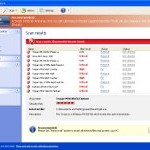
 Internet Antivirus 2011 is a fake (rogue) security application. It pretends to be a legitimate antivirus software that is used to detect and remove viruses, malware, worms and trojans but, in reality, is a totally scam. The rogue blocks legitimate antispyware and antivirus tools, hijacks browsers, redirects you to malicious websites, displays numerous fake security alerts and nag screens in order to trick you into thinking your computer is heavy infected. It hopes that you will next purchase the full version of the software to remove all what it found. Important to note, the fake antivirus is unable to detect and remove any infections, so do not pay for the bogus software!
Internet Antivirus 2011 is distributed mostly through the use of trojans, infected websites and other malicious software. Moreover, cyber criminals also use various other misleading methods to distribute their bogus software, e.g. Twitter, Facebook and spam emails. Do not fall victim to this fake antivirus tool because it is nothing more but a scam. If you got Internet Antivirus on the system then please follow the removal guide below to remove Internet Antivirus 2011 and any associated malware from your PC for free using legitimate antimalware software.
During installation, the rogue will configure itself to run automatically every time when Windows starts. Next, the program will add a few entries into the HOSTS file so that when you open Google, Yahoo or Bing, you will be redirected to various misleading websites. And last, but not least, Internet Antivirus 2011 will create several fake malware files, that absolute harmless, but later during the scan, the fake security tool will label them as worms, trojans and viruses. This malware want to trick you into thinking that your computer in danger. Thus, the scan results are a fake and you can safely ignore them.
While Internet Antivirus 2011 is running, it will display a variety of fake security warnings and alerts. Some of the alerts are:
System alert
Internet Antivirus 2011 has detected potentially harmful software in
your system. It is strongly recommended that you register
Internet Antivirus 2011 to remove all found threats immediately.
System warning
No real-time malware, spyware and virus protection was
found. Click here to activate.
Warning! Identity theft attempt detected
Hidden connection IP: 128.154.26.11
Target: Microsoft Corporation keys
Warning
Warning! Virus detected
However, like false scan results above, all of these security messages and alerts are just a fake and has been displayed to trick you into thinking your computer is infected with all sorts of malicious programs.
In addition to the above-described, Internet Antivirus 2011 will also block the Windows Task Manager and most antivirus and antispyware tools.
As you can see, all Internet Antivirus does is fake! Be sure you keep away from this fake software and never install it on your computers. Internet Antivirus 2011 is a scam that has been created with one purpose – to scare you into thinking that your computer is infected, so you will then purchasing its so-called full version. Do not be fooled into buying the program! Instead of doing so, follow the removal guidelines below in order to remove Internet Antivirus 2011 and any associated malware from your computer for free.
Symptoms in a HijackThis Log
O4 – HKCU\..\Run: [Internet Antivirus 2011] “C:\Documents and Settings\All Users\Application Data\13077d\IA130_287.exe” /s /d
Automatic removal instructions for Internet Antivirus 2011
Step 1. Reboot your computer in Safe mode with networking
Restart your computer.
After hearing your computer beep once during startup, start pressing the F8 key on your keyboard. On a computer that is configured for booting to multiple operating systems, you can press the F8 key when the Boot Menu appears.
Instead of Windows loading as normal, Windows Advanced Options menu appears similar to the one below.
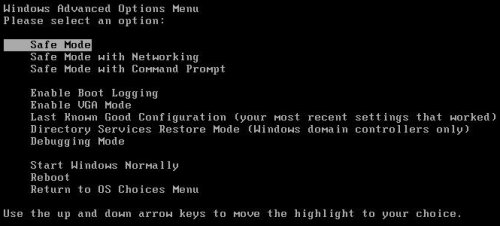
Windows Advanced Options menu
When the Windows Advanced Options menu appears, select Safe mode with networking and then press ENTER.
Step 2. Reset proxy settings of Internet Explorer
Run Internet Explorer, Click Tools -> Internet Options as as shown in the screen below.
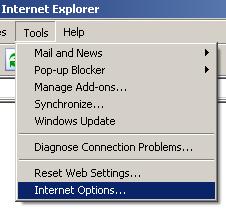
Internet Explorer – Tools menu
You will see window similar to the one below.
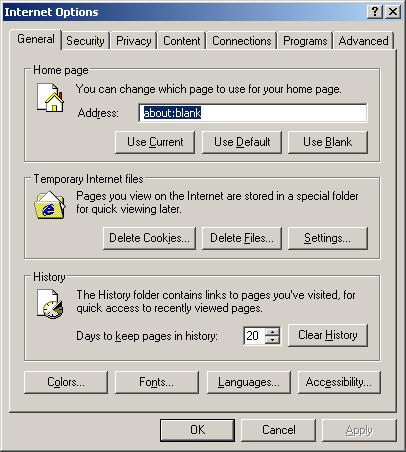
Internet Explorer – Internet options
Select Connections Tab and click to Lan Settings button. You will see an image similar as shown below.

Internet Explorer – Lan settings
Uncheck “Use a proxy server” box. Click OK to close Lan Settings and Click OK to close Internet Explorer settings.
Step 3. Remove Internet Antivirus 2011 and any associated malware
Download MalwareBytes Anti-malware (MBAM). Once downloaded, close all programs and windows on your computer.
Double-click on the icon on your desktop named mbam-setup.exe. This will start the installation of MalwareBytes Anti-malware onto your computer. When the installation begins, keep following the prompts in order to continue with the installation process. Do not make any changes to default settings and when the program has finished installing, make sure a checkmark is placed next to “Update Malwarebytes’ Anti-Malware” and Launch “Malwarebytes’ Anti-Malware”. Then click Finish.
MalwareBytes Anti-malware will now automatically start and you will see a message stating that you should update the program before performing a scan. If an update is found, it will download and install the latest version.
As MalwareBytes Anti-malware will automatically update itself after the install, you can press the OK button to close that box and you will now be at the main menu. You will see window similar to the one below.
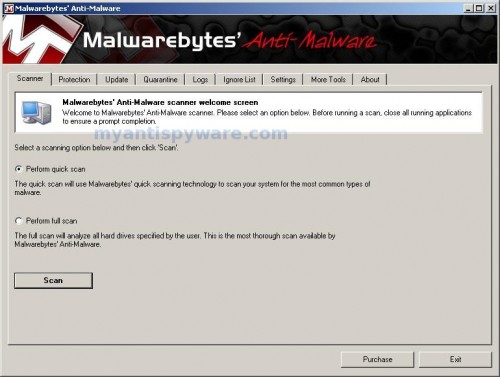
Malwarebytes Anti-Malware Window>
Make sure the “Perform quick scan” option is selected and then click on the Scan button to start scanning your computer for Internet Antivirus 2011 infection. This procedure can take some time, so please be patient.
When the scan is finished a message box will appear that it has completed scanning successfully. Click OK. Now click “Show Results”. You will see a list of infected items similar as shown below.
Note: list of infected items may be different than what is shown in the image below.
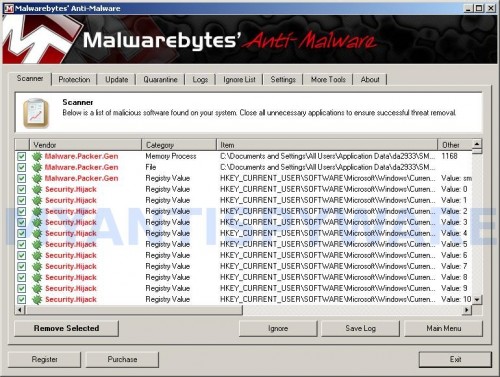
Malwarebytes Anti-malware, list of infected items
Make sure all entries have a checkmark at their far left and click “Remove Selected” button to remove Internet Antivirus 2011. MalwareBytes Anti-malware will now remove all of associated Internet Antivirus files and registry keys and add them to the programs’ quarantine. When MalwareBytes Anti-malware has finished removing the infection, a log will open in Notepad and you may be prompted to Restart.
Step 4. Reset HOSTS file
Please download OTM by OldTimer from here and save it to desktop. Run OTM, copy, then paste the following text in “Paste Instructions for Items to be Moved” textarea (under the yellow bar):
:Commands

[resethosts]
Click the red Moveit! button. Close OTM.
Internet Antivirus 2011 removal notes
Note 1: if you can not download, install, run or update Malwarebytes Anti-malware, then follow the steps: Malwarebytes won`t install, run or update – How to fix it.
Note 2: if you need help with the instructions, then post your questions in our Spyware Removal forum.
Note 3: your current antispyware and antivirus software let the infection through ? Then you may want to consider purchasing the FULL version of MalwareBytes Anti-malware to protect your computer in the future.
Internet Antivirus 2011 creates the following files and folders
%UserProfile%\Application Data\Internet Antivirus 2011
%UserProfile%\Application Data\Internet Antivirus 2011\cookies.sqlite
%UserProfile%\Desktop\Internet Antivirus 2011.lnk
%UserProfile%\Start Menu\Internet Antivirus 2011.lnk
%UserProfile%\Application Data\Internet Antivirus 2011\Instructions.ini
%UserProfile%\Start Menu\Programs\Internet Antivirus 2011.lnk
%UserProfile%\Application Data\Microsoft\Internet Explorer\Quick Launch\Internet Antivirus 2011.lnk
C:\Documents and Settings\All Users\Application Data\13077d\IA130_287.exe
Internet Antivirus 2011 creates the following registry keys and values
HKEY_CURRENT_USER\SOFTWARE\Microsoft\Windows\CurrentVersion\Run | Internet Antivirus 2011





Works well.
thankyou so much! the last time i had this virus on my computer i paid to get it fixed and didn’t have my computer for a couple of days. I can’t believe this actually worked and it was so easy!
again thankyou so much!
thanks a lot for your guide
Thank you! One change I had to make to your instructions — it wouldn’t let me install either the fix.reg or the fix.inf as described, but I was able to run regedit through the command dos window, and once that was open, I used the “import” menu command to load up the fix.reg and it took care of the exe problem.
This seems to be a particularly nasty variant: it’s the only major virus I’ve had in years and I’m not sure where it came from since I keep my antivirus and security settings updated, but from what people are saying it could come through video codecs which suggests it might have been picked up through browsing io9 or another tech blog…
Thanks for the help. I got rid of AV2011 with your instructions. Excellent!
Tim
I have Vista Home Prium for my computer and I got the Anti Spyware 2011 which messed my machine up. Thank you for who ever posted this you saved my semester of school and I can print again. Thank you I will tell all my friends about this website this is the place I will come when I don’t know how to fix something on my computer. I am very smart with computers and can fix most issues by myself but this was to much. I was forced to use my laptop and have been going to postal mail place to print the things I need. Again thank you for who ever created this.