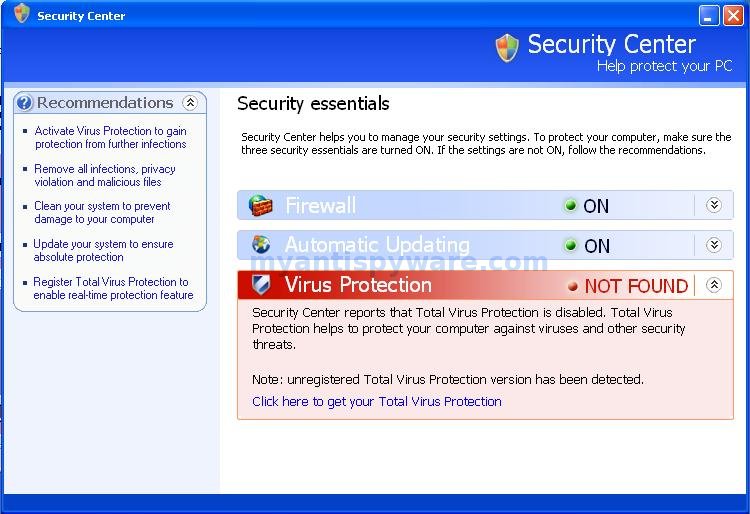
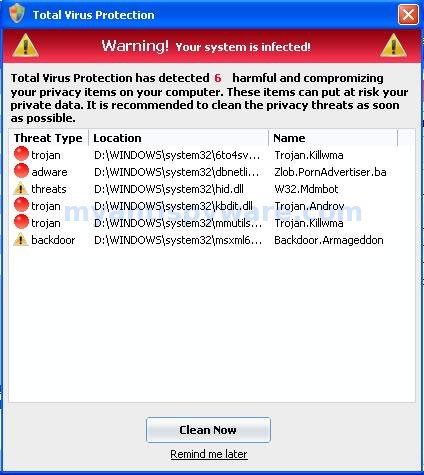
Total Virus Protection is a rogue antispyware program that uses fake alerts and false positives to trick you into buying the software.
During installation, TotalVirusProtection configures itself to run automatically every time, when you start your computer. Once running, it will scan your computer and reports false or exaggerated system security threats on the computer that cannot be removed unless you first purchase the software. Also Total Virus Protection finds are legitimate programs and labels them as spyware, for example c:\windows\system32\hypertrm.dll labels as Trojan.USBsteal, c:\windows\system32\6to4svc.dll labels as Dialer.Palazzo, c:\windows\system32\diskperf.exe labels as Backdoor.Netdevil, c:\windows\system32\kbdno.dll labels as Trojan.Anits.
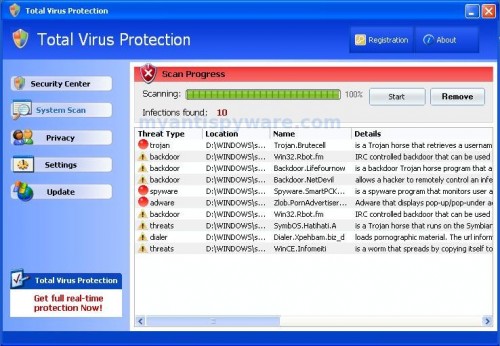
Total Virus Protection may drastically slow the performance of your computer. It also generates false security alerts and pop ups. Use the free instructions below for removing the Total Virus Protection and any associated malware from your computer.
Symptoms in a HijackThis Log.
O4 – HKLM\..\Run: [Total Virus Protection] C:\Program Files\TotalVirusProtection\TotalVirusProtection.exe
Use the following instructions to remove Total Virus Protection (Uninstall instructions).
Download MalwareBytes Anti-malware (MBAM). Close all programs and Windows on your computer.
Double Click mbam-setup.exe to install the application. When the installation begins, keep following the prompts in order to continue with the installation process. Do not make any changes to default settings and when the program has finished installing, make sure a checkmark is placed next to Update Malwarebytes’ Anti-Malware and Launch Malwarebytes’ Anti-Malware, then click Finish.
If an update is found, it will download and install the latest version.
Once the program has loaded you will see window similar to the one below.
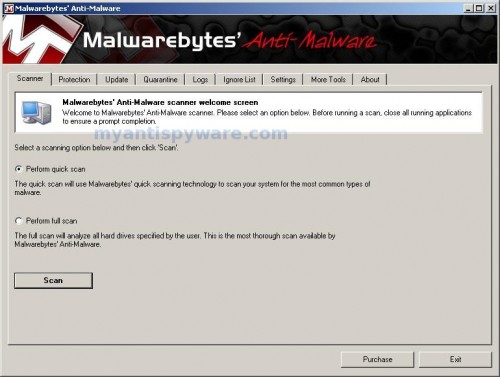
Malwarebytes Anti-Malware Window
Select “Perform Quick Scan”, then click Scan. The scan may take some time to finish,so please be patient.
When the scan is complete, click OK, then Show Results to view the results. You will see a list of infected items similar as shown below. Note: list of infected items may be different than what is shown in the image below.
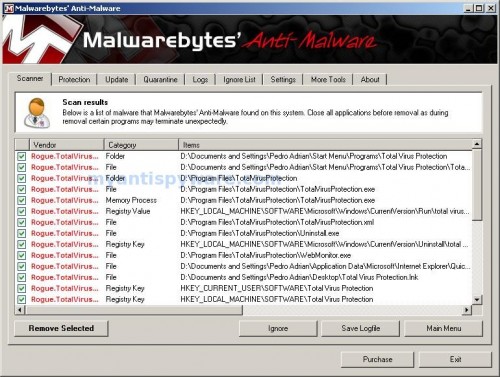
Malwarebytes Anti-malware, list of infected items
Make sure that everything is checked, and click Remove Selected. When disinfection is completed, a log will open in Notepad and you may be prompted to Restart.
Note: if you need help with the instructions, then post your questions in our Spyware Removal forum.
Total Virus Protection creates the following files and folders
%UserProfile%\Start Menu\Programs\Total Virus Protection
C:\Program Files\TotalVirusProtection
%UserProfile%\Start Menu\Programs\Total Virus Protection\Total Virus Protection.lnk
C:\Program Files\TotalVirusProtection\TotalVirusProtection.exe
C:\Program Files\TotalVirusProtection\TotalVirusProtection.xml
C:\Program Files\TotalVirusProtection\Uninstall.exe
C:\Program Files\TotalVirusProtection\WebMonitor.exe
%UserProfile%\Application Data\Microsoft\Internet Explorer\Quick Launch\Total Virus Protection.lnk
%UserProfile%\Desktop\Total Virus Protection.lnk
Total Virus Protection creates the following registry keys and values
HKEY_LOCAL_MACHINE\SOFTWARE\Microsoft\Windows\CurrentVersion\Uninstall\total virus protection
HKEY_CURRENT_USER\SOFTWARE\Total Virus Protection
HKEY_LOCAL_MACHINE\SOFTWARE\Total Virus Protection
HKEY_LOCAL_MACHINE\SOFTWARE\Microsoft\Windows\CurrentVersion\Run\total virus protection
HKEY_LOCAL_MACHINE\SOFTWARE\Microsoft\Security Center\AntiVirusDisableNotify
HKEY_LOCAL_MACHINE\SOFTWARE\Microsoft\Security Center\FirewallDisableNotify
HKEY_LOCAL_MACHINE\SOFTWARE\Microsoft\Security Center\UpdatesDisableNotify






Logfile of Trend Micro HijackThis v2.0.2
Scan saved at 12:31:45 PM, on 3/15/2009
Platform: Windows XP SP2 (WinNT 5.01.2600)
MSIE: Internet Explorer v7.00 (7.00.6000.16791)
Boot mode: Normal
…
c.bullard, please post the log into our spyware removal forum. I will help you.