 Paladin Antivirus is a new rogue antispyware program from the same family of rogues as Malware Defense and Anti Malware. Nothing new here, the rogue is distributed with the help of trojans. When the trojan is started, it will download and install Paladin Antivirus onto your computer without your permission and knowledge. The same trojan will also register the program in the Windows registry to run automatically every time when Windows loads.
During installation, Paladin Antivirus will ask you to uninstall legitimate antispyware tools (Malwarebytes’ Anti-Malware, AVG, etc). The following alert will be shown:
Paladin Antivirus
There is unauthorized antivirus software detected on your computer. It is recommended you to remove it, otherwise
it could conflict with Paladin Antivirus.
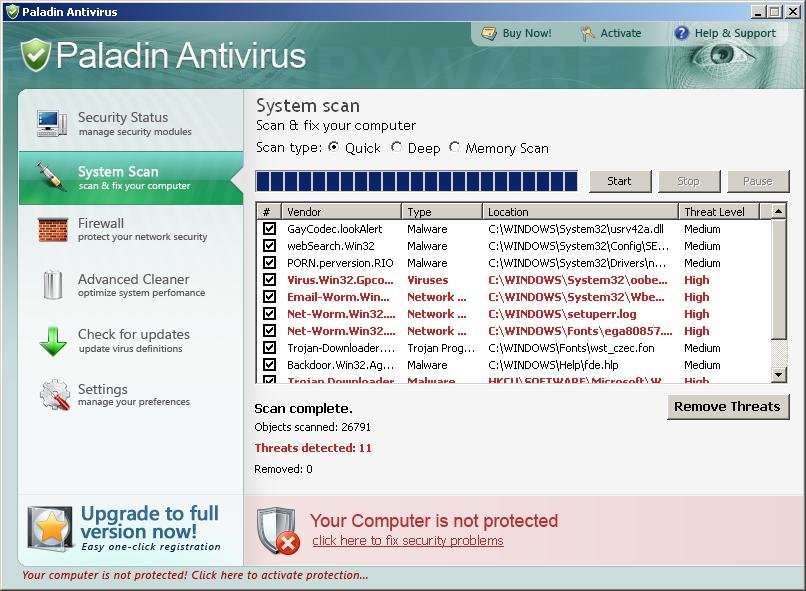
Once started, the rogue will imitate a system scan and detect a lot of various infections to make you think that your computer in danger, that it is infected with a lot of worms, trojans, spyware and other malware. Paladin Antivirus uses the real names of infection to make the scam look more realistic. However, the rogue won’t remove those infections unless you purchase so-called “full” version of the program. Most importantly, do not purchase Paladin Antivirus! All of these threats are fake. So you can safely ignore the scan results!
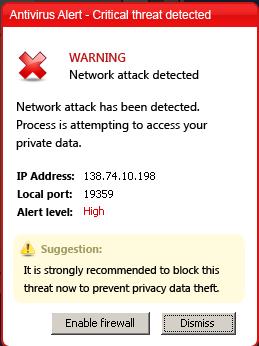
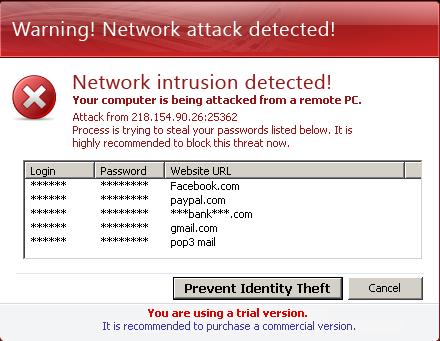
What is more, while Paladin Antivirus is running, you will be shown numerous warnings and a lot of fake security alerts and notifications from Windows task bar. The fake alerts stats:
Warning! Network attack detected!
Network intrusion detected!
Your computer is being attacked from a remote PC.
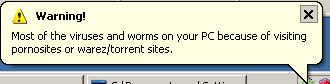
Warning!
Most of the viruses and worms on your PC because of visiting
pornosites or warez/torrent sites.
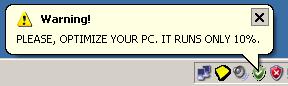
Warning!
PLEASE, OPTIMIZE YOUR PC. IT RUNS ONLY 10%.
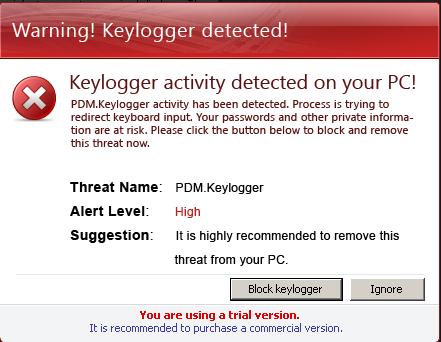
Warning! Keylogger detected!
Keylogger activity detected on your PC!
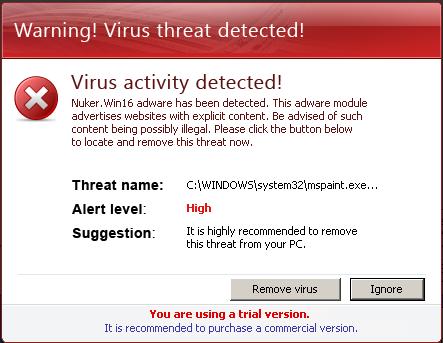
Warning! Virus threat detected!
Virus activity detected!
Nuker.Win16 adware has been detected
Of course, all of these warnings and alerts nothing more but a scam and like false scan results should be ignored!
As you can see, Paladin Antivirus is a scam and should be removed from the system upon detection. If you are infected with this malware, then use these removal guide below, which will remove Paladin Antivirus and any other infections you may have on your computer for free.
More screen shoots of Paladin Antivirus

Symptoms in a HijackThis Log
O4 – HKCU\..\Run: [Paladin Antivirus] “C:\Program Files\Paladin Antivirus\pav.exe” -noscan
Use the following instructions to remove Paladin Antivirus (Uninstall instructions)
Step 1. Remove _VOID trojan (Rootkit TDSS)
Some variants of Paladin Antivirus installed with a _VOID trojan-rootkit that blocks the ability to run various antivirus and antispyware programs, including Malwarebytes Anti-Malware.
Download TDSSKiller from here and unzip to your desktop.
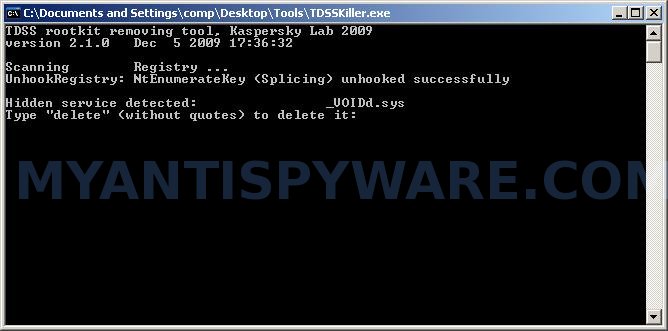
Open TDSSKiller folder. Double click the TDSSKiller icon to start scanning Windows registry for Rootkit TDSS. If it is found, the you will see a screen similar to the one below.

TDSSKiller
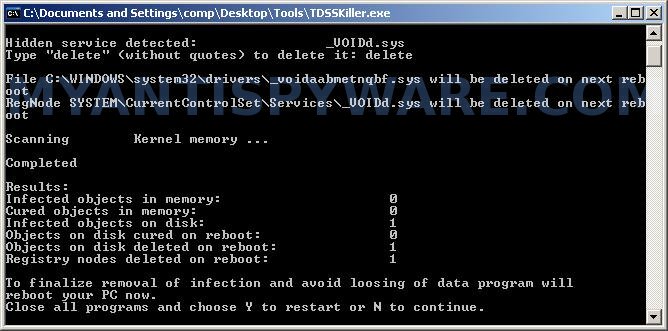
Type delete and press Enter. Once TDSSKiller has finished removing rootkit TDSS, you will see a windows as shown below.
TDSSKiller
Type Y and press Enter. Your computer will be rebooted.
Step 2. Remove Paladin Antivirus and any associated malware.
Download MalwareBytes Anti-malware (MBAM). Once downloaded, close all programs and windows on your computer.
Double-click on the icon on your desktop named mbam-setup.exe. This will start the installation of MalwareBytes Anti-malware onto your computer. When the installation begins, keep following the prompts in order to continue with the installation process. Do not make any changes to default settings and when the program has finished installing, make sure a checkmark is placed next to “Update Malwarebytes’ Anti-Malware” and Launch “Malwarebytes’ Anti-Malware”. Then click Finish.
MalwareBytes Anti-malware will now automatically start and you will see a message stating that you should update the program before performing a scan. If an update is found, it will download and install the latest version.
As MalwareBytes Anti-malware will automatically update itself after the install, you can press the OK button to close that box and you will now be at the main menu. You will see window similar to the one below.
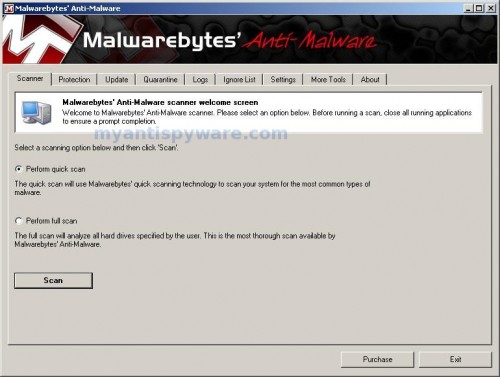
Malwarebytes Anti-Malware Window
Make sure the “Perform quick scan” option is selected and then click on the Scan button to start scanning your computer for Paladin Antivirus infection. This procedure can take some time, so please be patient.
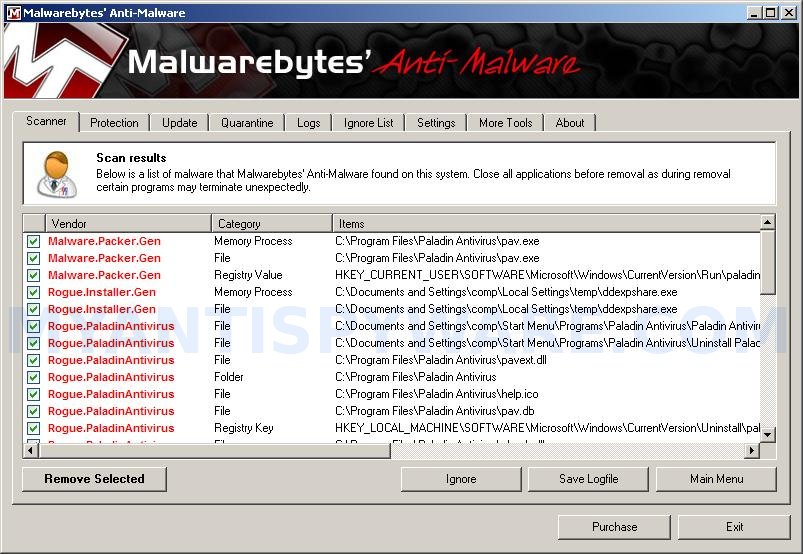
When the scan is finished a message box will appear that it has completed scanning successfully. Click OK. Now click “Show Results”. You will see a list of infected items similar as shown below.
Note: list of infected items may be different than what is shown in the image below.
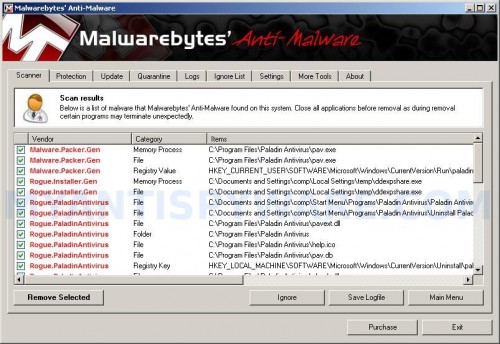
Malwarebytes Anti-malware, list of infected items
Make sure all entries have a checkmark at their far left and click “Remove Selected” button to remove Paladin Antivirus. MalwareBytes Anti-malware will now remove all of associated Paladin Antivirus files and registry keys and add them to the programs’ quarantine. When MalwareBytes Anti-malware has finished removing the infection, a log will open in Notepad and you may be prompted to Restart.
Note: if you need help with the instructions, then post your questions in our Spyware Removal forum.
Paladin Antivirus creates the following files and folders
C:\Program Files\Paladin Antivirus
C:\Documents and Settings\comp\Start Menu\Programs\Paladin Antivirus
C:\Program Files\Paladin Antivirus\pav.exe
%UserProfile%\Start Menu\Programs\Paladin Antivirus\Paladin Antivirus.lnk
%UserProfile%\Start Menu\Programs\Paladin Antivirus\Uninstall Paladin Antivirus.lnk
C:\Program Files\Paladin Antivirus\pavext.dll
C:\Program Files\Paladin Antivirus\help.ico
C:\Program Files\Paladin Antivirus\pav.db
C:\Program Files\Paladin Antivirus\phook.dll
C:\Program Files\Paladin Antivirus\uninstall.exe
%UserProfile%\Start Menu\Programs\Paladin Antivirus\Paladin Antivirus Support.lnk
%UserProfile%\Desktop\Paladin Antivirus Support.lnk
%UserProfile%\Application Data\Microsoft\Internet Explorer\Quick Launch\Paladin Antivirus.lnk
%UserProfile%\Desktop\Paladin Antivirus.lnk
Paladin Antivirus creates the following registry keys and values
HKEY_LOCAL_MACHINE\SOFTWARE\Microsoft\Windows\CurrentVersion\Uninstall\paladin antivirus
HKEY_LOCAL_MACHINE\SOFTWARE\Paladin Antivirus
HKEY_CURRENT_USER\SOFTWARE\Microsoft\Windows\CurrentVersion\Run\paladin antivirus
HKEY_CURRENT_USER\SOFTWARE\Microsoft\Windows\CurrentVersion\Run\extrac64_cab.exe





I keep running TDSSKiller, but it keeps coming up as clean. I’m running a Full Scan of Malwarebytes, and I was when I first started reading this, could that be why?
i used the tdss killer thing and ran malware but when it finishes i click remove and then windows tells me that malware has stopped working and then closes and does not reboot. Then i reboot it myself and nothing changes. What am i doing wrong?
Brandon, open a new topic in our Spyware removal forum. I will check your PC.
Charlie, open a new topic in our Spyware removal forum. We can try another way.
nvm mind patrik.i logged on my computer today and i did not see the paladin. thanks very much…but if i have any other problems with this i will come and ask u again.
wow!! thank you guys! it worked like a charm… :-)))
Worked a charm, after running TDSS and rebooting AVG allready woke from its stupor.
Had trouble downloading MBAM from the link here, might be because i used a cached version of this page since my friendly trojan wouldnt allow normal internet services.
Got it from cnet and finished cleaning with removal of another 15 infections including _void.dll s and so on
Thanks for your time and effort.
When i try to click TDSSKiller.exe , Only blink screen for a second then nothing happen. What should i do, Pat?
Tommy, try rename it before running (use a random name).
Thanks so much, you guys are life savers!!!
Eerything worked perfecty.
hey guys, i went through the above procedure and everything seemed to work, dont get any more pop ups etc but when i tried to install AVG back on to my system it told me that it couldnt because Paladin was on my compuer!
Is there something else i can do to completely remove it off my computer?
Thanks
Guys, most of this fixed my problem except that I still couldn’t access antivirus and anti-spyware (such as malwarebytes.org) sites. I found that the virus had forced my DNS server to specific IP addresses (93.188.164.119 and 93.188.166.93 – somebody bust them).
The fix is to go to the Control Panel, Network devices. Then go into Properties for each network connection listed and select TCP/IP Properties. There you may find your DNS server forced to the IP addresses above. Just set it to “Obtain IP address automatically” for DNS server and you can access anti-spyware and antivirus sites again.
I urge everyone here to check this and make sure these IP addresses are NOT listed as your DNS server. If so, the computers at those sites are being alerted of every site you try to access.
This was a big problem for me because while trying to get rid of the bug I couldn’t download Spybot updates, Malwarebytes updates, etc. Best of luck to you all.
Had same problem as Tommy.
Gave TSSKiller a random name and it worked.
Thanks Patrik
We downloaded TDSSKiller and malwarebytes to a disk for use on the infected computer (not able to access the internet from the infected computer at all at this point), and seemingly ran the programs and deleted infected files, but the virus is still present. I did get an error message upon running malwarebytes so am wondering if the updates did not happen and thus thwarted the proper operation of the programs. Ran the programs only by renaming them as they were blocked upon attempts to execute the progam under original names. Help?
After running Step 1 by running the TDSSKiller, which found a few infections on my computer I then reboot my computer. However windows xp will no longer boot up, it just has a black screen and nothing happens. I have tried booting in Safe Mode or with last known good configuration, but this also does not work. Any advice?
Darlene, please open a new topic in our Spyware removal forum. I will check you PC.
Rob, please open a new topic in our Spyware remova forum. I will help how to back you PC to a moment before running of TDSSKiller.
i have done these steps and i go to install avg and i get the message please remove Paladin antivirus or avg can not properly function i have ran tds killer and it comes up wih nothing what do i do????
Lito, your computer is free from the infection, but you need do the following steps to fix your problem:
Click Start, Run.
Type wbemtest and press Enter.
Windows Management Instrumentation Tester opens.
Click Connect… button.
Type root\SecurityCenter and press Enter.
Click to Query button.
Type SELECT * FROM AntiVirusProduct and click on Apply button.
If there is more than one result, it means there is more than one Antivirus program installed. Double click on each result to view the properties for that Antivirus product.
Identify the product(s) installed and DELETE any records for an Antivirus software (or rogue security program) that is no longer installed.
Hi All
I was facing paladin antivirus issue for the entire weekend
I tried almist eryrhing written in this forum-malware bytes,avenger,tskiller but it didnt work.
I used SPYBOT and it solved my problem!!!!.
@Patrik,
Keep up the good work. Your suggestions were very helpful and i will surly use malware bytes and tslikker to others.
Help! I seem to have a new version of Palidin. It wants me to enter credit card informtion before it will allow me to access anything beyond login on my computer. Naturally, I am not dumb enough to give my credit card information to an outfit that installs itself without my permission and holds my computer hostage. How do I get access to the computer to remove the malware?
pat, try press CTRL+ALT+DEL. Whats result ?