cls_pack.exe, extrac64_cab.exe and winhlp64.exe are components of trojan FakeAlert. Once the trojan is installed and started, it will configure itself to run automatically when Windows loads. Then it will show a Security Center Alert that stats that “Windows Firewall has blocked some features of this program” (Trojan-Downloader.JS.Multi.ca, Net-Worm.Win32.Mytob.t, Net-Worm.Win32.DipNet.d, Rootkit.Win32.Agent.pp) as a method to make you think your computer has a security problem. An example of above alerts:
Security Center Alert
To help protect your computer, Windows Firewall has blocked some features of this program.
Do you want to block this suspicious software?
Name: Rootkit.Win32.Agent.pp
Risk Level: Middle Risk
However, all of these alerts are fake and should be ignored!
What is more, the trojan will download and install H8SRT trojan (variant of rootkit TDSS) that blocks the ability to run various antivirus and antispyware programs and redirects search results in Google, Yahoo and MSN to non related sites.
Last but not least, the trojan will also install Malware Defense automatically without your permission. Malware Defense is a rogue antispyware program, that reports false infections and shows fake security alerts as method to to trick you into purchase so-called “full” version of the software.
If your computer is infected with the trojan, then use these removal guide below, which will remove cls_pack.exe and winhlp64.exe trojan and other components of trojan FakeAlert for free.
Symptoms in a HijackThis Log
O4 – HKCU\..\Run: [cls_pack.exe] C:\DOCUME~1\user\LOCALS~1\Temp\cls_pack.exe
O4 – HKCU\..\Run: [extrac64_cab.exe] C:\DOCUME~1\user\LOCALS~1\Temp\extrac64_cab.exe.exe
Use the following instructions to remove cls_pack.exe, extrac64_cab.exe and winhlp64.exe trojan (Uninstall instructions)
Step 1.
Download TDSSKiller from here and unzip to your desktop.
Open TDSSKiller folder.
Double click the TDSSKiller icon and follow the prompts.
Step 2.
Download HijackThis from here and save it to your Desktop. If you cannot run HijackThis, then re-download it, but before saving HijackThis.exe, rename it first to explorer.exe and click Save button to save it to desktop.
Run HijackThis. Click “Do a system scan only” button. Now select the following entries by placing a tick in the left hand check box, if present:
O4 – HKCU\..\Run: [cls_pack.exe] C:\DOCUME~1\user\LOCALS~1\Temp\cls_pack.exe
Make sure your Internet Explorer and any other browsers and programs are closed, then click Fix Checked. Close HijackThis.
Step 3.
Download MalwareBytes Anti-malware (MBAM). Close all programs and Windows on your computer.
Double Click mbam-setup.exe to install the application. When the installation begins, keep following the prompts in order to continue with the installation process. Do not make any changes to default settings and when the program has finished installing, make sure a checkmark is placed next to Update Malwarebytes’ Anti-Malware and Launch Malwarebytes’ Anti-Malware, then click Finish.
If an update is found, it will download and install the latest version.
Once the program has loaded you will see window similar to the one below.
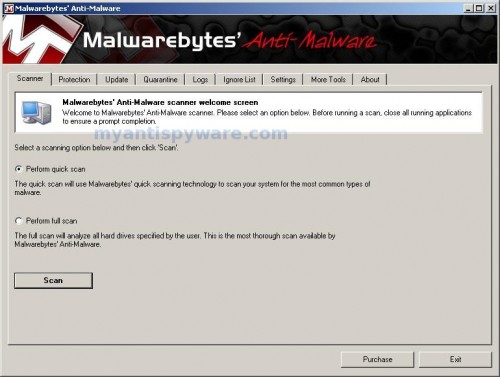
Malwarebytes Anti-Malware Window
Select Perform Quick Scan, then click Scan, it will start scanning your computer for cls_pack.exe and winhlp64.exe trojan infection. This procedure can take some time, so please be patient.
When the scan is complete, click OK, then Show Results to view the results. You will see a list of infected items similar as shown below. Note: list of infected items may be different than what is shown in the image below.
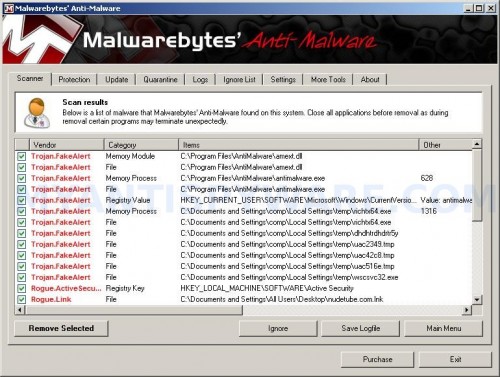
Malwarebytes Anti-malware, list of infected items
Make sure that everything is checked, and click Remove Selected for start cls_pack.exe and winhlp64.exe trojan removal process. When disinfection is completed, a log will open in Notepad and you may be prompted to Restart.
Note: if you need help with the instructions, then post your questions in our Spyware Removal forum.
cls_pack.exe and winhlp64.exe trojan cls_pack.exe and winhlp64.exes the following files and folders
%Temp%\cls_pack.exe
%Temp%\winhlp64.exe
cls_pack.exe and winhlp64.exe trojan creates the following registry keys and values
HKEY_CURRENT_USER\Software\Microsoft\Windows\CurrentVersion\Run\cls_pack.exe





Thank you very much, nasty thing. Got rid of it, excellent instructions.
Fix works perfectly, this thing was blocking my anti-virus scans, redirecting my search’s (had to use 2nd computer to find this), faking security center and even playing what sounded like random audio snippets thru the sound card.
This worked perfectly with easy to use instructions and illustrations thank you very much^_^
Worked great! I too had to use a second computer as my Google search was redirected. I downloaded the above listed three files to a thumb-drive and installed/ran on infected computer. 26 items infected were found and removed. Thanks a bunch! 🙂
Excellent! Very clear instructions
This site was blocked by the Malware so I had to use another computer to get to it. I know why now
Thanks
Hmm. Perhaps your instructions should NOT involve downloading another two things? Tell me how to remove it myself, without any form of downloads/installations.
Worked!!Thank you very much!
I sneaked into this page by using google cache since this site was blocked by the malware!hehe
Maximilian, you can remove TDSS trojan (H8SRT.sys driver) through the use of Recovery console, then run Registry editor and remove trojan associated registry values.
does this work great or what
worked for me, thanks so much
Thank you.
Followed the directions, malware appears to be gone.
However now my Firefox wont open… Any advice?
rob, ask for help in our Spyware removal forum.