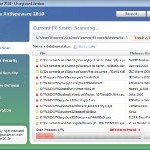
 Vista Antimalware 2010 is a rogue antispyware program, which is a fresh clone of Vista Antispyware 2010. Like other rogues, the program simulates a system scan and reports false system security threats or infections to make you think your computer is infected with worms, trojans, adware, spyware and other malicious software. As before, nothing new here, Vista Antimalware 2010 is distributed with the help of trojans. When the trojan is initialized, it will download and install core component of the rogue onto your computer without your permission and knowledge. The same trojan will also register Vista Antimalware 2010 in the Windows registry to run automatically every time when you start any program, which have “exe” extension.
When Vista Antimalware 2010 is started, the rogue will start the imitation of scanning your machine, whose result is the discovery of the set of trojans, viruses and other malicious programs. Do not rely on these results, as they are, and besides, the scanning process – it is a fake. Purpose they have one, to force you to believe that your computer is infected. So you can safety ignore all that this fake antispyware will show you. Last but not least, the rogue will also hijack Internet Explorer and Firefox, so it will display fake warnings when you opening any web site.
As stated above, obviously, Vista Antimalware 2010 is scam, which designed with one purpose to scare you into thinking that your computer in danger as a method to trick you into purchasing the full version of the program. If your computer is infected with this malware, then most importantly, do not purchase it! Uninstall the rogue from your PC as soon as possible. Use the removal guide below to remove Vista Antimalware 2010 from your computer for free.
Use the following instructions to remove Vista Antimalware 2010
Step 1. Repair “running of .exe files”.
Method 1
Click Start, Run. Type command and press Enter. Type notepad and press Enter.
Notepad opens. Copy all the text below into Notepad.
Windows Registry Editor Version 5.00
[-HKEY_CURRENT_USER\Software\Classes\.exe]

[-HKEY_CURRENT_USER\Software\Classes\secfile]

[-HKEY_CLASSES_ROOT\secfile]

[-HKEY_CLASSES_ROOT\.exe\shell\open\command]
[HKEY_CLASSES_ROOT\exefile\shell\open\command]

@="\"%1\" %*"
[HKEY_CLASSES_ROOT\.exe]

@="exefile"

"Content Type"="application/x-msdownload"
Save this as fix.reg to your Desktop (remember to select Save as file type: All files in Notepad.)
Double Click fix.reg and click YES for confirm.
Reboot your computer.
Method 2
Click Start, Run. Type command and press Enter. Type notepad and press Enter.
Notepad opens. Copy all the text below into Notepad.
[Version]

Signature="$Chicago$"

Provider=Myantispyware.com
[DefaultInstall]

DelReg=regsec

AddReg=regsec1
[regsec]

HKCU, Software\Classes\.exe

HKCU, Software\Classes\secfile

HKCR, secfile

HKCR, .exe\shell\open\command
[regsec1]

HKCR, exefile\shell\open\command,,,"""%1"" %*"

HKCR, .exe,,,"exefile"

HKCR, .exe,"Content Type",,"application/x-msdownload"
Save this as fix.inf to your Desktop (remember to select Save as file type: All files in Notepad.)
Right click to fix.inf and select Install. Reboot your computer.
Step 2. Remove Vista Antimalware 2010 associated malware.
Download MalwareBytes Anti-malware (MBAM). Once downloaded, close all programs and windows on your computer.
Double-click on the icon on your desktop named mbam-setup.exe. This will start the installation of MalwareBytes Anti-malware onto your computer. When the installation begins, keep following the prompts in order to continue with the installation process. Do not make any changes to default settings and when the program has finished installing, make sure a checkmark is placed next to “Update Malwarebytes’ Anti-Malware” and Launch “Malwarebytes’ Anti-Malware”. Then click Finish.
MalwareBytes Anti-malware will now automatically start and you will see a message stating that you should update the program before performing a scan. If an update is found, it will download and install the latest version.
As MalwareBytes Anti-malware will automatically update itself after the install, you can press the OK button to close that box and you will now be at the main menu. You will see window similar to the one below.
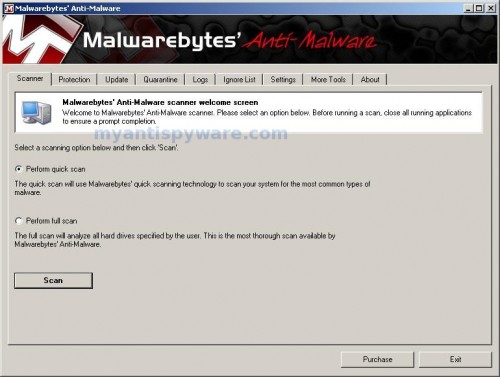
Malwarebytes Anti-Malware Window
Make sure the “Perform quick scan” option is selected and then click on the Scan button to start scanning your computer for Vista Antimalware 2010 infection. This procedure can take some time, so please be patient.
When the scan is finished a message box will appear that it has completed scanning successfully. Click OK. Now click “Show Results”. You will see a list of infected items similar as shown below.
Note: list of infected items may be different than what is shown in the image below.
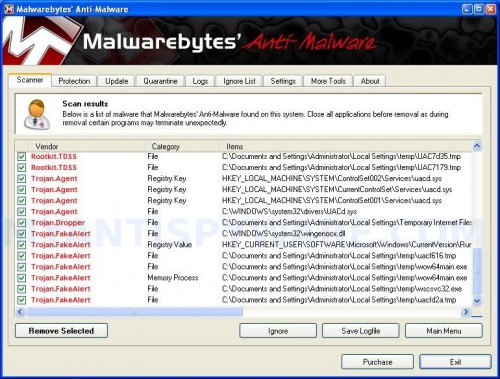
Malwarebytes Anti-malware, list of infected items
Make sure all entries have a checkmark at their far left and click “Remove Selected” button to remove Vista Antimalware 2010. MalwareBytes Anti-malware will now remove all of associated Vista Antimalware 2010 files and registry keys and add them to the programs’ quarantine. When MalwareBytes Anti-malware has finished removing the infection, a log will open in Notepad and you may be prompted to Restart.
Note 1: if you can not download, install, run or update Malwarebytes Anti-malware, then follow the steps: Malwarebytes won`t install, run or update – How to fix it.
Note 2: if you need help with the instructions, then post your questions in our Spyware Removal forum.
Vista Antimalware 2010 creates the following files and folders
%AppData%\ave.exe
Vista Antimalware 2010 creates the following registry keys and values
HKEY_CURRENT_USER\Software\Classes\.exe
HKEY_CURRENT_USER\Software\Classes\.exe\shell
HKEY_CURRENT_USER\Software\Classes\.exe\shell\open
HKEY_CURRENT_USER\Software\Classes\.exe\shell\open\command
HKEY_CURRENT_USER\Software\Classes\.exe\shell\start
HKEY_CURRENT_USER\Software\Classes\.exe\shell\start\command
HKEY_CURRENT_USER\Software\Classes\secfile
HKEY_CURRENT_USER\Software\Classes\secfile\shell
HKEY_CURRENT_USER\Software\Classes\secfile\shell\open
HKEY_CURRENT_USER\Software\Classes\secfile\shell\open\command
HKEY_CURRENT_USER\Software\Classes\secfile\shell\start
HKEY_CURRENT_USER\Software\Classes\secfile\shell\start\command
HKEY_CURRENT_USER\Software\Classes\.exe\shell\open\command | @ = “”%AppData%\ave.exe” /START “%1″ %*”
HKEY_CURRENT_USER\Software\Classes\.exe\shell\open\command | IsolatedCommand = “”%1″ %*”
HKEY_CURRENT_USER\Software\Classes\.exe | @ = “secfile”
HKEY_CURRENT_USER\Software\Classes\.exe | Content Type = “application/x-msdownload”
HKEY_CURRENT_USER\Software\Classes\secfile\shell\open\command | @ = “”%AppData%\ave.exe” /START “%1″ %*”
HKEY_CURRENT_USER\Software\Classes\secfile\shell\open\command | IsolatedCommand = “”%1″ %*”





Thank you! I can sleep tonight.
Hi and thank you so so much Patrik! Mmwah! I love you! You saved my laptop as I was ready to throw it against the wall. Vista anti-motherfkn-malware disappeared after performing method 1.
One question, can I delete the fix.reg file from my desktop now?
Beck, yes you can remove the fix.reg.
You are the BIG Kahuna. Much Mahalo for sharing your talent. You’ll be rewarded.
I used method 1 and it worked, but now 2 weeks later its back!!!! I started to try method 2 but it wont let me open my command prompt. any suggestions?
Rachel, the first method is blocked too ?
Hi patrik, I can’t even save the notepad after pasting..
it just disappear and the pop out keeps coming out.. pls advice me..T_T
Adeline, created fix.reg or fix.inf using another PC, them move this file to your computer using a flash or cd disk.
Hi, I tried Method 1 but while it was installing the updates, it got stuck on 5, I had 11 updates and it froze for more than 5 hours so I shut down my computer and started it again but I don’t think the virus is gone. What do I do now? Thank you for your help.
Sarah, if you unsure, please start a new topic in our Spyware removal forum. I will check your PC.
I’d love to try these methods, and get rid of these Antivirus alerts, except it won’t even let me open my command prompt. It opens for a nanosecond before it gives me the old cmd.exe is infected, would I like to activate my antivirus..
Please help, this virus has affected two of my accounts so far.
Nadine, type exactly “command” w/o quotes and press Enter.
Works perfectly! Thanks.
I used method 1 and 2 and it still did not remove the antimalware.
Hatice, ask for help in our Spyware removal forum.
I used Method 1 and it removed the antimalware, but when I go to start internet explorer, a message pops up that says it “does not have a program associated with it for peforming this action. Create an association in the Set Associations control panel.” I have to run internet explorer by right-clicking and then running as an administrator. Sorry if this seems like a dumb question – I don’t know much about computers.
Actually, the above message is happening with every single desktop icon I try to open. Please help!
Thanks. Used method 2 and download. Worked as advertised. Now, if I could figure out how the malware is being introduced into our computers, I might be able to get ahead of this junk.
Sam, try repeat the first step above.
Hey, like everyone else, so very, very grateful for the free of charge service. I was ready to put my laptop in the bin!!
FYI, the method (1) worked for me, but i did receive this error message and I was asked to report it to you:-
MBAM_ERROR_UPDATING (12007, 0, WinHttpSendRequest)
Hope it makes sense to you.
Sanjay,
1. check browser`s proxy settings. Reset it if need.
2. Download TDSSKiller from here and unzip to your desktop. Open TDSSKiller folder. Double click the TDSSKiller and click Start Scan. If an infected file is detected, the default action will be Cure, click on Continue.
The “Vista Anti-Malware” virus on my system exhibited self-defense behavior that was not mentioned in your article. Before I ran the cleanup script, every time I tried to run any of my previous antivirus software, the virus prevented it from opening and showed a message that said I did not have permissions to run the program. It did the same thing when I tried to run Windows Explorer. The virus exhibited the same preventative behavior when I tried to install other anti-virus software before I ran the cleanup script. I think the authors of the virus, who deserve bastinado at least, have upgraded their nastiness.
But, your removal procedure did work. It removed the virus and now my system is working fine. Thanks very much.