![]() | Do you have pop-ups or your computer infected with trojan or spyware ? Learn how to ask us for help, click here! |
How to remove Vista Defender Pro (Removal guide)
Vista Defender Pro is a rogue antispyware program, new one clone of Vista Antispyware 2010, which is rogue too. The program have labeled as rogue antispyware because it simulates scanning of computer, and reports a lot of false infections. Vista Defender Pro usually installed itself onto your computer without your permission and knowledge through trojans and browser security holes. Once started, the trojan will download and install the rogue and after that, will register Vista Defender Pro in the Windows registry, to run automatically when you run any Windows application that have “.exe” extension.
When Vista Defender Pro is installed, it starts the process of scanning your computer whose result is the discovery of the set of trojans, viruses and other malicious programs. Do not rely on these results, as they are, and besides, the scanning process – it is a fake. Purpose they have one, to force you to believe that your computer is infected. So you can freely ignore all that this fake antispyware will show you.
While Vista Defender Pro is running you will be shown a lot of popups, nag screens and fake security alerts from Windows task bar. Of course, all of these warnings and alerts are fake and like false scan results supposed to scare you into purchasing so-called full version of the program. So you can safely ignore all that Vista Defender Pro gives you.
As you can see, Vista Defender Pro is scam and designed only for one – to trick you into buying the software. If you find that your computer is infected with this malware, then be quick and take effort to uninstall it immediately. Use the removal guide below to remove Vista Defender Pro from your computer for free.
Use the following instructions to remove Vista Defender Pro
Step 1. Repair “running of .exe files”.
Method 1
Click Start, Run. Type command and press Enter. Type notepad and press Enter.
Notepad opens. Copy all the text below into Notepad.
Windows Registry Editor Version 5.00
[-HKEY_CURRENT_USER\Software\Classes\.exe]
[-HKEY_CURRENT_USER\Software\Classes\secfile]
[-HKEY_CLASSES_ROOT\secfile]
[-HKEY_CLASSES_ROOT\.exe\shell\open\command]
[HKEY_CLASSES_ROOT\exefile\shell\open\command]
@="\"%1\" %*"
[HKEY_CLASSES_ROOT\.exe]
@="exefile"
"Content Type"="application/x-msdownload"
Save this as fix.reg to your Desktop (remember to select Save as file type: All files in Notepad.)
Double Click fix.reg and click YES for confirm.
Reboot your computer.
Method 2
Click Start, Run. Type command and press Enter. Type notepad and press Enter.
Notepad opens. Copy all the text below into Notepad.
[Version]
Signature="$Chicago$"
Provider=Myantispyware.com
[DefaultInstall]
DelReg=regsec
AddReg=regsec1
[regsec]
HKCU, Software\Classes\.exe
HKCU, Software\Classes\secfile
HKCR, secfile
HKCR, .exe\shell\open\command
[regsec1]
HKCR, exefile\shell\open\command,,,"""%1"" %*"
HKCR, .exe,,,"exefile"
HKCR, .exe,"Content Type",,"application/x-msdownload"
Save this as fix.inf to your Desktop (remember to select Save as file type: All files in Notepad.)
Right click to fix.inf and select Install. Reboot your computer.
Step 2. Remove Vista Defender Pro associated malware.
Download MalwareBytes Anti-malware (MBAM). Once downloaded, close all programs and windows on your computer.
Double-click on the icon on your desktop named mbam-setup.exe. This will start the installation of MalwareBytes Anti-malware onto your computer. When the installation begins, keep following the prompts in order to continue with the installation process. Do not make any changes to default settings and when the program has finished installing, make sure a checkmark is placed next to “Update Malwarebytes’ Anti-Malware” and Launch “Malwarebytes’ Anti-Malware”. Then click Finish.
MalwareBytes Anti-malware will now automatically start and you will see a message stating that you should update the program before performing a scan. If an update is found, it will download and install the latest version.
As MalwareBytes Anti-malware will automatically update itself after the install, you can press the OK button to close that box and you will now be at the main menu. You will see window similar to the one below.
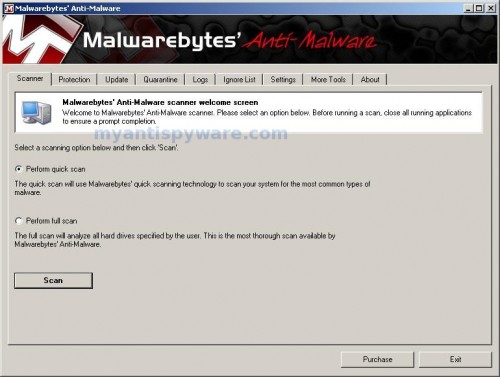
Malwarebytes Anti-Malware Window
Make sure the “Perform quick scan” option is selected and then click on the Scan button to start scanning your computer for Vista Defender Pro infection. This procedure can take some time, so please be patient.
When the scan is finished a message box will appear that it has completed scanning successfully. Click OK. Now click “Show Results”. You will see a list of infected items similar as shown below.
Note: list of infected items may be different than what is shown in the image below.
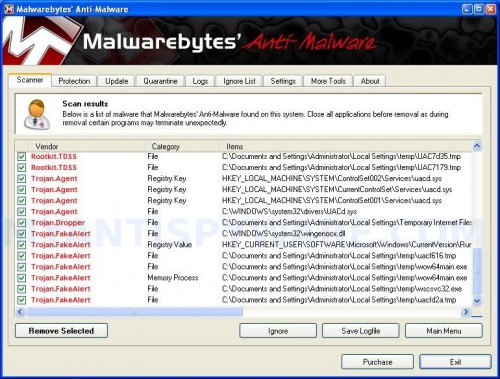
Malwarebytes Anti-malware, list of infected items
Make sure all entries have a checkmark at their far left and click “Remove Selected” button to remove Vista Defender Pro. MalwareBytes Anti-malware will now remove all of associated Vista Defender Pro files and registry keys and add them to the programs’ quarantine. When MalwareBytes Anti-malware has finished removing the infection, a log will open in Notepad and you may be prompted to Restart.
Note: if you need help with the instructions, then post your questions in our Spyware Removal forum.
Vista Defender Pro creates the following files and folders
%AppData%\ave.exe
Vista Defender Pro creates the following registry keys and values
HKEY_CURRENT_USER\Software\Classes\.exe
HKEY_CURRENT_USER\Software\Classes\.exe\shell
HKEY_CURRENT_USER\Software\Classes\.exe\shell\open
HKEY_CURRENT_USER\Software\Classes\.exe\shell\open\command
HKEY_CURRENT_USER\Software\Classes\.exe\shell\start
HKEY_CURRENT_USER\Software\Classes\.exe\shell\start\command
HKEY_CURRENT_USER\Software\Classes\secfile
HKEY_CURRENT_USER\Software\Classes\secfile\shell
HKEY_CURRENT_USER\Software\Classes\secfile\shell\open
HKEY_CURRENT_USER\Software\Classes\secfile\shell\open\command
HKEY_CURRENT_USER\Software\Classes\secfile\shell\start
HKEY_CURRENT_USER\Software\Classes\secfile\shell\start\command
HKEY_CURRENT_USER\Software\Classes\.exe\shell\open\command | @ = “”%AppData%\ave.exe” /START “%1″ %*”
HKEY_CURRENT_USER\Software\Classes\.exe\shell\open\command | IsolatedCommand = “”%1″ %*”
HKEY_CURRENT_USER\Software\Classes\.exe | @ = “secfile”
HKEY_CURRENT_USER\Software\Classes\.exe | Content Type = “application/x-msdownload”
HKEY_CURRENT_USER\Software\Classes\secfile\shell\open\command | @ = “”%AppData%\ave.exe” /START “%1″ %*”
HKEY_CURRENT_USER\Software\Classes\secfile\shell\open\command | IsolatedCommand = “”%1″ %*”
99 Comments »
RSS feed for comments on this post.
Leave a comment
My Anti Spyware - Free antispyware programs and Spyware Removal Instructions.


Method 1 served its purpose in that it seemed to deactivate defender. However, a quick scan by malwarebytes showed no evidence of infection. I’m currently running a full scan to see if that’ll make any difference.
Thanks for the information you’ve provided. I’ve had this problem for two days now, and yours is the first site which has actually been a help.
-Bob
Comment by bob — March 18, 2010 #
Hey, I think this helped. Thanks!
Comment by vic — March 18, 2010 #
thank you,
you saved my computer
Comment by nick — March 19, 2010 #
first method did nothing. second method didnt do squat and i already had malwarebyte antimalware a long time ago
Comment by bob — March 20, 2010 #
Hey I did all of this stuff like deactivating the defender and removing the infections that came up with Malwarebytes but even after I have rebooted my computer with all the infections deleted, the Vista Defender Pro virus still affects my computer as if I didnt do anything to fix it; its still at the bottom of the taskbar and still sends annoying pop-ups and alerts, and won’t let me do things such as surf the internet help please?
Comment by Julian — March 21, 2010 #
Julian, if the above instructions does not help you, then ask for help in our Spyware removal forum.
Comment by Patrik — March 21, 2010 #
Totally worked in disabling Vista Defender. Thank you so much!!
Comment by Andrea — March 21, 2010 #
Rad, method one seems to have worked however i cant seem to update malwarebytes for step 2.
Comment by Stephen — March 21, 2010 #
I tried Method one and seems basically nothing works on my lap top now HELP!
Comment by David — March 21, 2010 #
Method 1 worked perfectly to disable the defender. Thanks alot!
Comment by vinay — March 22, 2010 #
Excellent instructions. My computer showed only blue screen and windows explorer. Found cmd.exe under windows\system32. Produced text 1 on laptop and saved on USB. Copied it to \system32\ and doubloeclicked it there.
Still reduced to blue screen and windows explorer and will continue with step 2 and repair of start-up routines.
Comment by Roger Everett — March 22, 2010 #
Method 1 already works, Thanks.
Awsome site.
Comment by Kent — March 22, 2010 #
Method 1 worked for me! Thank you guys so so very much!! Ugh, this fake thing has been bothering a lot. It’s such a relief now, thank you so much… really.
Comment by Suzie — March 22, 2010 #
Thank you so much, this damn virus has had me stumped for the last couple of days, method 1 worked like a charm (malwarebytes didn’t work at all)
Comment by Martine — March 24, 2010 #
Method 1 helped stopped it and I’m currently running Malwarebytes. Thank you!
Comment by Katisha — March 25, 2010 #
Method no. 1 didn’t help much – it only slowed the program down enough that I was able to reopen some programs without interference.
However, in Vista the virus wouldn’t even let me get to the internet to open programs – but if I ran the program as an administrator it seemed to be okay. I’d reccomend doing this.
Comment by Kate — March 25, 2010 #
Method 1 worked on the PC I was given and Malwarebytes returned a clean slate.
Thank you so much for the share of knowledge.
With great appreciation
Comment by Arfer Guinness — March 26, 2010 #
Method no 2 worked for me. Excellent instructions, thanks so much.
Comment by Mac — March 26, 2010 #
The option 1 worked a dream, ppl like you are a real blessing… Praise the Lord
Comment by Andy Peterway — March 30, 2010 #
Oh my god thank you so much!!! method 1 helped
Comment by stephanie — March 30, 2010 #
Method 1 worked but does it fully remove it from your computer, or just disable it?
Comment by Justin — March 31, 2010 #
v.helpful! i couldn’t open my internet browser after getting this virus so i had to google this on my phone. this was the first result, followed method 1 and was very straightforward to get rid of the virus
Comment by Tina — March 31, 2010 #
I still can’t get the internet to work after removing the virus? What is going on…it says that its connected but both Mozilla and IE do not work, please help…
Comment by Vivek — March 31, 2010 #
Justin, once finished (both steps), your computer should be free from the infection. Also you can check your PC using an online virus scanner.
Comment by Patrik — April 1, 2010 #
Vivek, if you can`t connect to the Internet, then:
1. check proxy settings
2. CLick Start,Run, type cmd and click OK. In command console type in
ipconfig /flushdnsand then press ENTER (notice the space after ipconfig). Close the command prompt window. Reboot your PC and try to open any website.3. Try run WinSock XP Fix.
Comment by Patrik — April 1, 2010 #
My Computer runs on Vista, and i cant find the “Run” Option in my start menu
Comment by Jonah — April 2, 2010 #
Great – thanks for the help!
Comment by Mark — April 3, 2010 #
Jonah, Click Start, then in the “Start Search” field type
commandand press Enter. Now follow the steps above.Comment by Patrik — April 3, 2010 #
Thank you so much. Method two worked perfect for me. You saved my school work and a lot of hassle!
Comment by Jacob — April 3, 2010 #
EXCELLENT! The first method disabled “Vista Defender” completely. Before, I couldn’t even run safe mode without that crap popping up. I’m going to try to do a system restore now (before I couldn’t even pull the SysRestore panel up!!!!)
Thank you!
Comment by Ryan — April 3, 2010 #
methord one worked great thanks
Comment by bob — April 4, 2010 #
HELP! I tried method #1 but it won’t let. When I double click on fix.reg and after the pop-up window comes up, and after I press “Yes”, I get an alert pop up telling me “Cannot import C:\Users\Owners\Desktop\Fix.reg: Error accessing the registry”
Also, before I tried this, I attempted to download Malwarebytes to remove this virus and it will not even let me download it!
Lost and need help. Also, this is my first time trying to use the commands in method #1 and am new at all this. Please help.
Comment by John — April 5, 2010 #
John, try method 2.
Comment by Patrik — April 5, 2010 #
Wow……
I was able to get rid of the virus successfully….
Thanks BOB!!
Comment by Afrah — April 5, 2010 #
Yeh that works, the malwarebytes thing got rid of it with a smart scan. Cheers dude.
Comment by Josh — April 5, 2010 #
Malwarebytes removed this virus but now it keeps coming back, over and over. What can I do?
Comment by John — April 6, 2010 #
John, are you running your computer in safe mode when you try to run fix.reg? I had the same error then when I restarted and tried again it worked like a charm, scanning with MBAM now. Anyone know of some good preventative programs for BS like this?
Comment by Mitch — April 6, 2010 #
im scared
Comment by John Graham — April 6, 2010 #
John, open a new topic in our Spyware removal forum. I will check your PC.
Comment by Patrik — April 7, 2010 #
Worked perfect using method 1. Thanks v. much for your clear instructions and for taking the time out to post the info!!
Comment by Nicola — April 8, 2010 #
it must feel VERY good to save computers (and their owners) with this excellent how-to. I’ve been battling with this thing all day, but it keeps coming back, even after repeatedly running method 1. there’s a gap, then, hello again! how does this thing get in, for heaven’s sake? anyone have ANY idea?
Comment by Lisa — April 9, 2010 #
Lisa, probably your computer is infected with a trojan that reinstalls the rogue. Please open a new topic in our Spyware removal forum. I will check your PC.
Comment by Patrik — April 10, 2010 #
Many thanks for your invaluable guide – you saved my life (and my laptop)!!
I think someone else has posed this question – how does this thing manage to install itself even if I have Norton protection?
Comment by Martin — April 11, 2010 #
the 2nd fix you provided for Windows Defender Pro worked perfectly. Thanks
Comment by Doug Rea — April 11, 2010 #
You are my hero! Really, thanks so much.
Comment by James — April 11, 2010 #
Martin, the rogue installs itself with the help of trojans that penetrate your computer through the use an exploit in the programs already installed on to your PC (Internet Explorer, Adobe Acrobar Reader, Adobe Flash player). Update all of them.
Comment by Patrik — April 11, 2010 #
Hi there
im desperately trying to get rid of this virus!
Tried following method 1 but i only get as far as selecting run, then typing in notepad before all the pop ups start! It wont even let me open notepad as apparently its infected and i dont have privilages?? really dont understand i am the only one who uses the laptop so there is no administrator is there?
Any help greatly appreciated.
Jess
Comment by jess — April 13, 2010 #
thank you so much, method 1 worked
Comment by Jake — April 14, 2010 #
seemed to do the trick (method one) thanks
Comment by Steve — April 14, 2010 #
Jess, your need run a notepad from command (command console).
Comment by Patrik — April 14, 2010 #
Manually fixed the registry (instead of running notepad I ran regedit … careful if you directly edit the registry). I also found the ave.exe file (hidden and set as system file) in users/yourusername/appdata/local. Used attrib -s -h to expose it and remove it. With task manager killed it to temporary stop the pop-ups. Reboot … then could access the internet. Downloaded and now scanning with Malwarebytes. Great suggestions in this page to remove this pesky malware … KUDOS!!!!
Comment by Costen — April 14, 2010 #
Thank you very much!!!! Both steps worked perfectly for me =)
I’m just hoping the virus doesn’t come back like it has for a few other people >.<
Comment by Jenn — April 15, 2010 #
Oh! sorry, forgot to ask, is it fine to delete the fix.reg file from our desktop after the virus has been removed? or do we need to keep it there?
thanks
Comment by Jenn — April 15, 2010 #
Method 1 worked perfectly. Thanks
!
Comment by SkaterFly — April 15, 2010 #
I followed method 1 and rebooted my computer. After rebooting my computer, the vista defender didn’t pop up anymore. Then I downloaded MalwareBytes to perform a quick scan. The result said no malware was found. Does that mean the vista defender in my computer has been completely removed?
Comment by Sunny — April 15, 2010 #
Method 1 worked straight away for me. Have updated Malwarebytes, now and am running a scan to make sure everything is gone.
Comment by Kari — April 15, 2010 #
Jenn, of course you can remove fix.reg.
Comment by Patrik — April 15, 2010 #
Sunny, run Malwarebytes and update it, then perform a scan.
Comment by Patrik — April 15, 2010 #
Thanks so much – method one was very straightforward and worked at once. Thank heavens for helpful geeks!
Comment by Nicky — April 15, 2010 #
Thank you, Ive spent the last 2 evenings fighting with this thing, out of the many the websites Ive looked up yours is the one that solved it, method 1 is easy and quick, much appreciated, if youre ever my way I will certainly buy you a beer!!!
Thanks again,
Steve, UK
Comment by Steve — April 15, 2010 #
I am running Vista operating system. I know I need a life and a new os. This is the second version of the malware I have been infected with. Just a plain big pain. But you guys are the best geeks in all of Geekdom!!!!! Thanks so much for helping. Method 1 did not work. Method 2 did first shot.
Comment by Kim — April 16, 2010 #
thank you so so so much … you saved my PC…
Peace My Good Friend
You Are Very Awesome…
Comment by enemencio123 — April 16, 2010 #
I tried to follow the steps for both methods but it won’t let me open with command or notepad. I can still run Mozilla firefox but no other programs will open. What should I try now ?
Comment by Mandy — April 16, 2010 #
I’ve done Method 1 out of Step 1, and downloaded MBAM and scanned laptop – it seems fine but is there any way it could still be there and copy my passwords etc although there are no more pop ups? Is there anything else I need to do to be totally sure? I’ve searched the registry for ave.exe and the results that came up seem unrelated.
I think the other registry keys mentioned on this site are gone now
Many thanks!
Comment by Amira — April 16, 2010 #
Method one worked temporarily on the pop ups but I can’t get on the internet to download the malware. I’m using vista…clicked start then typed in command then enter. In the black screen I typed in ipconfig /flushdns and entered. It says “the requested operation requires elevation”. I still can’t get on the internet and now the pop ups are back.
Comment by jodee — April 16, 2010 #
I did update Malwarebytes, actually it updated automatically after finish installing. The scanning result said that there’s no Malware detected. The next day I update it and scan again, the same result came out. And my computer is working normally these few days, there’s nothing weird popping up. Does that mean it had been removed sucessfully? I’m worried because according to your instruction there should be a list of infected item after scanning.
Comment by Sunny — April 17, 2010 #
Mandy, open a new topic in our Spyware removal forum. I will check your PC.
Comment by Patrik — April 17, 2010 #
jodee, repeat th first step, then Click Start, Run, type regedit and press Enter.
Registry editor opens.
Navigate in the left panel to HKEY_LOCAL_MACHINE \ SOFTWARE \ Clients \ StartMenuInternet \ IEXPLORE.EXE \ shell \ open \ command
I the right part of window click twice to “@”. You will see a screen with the contents like below: “C:\Documents and Settings\user\Local Settings\Application Data\ave.exe” /START “C:\Program Files\Internet Explorer\iexplore.exe”
Remove left part, leave only “C:\Program Files\Internet Explorer\iexplore.exe”.
Reboot your computer, run Internet Explorer and try download Malwarebytes.
Comment by Patrik — April 17, 2010 #
Sunny, try run malwarebytes and perform a full scan. Also you can search “ave.exe” file through Windows search and remove it, if it has found.
Comment by Patrik — April 17, 2010 #
Thank you so much, method 1 worked a charm.
Comment by Seth — April 17, 2010 #
Hi thx for gr8 topic. method 1 works for me and i got rid of that thing.
Comment by Ishant — April 18, 2010 #
TY SO MUCH IVE BEEN HAVING PROBLEMS FOR SO LONG METHOD 2 FAILED AS SEEN ON OTHER SITES BUT METHOD 1 WORKED SO QUICK I <3 for the help. My vista does have run and method 1 seemed risky but it worked
Comment by kemenar1 — April 18, 2010 #
Thank you,Thank you so much
Comment by shyam — April 18, 2010 #
Hi,
I tried both the methods and restarted my laptop each time but still upon startup, I get the Windows Security Centre & the Vista Defender- Unregistered Version and the scanning begins. I cannot open the Internet Explorer to download Malwarebytes as it says Vista Defender has blocked a program from accessing the internet and also ‘Internet Explorer alert. Visiting this site may pose a security threat to your system’ appears.
I really need some help. Thanking you in advance.
Shirly
Comment by Shirly — April 19, 2010 #
Did Method One. Not sure if it worked, scanning now, updated Malwarebytes last night. If it does not work I’ll try Running Method 1 as an admin, reboot and try Malwarebytes again, if that doesn’t work I will try Method 2. Thank you for this guide, the world needs such a balance.
Comment by DHost — April 19, 2010 #
I have performed both methods and have made sure it was up to date. Malwarebytes finds -no- infections, and yet ‘Spyware Doctor’ found numerous infections.
Comment by DHost — April 19, 2010 #
Thank you very much, Method 1 worked like a charm :3
Comment by Pral — April 19, 2010 #
Shirly, repeat first step. Once finished, don`t reboot your PC.
Click Start, Run, type regedit and press Enter.
Registry editor opens.
Navigate in the left panel to HKEY_LOCAL_MACHINE \ SOFTWARE \ Clients \ StartMenuInternet \ IEXPLORE.EXE \ shell \ open \ command
I the right part of window click twice to “@”. You will see a screen with the contents like below: “C:\Documents and Settings\user\Local Settings\Application Data\ave.exe” /START “C:\Program Files\Internet Explorer\iexplore.exe”
Remove left part, leave only “C:\Program Files\Internet Explorer\iexplore.exe”.
Run Internet Explorer and try download Malwarebytes.
Comment by Patrik — April 20, 2010 #
Thanks so much, all of this worked. Unfortunately, I did this AFTER having believed it, and paying around 40 dollars for it. What does this mean? Will they just take that amount of money or more from my account??? Help!!
Comment by Dani — April 20, 2010 #
Thanks a lot.I followed the method1 by copying the commands into a pen drive from a different laptop and executed them in the infected laptop and reboted the laptop.Malware is no more…I am so happy and relieved now..You are Awesome..Thanks again
Comment by Prasad — April 20, 2010 #
Dani, contact your credit card company and tell them what has happened (make a chargeback).
Comment by Patrik — April 21, 2010 #
The first didnot work… but the second one worked awesomely.
Thank You so much bro.
I m glad there is people like you helping up idiots like us!
Comment by Christian Hoyos — April 21, 2010 #
Thankyou so much for this, it worked perfectly! I went on my computer this morning to find nothing but pop ups and notices from vista defender and i couldn’t even get on the internet my computer was so infected, i had to look this up on my dads! was really uncovinced this would actually work as the problem seemed so bad and i know NOTHING about computers! but the method 1 instructions were even simple enough for me to follow and after restarting the pop-ups have stopped and i can get on the internet again, yay! just running the malware thing now, thanks again xxxx
Comment by Laura — April 21, 2010 #
Method 1 did the trick, thanks I am running a scan now should clean it up nicely, this site was very helpful, this website ROCKS!!!!!!!
Comment by Charles — April 22, 2010 #
Thank you ever so much for this wonderful web page. . I seemed to have caught this malware virus watching live footy streams last week and ever since then i’ve had nothing but hassle similiar to previous comments.
Now im a bit of a dummy on computer, however i easily followed stepo number 1 method 1 then went on safe mode to download spyware app.
two small problems i had was i didnt include the title of the version in method 1. however quickly changed it when it didnt work.
the other was i had to right click on the setup of the spyware app but once i installed the software it worked a dream and now im on this website from my computer now instead of reading it off my 3g phone
Happy Days !!
Much thanks again, , and as a previous post said if yer near glasgow i owe u a right good drink up !!
Martin Glasgow Scotland 23rd Apr 10
Comment by Martin McC — April 22, 2010 #
Thank you very much for this fix. Method 1 worked great. You saved me from throwing my PC through the window in a blind rage!!!!!
Comment by Russ — April 23, 2010 #
Awsome work man thanks for the help. Method 1 worked for me! The only regret i have is that I fell for the virus and payed for it. Is there any way i could get my money back?
Comment by Mohammed — April 25, 2010 #
Thanks guys, method 1 worked great and was pretty speedy – I have three more finals to write starting tomorrow, all my notes are on this computer… you saved my butt.
Comment by P — April 25, 2010 #
Thanks. I ran step one and it seems to have got rid of Defender. However, any internet related program now does not work at all. Also regedit comes up blank and won’t open and I get “Windows cannot open this file: File: regedit.exe”.
So, no IE, Firefox, or any way of getting online.
Aaaargghhhh.
Comment by Paul — April 26, 2010 #
Method 1 didn’t work so we gave method 2 a go… Worked like a charm. Thank you so much.
Comment by Vicki — April 26, 2010 #
Thank you so much, I’ve been panicking about this and it was a relief to discover that I wasn’t the only person who had this problem! X
Comment by Andrew H — April 27, 2010 #
Paul, you need run Malwarebytes Anti-malware. It should fix your problems. If you can`t download it, you need use another computer to download it, and then move this file using a flash or cd disk.
Comment by Patrik — April 27, 2010 #
Metod 1 save my life. Thanks
Comment by cfy — April 27, 2010 #
Method 1 first did not work, but i found out where the problem was!
When saving the fix.reg first ENSURE you go to save as file type and instead of \.txt\ file, saved it as ALL FILES IN NOTEPAD!
Comment by Reza — April 27, 2010 #
Worked like a charm, thank you!
Comment by Mike — April 28, 2010 #
Method 1 worked like a charm! Thanks
Comment by Walt — April 28, 2010 #
Even in safemode the popup comes and won’t allow me to move past it. I shut down my wireless ahead of time, and whenever I click close or minimize it opens an IE window (that can’t connect, of course). I have no idea what to do.
Comment by Majnun — April 28, 2010 #
THANK YOU!!!! I thought that I was going to have to call a tech. You saved me money, headaches and pain. Method 2 worked for me!! YES!
Comment by Elijah — April 28, 2010 #
thanks, method one worked well.
Comment by Daniel — April 29, 2010 #
