![]() | Do you have pop-ups or your computer infected with trojan or spyware ? Learn how to ask us for help, click here! |
How to remove RESpyWare (Uninstall instructions)
RESpyWare is a rogue antispyware tool. It`s distributed mostly through the use of trojans that may come from fake online malware scanners or that pretend to be flash updates, or even video codecs required to watch an online movie. When the trojans downloaded and installed, it will install RESpyWare onto your PC and then create a lot of harmless files with random names in Windows and Windows\System32 folders, which later during the scan, RESpyWare will determine as infections. The trojan will also register RESpyWare in the Windows registry to run automatically every time, when you start your computer.
When RESpyWare is installed and started, it will perform a scan of your computer and lists previously created files as infections. Important to know that all of these infections are fake, the rogue is incapable of detecting and exterminating any computer infections. So you can safely ignore the scan results that RESpyWare shows you.
Continue reading How to remove RESpyWare (Uninstall instructions)…
How to remove Antivir (Uninstall instructions)
Antivir is is not a legitimate security application. The program is a rogue antispyware program that spreads mostly with the help of fake online malware scanners. It will report that your computer is infected and you must install Antivir to clean your PC. That online scanner is scam and could not possibly detect malware, trojans and viruses on your computer.
When Antivir is downloaded and installed, it will be configured to run each time when you login to Windows. Once started, it will start a scan of your computer and list a lot of infections to scare you into thinking that your computer is infected. All of these infections are fake and cannot harm your computer. The rogue uses the false scan results as method to trick you into purchase so-called “full” version of the software.
Antivir blocks the ability to run some programs. The following warning will be shown when you try to run the Notepad:
Antivir Resident Shield: Virus Detected
Warning! Active virus detected
While Antivir is running your computer will display nag screens, warnings and fake security alerts from your Windows taskbar. It will state that trojan activity detected or identity theft attempt detected. Some of the alerts:
Internet Shield: Identity theft attampt detected
Warning! Identity theft attempt detected
Trojan:W32/Inject Activity Detected
Trojan:W32/Inject is a large family of malware that secretly
makes changes to the Windows Registry. Variants in the
family make also makes changes to other running processes.
Adobe Acrobat and Adobe Flash Errors Found
A vulnerability in Adobe Acrobat, Adobe Reader, and
Adobe Flash can result in remote code execution or virus
downloading.
What is more, the program will hijack Internet Explorer and randomly shows a “Warning! Visiting this site may harm your computer!” warning page.
However, all of these warnings are fake and supposed to scare you into thinking your computer is in danger. You should ignore all of them! If you find that your system is infected with this malware, then most importantly, do not purchase it. Use the removal guide below to remove Antivir from your computer for free.
Continue reading How to remove Antivir (Uninstall instructions)…
How to remove REAnti (Uninstall instructions)
REAnti is a rogue antispyware program. It is installed through the use of trojans that come from a fake online malware scanners or fake “youtube” websites that ask users to download a fake Adobe Flash Player update needed to view a movie online.
When the trojan is started, it will download and install REAnti onto your computer. The trojan also will create numerous files with random names in Windows system folders. The files are made to appear as infections, but are in reality harmless.
Once installed, REAnti will perform a scan. Once finished, it states that your computer is infected with trojans, adware or malware and that you should purchase REAnti to remove these infections. Of course, this is a scam, because REAnti is unable to detect or remove threats nor will be protect you from legitimate future threats.
Continue reading How to remove REAnti (Uninstall instructions)…
How to remove KeepCop (Uninstall instructions)
KeepCop is a rogue antispyware program. The software is not a security tool, it is a dangerous computer parasite. Usually KeepCop is installed through the use of trojans that come from fake online malware scanners. Once installed, the trojan will install KeepCop onto your computer and will create a lot of harmless files with random names in Windows and Windows\System32 folders, which later during the scan, KeepCop will determine as infections. Important to know that all of these infections are fake. The program is incapable to detect any computer threats. So you can safely ignore all that KeepCop shows you. It uses false scan results as method to to trick you into purchase so-called “full” version of the software.

KeepCop
What is more, the same trojan that installs KeepCop will also download and install a trojan FakeAlert. The trojan will show fake Windows Security Center, nag screens, fake security alerts and notifications from Windows task bar. An example:
Spyware Alert!
Your computer is infected with spyware. It could damage your
critical files or expose your private data on the Internet. Click
here to register your copy of KeepCop and remove
spyware threats from your PC.
As you can see, KeepCop is a scam and should be removed from the computer upon detection. Follow the guidelines below to remove KeepCop and any associated malware from your computer.
Continue reading How to remove KeepCop (Uninstall instructions)…
How to remove Eco AntiVirus 2010 (Uninstall instructions)
Eco AntiVirus 2010 also known as Eco AV is a rogue antispyware program from the same family as Green AV. It is distributed through misleading advertisements that you may view when surfing the Internet. Once you click on the advertisement, you will be redirected to a page that pretend to be online malware scanner. It will report that your computer is infected and you must install Eco AntiVirus 2010 to clean your PC.
Once installed, Eco AntiVirus 2010 will perform a system scans and report numerous infections to make you think that your computer is infected with trojans, spyware and other malware. Then it will ask you to pay for a full version of the program to remove these threats. Of course, all of these threats are fake and don’t actually exist on your computer. So you can safely ignore them.
While Eco AntiVirus 2010 is running, you will be shown nag screens, fake security alerts and other notifications from Windows task bar. It will state that spyware activity detected, some system files were modified, etc. Some of the alerts:
Eco AntiVirus
Internal conflict alert.
Eco AntiVirus detected internal software conflict. Some
applicztion tries to get access to system kernel (such behavior
is typical to Spyware/Malware). It may cause crash of your
computer.
Eco AntiVirus
System files modification alert!
Some critical system files of your computer were modified by
malicious program. It may cause system instability and data
loss. Click here to block unathorised modifications by removing
threats (Recommended).
The rogue will display a screen that looks like legitimate Windows Security Center except that it will recommend you register the ‘Eco AV’. Also Eco AntiVirus 2010 will hijack Internet Explorer and show a message that the current page may be a phishing site or that your computer might be at risk. However, all of these alerts, warnings and suggestions are fake and like scan false results should be ignored!
If your computer is infected with Eco AntiVirus 2010, then most importantly, do not purchase it! Uninstall the rogue from your PC as soon as possible. Use the removal guide below to remove Eco AntiVirus 2010 from the system for free.
Continue reading How to remove Eco AntiVirus 2010 (Uninstall instructions)…
How to remove Additional Guard (Uninstall instructions)
Additional Guard is a rogue antispyware program. It is a clone of Windows Additional Guard, which is also a fake antivirus program. Both programs are from the family of VirusDoctor scareware. It is distributed through malicious web sites that are disguised as online anti spyware scanners. It will stat that your computer is infected and you must install the software to clean your PC. The software is a trojan downloader. Once started, it will install the Additional Guard and create numerous files with random names in %UserProfile%\Recent folder. The files are made to appear as infections, but are in reality harmless.
Once running, Additional Guard will perform a scan of your computer and display false scan results. It will state that your computer is infected with adware, malware and trojans and that you should purchase the software to remove these infections. Of course, these infections are all fake, because Additional Guard identifies harmless files as dangerous infections. So you can safely ignore the scan results.

Additional Guard – scan results
While Additional Guard is running, it blocks Task Manager and legitimate antivirus and antispyware programs (Kaspersky Antivirus, DrWeb, AdAware, McAfee, Norton AV and much more). Your computer will display fake warnings and fake security alerts from your Windows task bar. Some of the alerts:
System alert!
Suspicious software which may be malicious has been
detected on your PC. Click here to remove this threat
immediately using Additional Guard.
System message
Your PC may still infected with dangerous viruses.
Additional Guard protection is needed to prevent data loss
and avoid theft of your personal data and credit card details.
Click here to activate protection.
Warning! Virus Detected
Threat detected: Trojan-PSW.Win32.Dripper
Also Additional Guard will hijack Internet Explorer and randomly shows a “There is a problem with this websites`s secuirty” warning page. Of course, all of these alerts and warnings are scam and like scan false results should be ignored! If you find that your system is infected with this malware, then most importantly, do not purchase it. Instead, uninstall Additional Guard from your PC as soon as possible. Please follow the guidelines below to remove this infection.
Continue reading How to remove Additional Guard (Uninstall instructions)…
How to remove Koobface worm (Removal guide)
Koobface worm infects computers via messages thats spreads through Facebook, Twitter, Myspace and other social networks. The contents of the SPAM message is:
Saw thhat vvideo yesterdday… How coulld you do succh a thingg?
Sweet!! Yourr ass loooks greaat on thiss video!!
WWow! Is tthat reeally you in thaat videeo?
Funny vide0 with me
HHolly sshit! Are you rreally in thiss viideo?
Hollyy shhit! You are on hiidden cameera!
The message also contains a link. After clicking on this link a site opens that asking user to download an adobe flash update, which in reality is an installer of koobface worm. Koobface includes a bot-like component that could install other malicious programs at a later time.
Continue reading How to remove Koobface worm (Removal guide)…
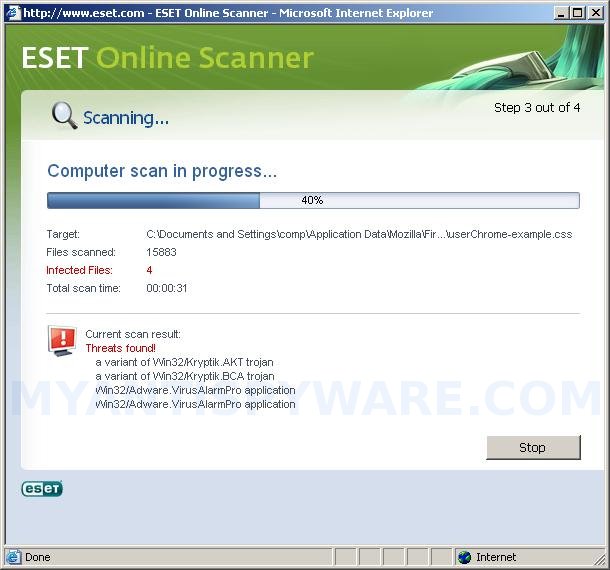
How to use ESET Online Scanner
ESET Online Scanner is a free, user friendly and powerful web application which you can use to remove viruses, trojans, spyware and malware from your computer using only your web browser without having to install anti-virus software. ESET Online Scanner uses the same ThreatSense technology and signatures as ESET NOD32 Antivirus, and is always up-to-date.
ESET Online Scanner Features:
* Scans and eliminates viruses, trojans, spyware and malware from all system devices, hard disks, compressed files and all your email.
* Supports Internet Explorer 6.01SP1 or later.
* Supports Microsoft Windows 7, Vista, XP, 2000 and NT
* Always up-to-date
Continue reading How to use ESET Online Scanner…
How to remove SecureKeeper (Uninstall instructions)
SecureKeeper is a rogue antispyware program from WiniGuard family as LinkSafeness, AntiAID, etc. The program is not a legitimate security application and usually is distributed mostly through the use of trojans that may come from fake online malware scanners. The scanner is unable to detect any parasites, but stats that your computer is infected with numerous infections and that you must install a software to clean your computer. The software is trojan that will install SecureKeeper onto your PC. The trojan will also register SecureKeeper in the Windows registry to run automatically and create a lot of harmless files with random names in Windows and Windows\System32 folders, which later during the scan, SecureKeeper will determine as threats.

SecureKeeper
Once started, SecureKeeper will run a scan and report numerous threats to make you think that your computer is infected with a lot of malware. Important to know that all of these threats are fake. The program is incapable to detect any computer infections. So you can safely ignore all that SecureKeeper gives you.
The same trojan that installs SecureKeeper will also install a trojan FakeAlert. The trojan will flood your computer with fake nag screens, fake security alerts and notifications from Windows task bar. An example:
Spyware Alert!
Your computer is infected with spyware. It could damage your
critical files or expose your private data on the Internet. Click
here to register your copy of SecureKeeper and remove
spyware threats from your PC.
However, these warnings are all fake! If you find that your computer is infected with this malware, then be quick and take effort to remove it immediately. Use the removal guide below to remove SecureKeeper from the system for free.
Continue reading How to remove SecureKeeper (Uninstall instructions)…
How to remove System Defender (Uninstall instructions)
System Defender is a rogue antispyware program. It is a clone of Windows System Defender rogue antispyware. Both programs are from the family of VirusDoctor malware. System Defender spreads mostly with the help of fake online spyware scanners that reports that your PC is infected with a lot of infections and you must install the software to clean your computer. Once started, the installer will create some files with random names in the %UserProfile%\Recent folder which later during the scan will determine as trojans and spyware.
System Defender
Once installed, System Defender will run fake system scan and report numerous infections to make you think that your computer is infected with spyware, worm, trojans and other viruses. However, it won’t remove those infections unless you first purchase the program. Of course, this is a scam, because System Defender identifies harmless files as dangerous infections. So, the scan results are fake and you can safely ignore them.
When running, System Defender will display fake security alerts and notifications from Windows task bar. It will state that your computer is infected or is under attack from the Internet. All of these warnings are supposed to scare you into thinking your computer is in danger. You should ignore all of them! Do not be fooled into buying System Defender. Instead of doing so, follow these removal instructions below in order to remove System Defender and any associated malware from your computer for free.
Continue reading How to remove System Defender (Uninstall instructions)…
How to remove Enterprise Suite (Uninstall instructions)
Enterprise Suite is a rogue antispyware program. The rogue is very similar with the previously known scareware called Windows Enterprise Suite. Enterprise Suite spreads through trick tactics which presuppose the use of fake online malware scanners that stats that your computer is infected and that you must install special software to clean your computer. The software is a installer of Enterprise Suite. Once downloaded and started, it will install the rogue antispyware tool and create numerous files with random names in %UserProfile%\Recent folder. The files are made to appear as infections, but are in reality harmless.

Enterprise Suite
When Enterprise Suite is installed and started, it will perform a scan of your computer and lists previously created files as infections. Important to know that all of these infections are fake, the rogue is incapable of detecting and exterminating any computer infections. So you can safely ignore all that Enterprise Suite shows you.
While Enterprise Suite is running, it blocks Task Manager and legitimate antivirus and antispyware programs (Kaspersky Antivirus, DrWeb, AdAware, McAfee, Norton AV, etc). Your computer will display fake warnings and fake security alerts from your Windows task bar. Some of the alerts:
System alert!
Click here to remove all potentially harmful programs found
immediately using Enterprise Suite.
Warning! Virus Detected
Lsas.Trojan-Spy.DOS.Keycopy
is suspected to have infected your PC.
Also Enterprise Suite will hijack Internet Explorer and randomly shows a “There is a problem with this websites`s secuirty” warning page. However, all of these alerts and warnings are fake and like scan false results should be ignored! If you find that your system is infected with this malware, then most importantly, do not purchase it. Use the removal guide below to remove Enterprise Suite from your computer for free.
Continue reading How to remove Enterprise Suite (Uninstall instructions)…
How to remove Personal Protector (Uninstall instructions)
Personal Protector is a rogue antispyware tool. It is classified as rogue antispyware because it installed through the use of malware and uses false scan results as method to to trick you into purchase so-called “full” version of the software. When Personal Protector is installed, it will perform a scan of your computer and display false scan results that state the computer is infected with numerous infections. It is important to know that all of these infections are fake, so you can safely ignore them.

Personal Protector
Personal Protector can be safely removed from your computer along with any other trojan infections if the proper steps are taken. Use the free instructions below to remove Personal Protector and any associated malware from your computer.
Continue reading How to remove Personal Protector (Uninstall instructions)…
How to remove Control Center (Uninstall instructions)
Control Center is a fake Windows optimization program that distributed through the use of malware. When installed, Control Center configures itself to run automatically every time, when you start your computer. Once running, Privacy Center starts scanning the computer and list a variety of problems on your computer. All of these problems are fake, so you can safely ignore all that the programs gives you.

Control Center
While Control Center is running your computer will display a fake warning from your windows taskbar.
Warning!
One or several components reported some problems!
Traces of discreditable files (for example, the history of visiting
porno sites) and security vulnerability have been found. Click
this notification to eliminate vulnerability immediately!
The warning is a fake and should be ignored! As you can see, the program is designed only for one to trick you into buying the software. Instead of doing so, use these removal instructions below in order to remove Control Center and any associated malware from your computer for free.
Continue reading How to remove Control Center (Uninstall instructions)…
November 17, 2009 on 12:11 am | In Rogue Anti Spyware, Tutorials - HowTo | 6 Comments |How to remove LinkSafeness (Uninstall instructions)
LinkSafeness is a rogue antispyware program. It is installed from fake online malware scanners that called “LinkSafeness Online Protection”. This fake scanner stats that the computer is infected with a lot of malware and you must install a software to clean your computer. Do not download and install it, the software is a trojan. Once installed, it will download and install LinkSafeness on to your computer. Also the trojan will do:
1. register LinkSafeness in the Windows registry to run automatically when Windows loads.
2. create a lot of harmless files with random names in Windows and Windows\System32 folders, which later during the scan, LinkSafeness will determine as trojans and spyware.

LinkSafeness
When LinkSafeness is started, it will perform a scan of your computer and list previously created files as infections to scare you into thinking that your computer is infected. All of these files are harmless and cannot harm your computer. The rogue uses the false scan results as method to trick you to buy the paid version of the software.
The same trojan that installs LinkSafeness will also install a trojan FakeAlert. The trojan will display fake Windows Security Center, nag screens, fake security alerts, notifications from Windows task bar and other pop-ups. An example:
Spyware Alert!
Your computer is infected with spyware. It could damage your
critical files or expose your private data on the Internet. Click
here to register your copy of LinkSafeness and remove
spyware threats from your PC.
However, these warnings are all fake! You should ignore all the warnings and false scan results that the rogue shows you and remove it from your computer. Use these free instructions below to remove LinkSafeness and any associated malware from your computer.
Continue reading How to remove LinkSafeness (Uninstall instructions)…
How to remove AntiAID (Uninstall instructions)
AntiAID is a rogue antispyware program. It is installed from fake online malware scanners that stats that your computer is infected with numerous infections and that you must install a software to clean your computer. The software is trojan. Once downloaded and installed, it will install AntiAID on to your computer and will create numerous files with random names that are made to appear as infections, but are in reality harmless. The trojan will also configure AntiAID to run automatically every time, when you start your computer.

AntiAID
When AntiAID is installed, it will perform a scan of your computer and list previously created files as infections that will not be fixed unless you first purchase the software. All of these files are harmless and cannot harm your computer. So you can safely ignore this scan results.
While the trojan is running, it will display nag screens, fake security alerts and notifications from Windows task bar that stats that your computer is infected or being attacked by an Internet Virus. The trojan will also display fake Windows Security Center. It will recommend you register the AntiAID. All of these warnings are supposed to scare you into thinking your computer is in danger. You should ignore all of them! Do not be fooled into buying AntiAID. Instead of doing so, follow these removal instructions below in order to remove AntiAID and any associated malware from your computer for free.
Continue reading How to remove AntiAID (Uninstall instructions)…
How to remove SystemWarrior (Uninstall instructions)
SystemWarrior is a new rogue antispyware program from WiniGuard family. The software is classified as rogue antispyware program because it distributed through the use of trojans and uses false scan results and fake security alerts informing the user that their computer is infected in order to trick the user into purchasing the full licensed version. When the trojan is downloaded and installed, it will download and install SystemWarrior in to your computer. The trojan will also configure SystemWarrior to run automatically every time, when you start your computer and will create a lot of files with random names which later during the scan will determine as trojans and spyware.

SystemWarrior
Once running, SystemWarrior will begin to scan your computer and list previously created files as infections to scare you into thinking that your computer is infected in order to trick you to buy the paid version of the software. All of these infections are fake, so you can safely ignore them!
The same trojan that installs SystemWarrior will display fake security alerts from Windows task bar, that your PC is infected or being attacked by an Internet Virus. An example:
Spyware Alert!
Your computer is infected with spyware. It could damage your
critical files or expose your private data on the Internet. Click
here to register your copy of SystemWarrior and remove
spyware threats from your PC.
The trojan will also display a fake Windows Security Center. It will recommend you register the SystemWarrior. Just like scan false results, these warnings are fake and should be ignored! If your computer is infected with SystemWarrior, then use these removal instructions below, which will remove SystemWarrior and any other infections you may have on your computer for free.
Continue reading How to remove SystemWarrior (Uninstall instructions)…
How to remove AntiMalware (Uninstall instructions)
AntiMalware is a rogue antispyware program from same family as Active Security and Protection System. When the rogue is installed it will register itself in the Windows registry to run automatically every time, when your computer starts. Also the rogue software during installation, detects and attempts to uninstall antvirus/antispyware software (MalwareBytes Antimalware, NOD32, Avast, etc).

AntiMalware
Once running, AntiMalware will perform a scan of your computer and list a variety of infections that will not be fixed unless you first purchase the scareware. All of these infections are fake, so you can safely ignore them.
While AntiMalware is running, you will be shown nag screens, fake security alerts, notifications from Windows task bar and other pop-ups. It will state that InternetExplorer is infected, your computer is being attacked from remote host, your computer is infected by a lot of viruses or that activity loggers are detected. Some of the alerts:
AntiMalware
Registration required
There were found found 9 dangerous viruses on your computer.
It is strongly recommended to remove them ASAP.
Security Alert
User`s activity loggers detected!
It`s strongly recommended to remove threats right
now!
AntiMalware network security alert
Network attack rejected!
Your computer is being attacked from remote host.
Attack has been classified as Remote code
execution attempt.
However, all of these warnings are a fake. You should ignore all the warnings that the rogue gives you and remove it from your computer. Use these AntiMalware removal instructions below in order to remove this infection and any associated malware from your computer for free.
Continue reading How to remove AntiMalware (Uninstall instructions)…
How to remove thefeedwater.com and providefeed.com redirect (Calc.dll trojan)
Thefeedwater.com and providefeed.com are a malicious websites. If your browser is redirected to these sites as well as toseeka.com, asterplex.com, webfindengine.com, clickfreesearch.com, then your computer is infected with Calc.dll and ntuser.dll trojans. Once running, the trojan will displays a lot of popups, fake security warnings and offers to install other potentially unwanted software and rogue antispyware applications. However, all of these warnings should be ignored! Use these free instructions below to remove thefeedwater.com and providefeed.com redirect and any associated malware from your computer.
Continue reading How to remove thefeedwater.com and providefeed.com redirect (Calc.dll trojan)…
How to remove SystemFighter (Uninstall instructions)
SystemFighter is a rogue antispyware program that installed through the use of trojans. Once the trojan downloaded and installed, it will download and install SystemFighter on to your PC and will configure SystemFighter to run automatically every time, when computer loads. The trojan will also create numerous files with random names on to your PC that are made to appear as infections, but are in reality harmless.

SystemFighter
When SystemFighter is started, it will perform a scan of your computer and will list files that were created by the trojan as infections that will not be fixed unless you first purchase the program. All of these infections are fake and should be ignored.
The same trojan that installs SystemFighter will also install a trojan that will display a screen that looks like legitimate Windows Security Center except that it will recommend you register the SystemFighter. The trojan also will dispaly nag screens, fake security warnings and notifications from Windows task bar that stats that your PC is infected or being attacked by an Internet Virus. An example:
Spyware Alert!
Your computer is infected with spyware. It could damage your
critical files or expose your private data on the Internet. Click
here to register your copy of SystemFighter and remove
spyware threats from your PC.
However, all of these warnings are a fake and like scan false results should be ignored! SystemFighter uses false scan results and fake security warnings as a method to trick you into buying the full version of the rogue.
If your PC is infected with SystemFighter, then use these removal instructions below, which will remove SystemFighter and any other infections you may have on your computer for free.
Continue reading How to remove SystemFighter (Uninstall instructions)…
How to remove SystemVeteran (Uninstall instructions)
SystemVeteran is a rogue antispyware program from WiniGuard family. It classified as rogue antispyware program because it installed through the use of trojans and uses false scan results and fake security alerts as method to scare you into thinking that your computer is infected in order to trick you to purchase a paid version of the software. When the trojan is installed, it will download and install SystemVeteran onto your computer. The trojan will also create a lot of harmless files with random names and will register SystemVeteran in the Windows registry to run automatically every time, when your computer starts.
When SystemVeteran is installed, it will perform a scan of your computer and list files previously created by the trojan as infections that will not be fixed unless you first purchase the software. All of these infections are fake and cannot harm your computer, so you can safely ignore them.

SystemVeteran
The same trojan that installs SystemVeteran will also display fake security warnings from Windows task bar. Like scan false results, these warnings are all fake and should be ignored. The trojan will also show a fake Windows Security Center. The fake Windows Security Center will suggest you purchase SystemVeteran to protect yourself. Instead of doing so, follow these SystemVeteran removal instructions below in order to remove this infection and any associated malware from your computer for free.
Continue reading How to remove SystemVeteran (Uninstall instructions)…
Next Page »
My Anti Spyware - Free antispyware programs and Spyware Removal Instructions.