Smart Defender PRO is rogue antispyware program that distributed through the use of malware and fake online malware scanners. Like other fake anti-malware programs, it uses fake security alerts, warnings and false positives to trick you into buying the program.
During installation, Smart Defender PRO is set to start automatically when your PC starts. Immediately after launch, Smart Defender PRO starts scanning the computer and list a variety of infections that will not be removed unless you first purchase the scareware, but all of these infections are fake, so you can safely ignore them.
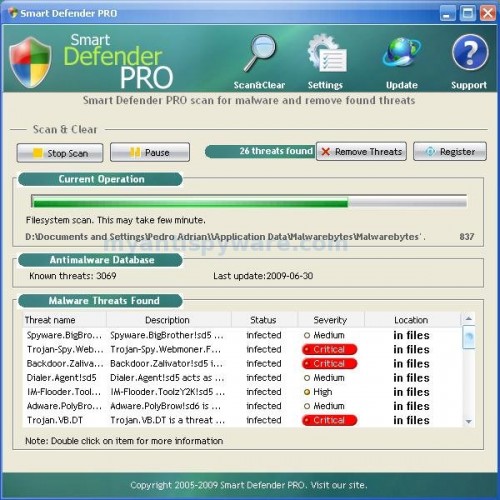
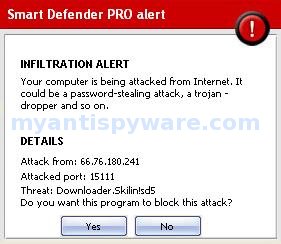
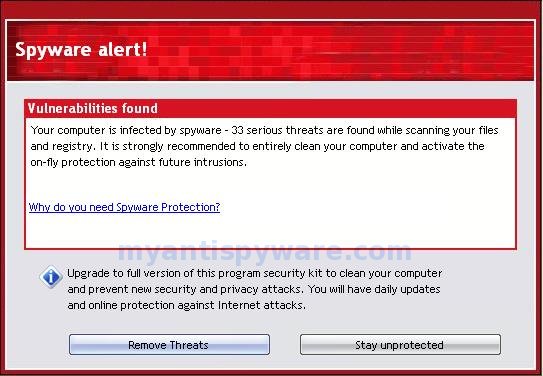
While the Smart Defender PRO is running, your computer will display fake security alerts and alerts that stated that “your computer is being attacked from Internet”. A few examples:
Windows Security Center
Windows Security Center reports that Smart Defender PRO is
not registered. Antivirus software helps to protect your
computer against viruses and other security threats. Your
system might be at risk.Click this balloon to fix this problem.
INFILTRATION ALERT
Your computer is being attacked from Internet. It
could be a password-stealing attack, a trojan-
dropper and so on.
These alerts are fake and should be ignored! Use the free instructions below to remove Smart Defender PRO and any associated malware from your computer.
Symptoms in a HijackThis Log
O4 – HKCU\..\Run: [Smart Defender PRO] %appdata%\Smart Defender PRO\smrtdefp.exe
Use the following instructions to remove Smart Defender PRO (Uninstall instructions)
Download MalwareBytes Anti-malware (MBAM). Close all programs and Windows on your computer.
Double Click mbam-setup.exe to install the application. When the installation begins, keep following the prompts in order to continue with the installation process. Do not make any changes to default settings and when the program has finished installing, make sure a checkmark is placed next to Update Malwarebytes’ Anti-Malware and Launch Malwarebytes’ Anti-Malware, then click Finish.
If an update is found, it will download and install the latest version.
Once the program has loaded you will see window similar to the one below.
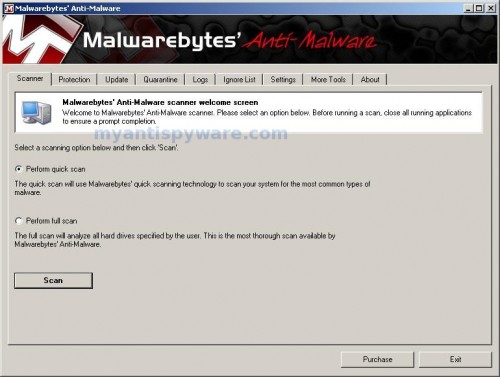
Malwarebytes Anti-Malware Window
Select Perform Quick Scan, then click Scan, it will start scanning your computer for Smart Defender PRO infection. This procedure can take some time, so please be patient.
When the scan is complete, click OK, then Show Results to view the results. You will see a list of infected items similar as shown below. Note: list of infected items may be different than what is shown in the image below.
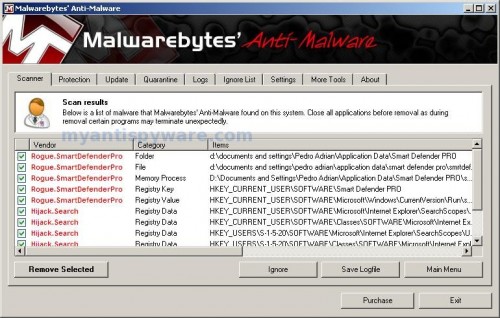
Malwarebytes Anti-malware, list of infected items
Make sure that everything is checked, and click Remove Selected for start Smart Defender PRO removal process. When disinfection is completed, a log will open in Notepad and you may be prompted to Restart.
Note: if you need help with the instructions, then post your questions in our Spyware Removal forum.
Smart Defender PRO creates the following files and folders
%appdata%\Smart Defender PRO
%appdata%\smart defender pro\smrtdefp.exe
Smart Defender PRO creates the following registry keys and values
HKEY_CURRENT_USER\SOFTWARE\Smart Defender PRO
HKEY_CURRENT_USER\SOFTWARE\Microsoft\Windows\CurrentVersion\Run\smart defender pro





I believe my onecare has already gotten rid of the smart defender pro which was a trogan virus when it did a scan. I would like to know what can i do about them getting my card info. after the fact.
If you used a card in a time when you have been infected, then YES, probably your card info is stolen.
please please please could anyone help me…
I have this virus, but all the instructions I can find for getting rid of it involve installing and opening a new application (e.g. Malwarebytes). Problem, is, the virus won’t let me open anything. I can install it, but when I try to open it (even if I set it to automatically start) it either doesn\’t do it at all, or shuts down again straight away.
Don’t know what else to try now please help 🙁
Jen, ask for help in our Spyware removal forum.