![]() | Do you have pop-ups or your computer infected with trojan or spyware ? Learn how to ask us for help, click here! |
How to remove Presto Tuneup (Uninstall instructions)
Presto Tuneup is fake optimization program (scareware) that uses fake alerts, false privacy risks, false system errors to trick you into buying the software. During installation, Presto Tuneup is set to start automatically when your computer starts. Immediately after launch, Presto Tuneup starts scanning the computer and list a variety of problems that will not be fixed unless you first purchase the scareware.

Presto Tuneup
While Presto Tuneup is running your computer will display fake warnings from your windows taskbar. All of these warnings are fake, so you can safely ignore them. Use the free instructions below to remove Presto Tuneup and any associated malware from your computer.
Continue reading How to remove Presto Tuneup (Uninstall instructions)…
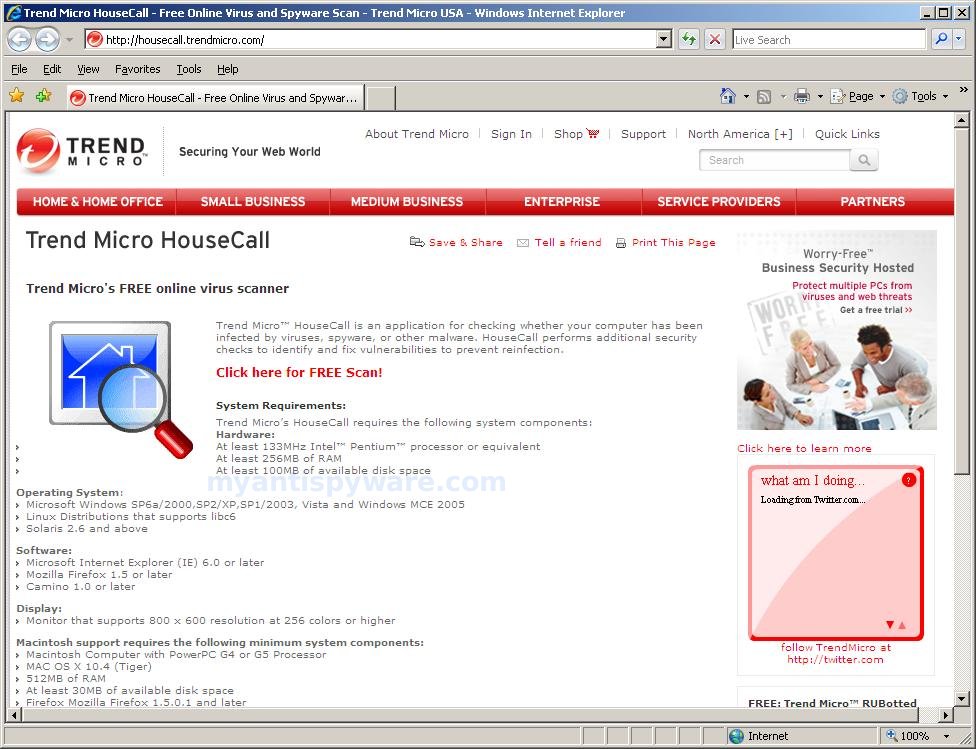
How to use TrendMicro online virus scanner (Trend Micro HouseCall)
TrendMicro online virus scanner also known as Trend Micro HouseCall is a free web application for checking whether your computer has been infected and providing you with the option to automatically clean viruses, spyware, or other malware. Also HouseCall performs additional security checks to identify and fix vulnerabilities to prevent reinfection (only ActiveX version).
TrendMicro Online Virus Scanner Features
- scans and disinfects viruses, worms and trojans from all your drives
- restores damage caused by malware to your computer
- notifies about vulnerabilities in installed programs
- multi-platform support for: Windows, Linux, Solaris
- supports Internet Explorer and Firefox
Continue reading How to use TrendMicro online virus scanner (Trend Micro HouseCall)…
May 29, 2009 on 10:02 pm | In Online Scanners, Tutorials - HowTo | 3 Comments |How to remove Fast Antivirus 2009 (Uninstall instructions)
Fast Antivirus 2009 is a rogue antivirus/antispyware program from Virus Doctor rogue family (Malware Catcher 2009, Extra Antivirus, Virus Sweeper, Ultra Antivir2009, Virus Alert, Virus Melt …). During installation, Fast Antivirus 2009 configures itself to run automatically every time, when you boot your PC. In addition the program drops a few files. These files are are actually harmless, but during the scan will determine as infections. Once running, Fast Antivirus 2009 will scan your computer and list previously created files as threats that cannot be removed unless you first purchase the software.

Fast Antivirus 2009
While Fast Antivirus 2009 is running, you will see security warning. These warnings are a fake and should be ignored! Computer users are urged to avoid purchasing this bogus program! Use the free removal instructions below in order to remove Fast Antivirus 2009 and any other trojan infections.
Continue reading How to remove Fast Antivirus 2009 (Uninstall instructions)…
Remove Secure Antivirus Pro (Uninstall instructions)
Secure Antivirus Pro is a rogue antivirus/antispyware program that installed through the use trojans. Once infected with these trojans your computer will display security alerts that tells you that your computer is infected with malware. These alerts are fake and just being shown to you in order to trick you into buying the software.

Secure Antivirus Pro
Once running, Secure Antivirus Pro starts scanning the computer and found a lot of trojans and spyware. All these infections are fake. Then, Secure Antivirus Pro said that you should purchase the program in order to remove them and protect your computer. Please ignore it. If you are a non-techie computer user then this method of removing Secure Antivirus Pro and any associated malware from your computer is for you.
Continue reading Remove Secure Antivirus Pro (Uninstall instructions)…
Remove Malware Catcher 2009 (Uninstall instructions)
Malware Catcher 2009 is a rogue antispyware program that looks like Virus Shield 2009 and other fake programs from Virus Doctor family. Malware Catcher is distributed through the use fake online malware scanners that tells you that your computer infected with spyware, malware and trojans and that you must install Malware Catcher 2009 to clean your computer. Like other rogue antispyware programs, it uses fake alerts and false positives to trick you into buying the software.
During installation, Malware Catcher 2009 configures itself to run automatically every time, when you start your computer. In addition the program creates a few files. These files during the scan will determine as trojans and spyware. Once running, the rogue will scan your computer and list a large amount of infections that cannot be removed unless you first purchase the software. Running of Malware Catcher 2009 may drastically slow the performance of your computer.
While Malware Catcher 2009 is running your computer will display fake security alerts, that will recommend you purchase the software. Ignore these alerts. Computer users are urged to avoid purchasing this bogus program! Malware Catcher 2009 can be safely removed from your computer along with any other malware if the proper steps are taken. If you are a non-techie computer user then this method of removing the rogue is for you.
Continue reading Remove Malware Catcher 2009 (Uninstall instructions)…
How to remove Privacy Center (Uninstall instructions)
Privacy Center is a rogue privacy program that installed through the use of a malware that pretends to be flash video player required to view an online video. When the fake player is installed, it will install Privacy Center on to your PC without your permission.
When installed, Privacy Center configures itself to run automatically every time, when you start your computer. Once running, Privacy Center starts scanning the computer and list a variety of privacy risks on your computer to trick you to buy the paid version of the rogue. Running of the rogue software may drastically slow the performance of your computer.

Privacy Center
While Privacy Center is running your computer will display fake warning from your windows taskbar.
Warning!
One or several components reported some problems!
Traces of discreditable files (for example, the history of visiting
porno sites) and security vulnerability have been found. Click
this notification to eliminate vulnerability immediately!
The warning is a fake and should be ignored! Use the free instructions below to remove Privacy Center and any associated malware from your computer.
Continue reading How to remove Privacy Center (Uninstall instructions)…
How to remove PCPrivacy Defender (Uninstall instructions)
PCPrivacy Defender is a rogue privacy software that uses fake alerts and false privacy risks to trick you into buying the software. The rogue privacy program is distributed through the use fake online malware scanners that tells you that your computer has a variety of privacy risks and that you must install PCPrivacy Defender to protect your computer.
During installation, PCPrivacy Defender is set to start automatically when your computer starts. Immediately after launch, PCPrivacy Defender starts scanning the computer and list a variety of privacy risks on your computer to trick you to buy the paid version of the rogue.
Computer users are urged to avoid purchasing this bogus program! The rogue privacy program can be safely removed from your computer along with any other malware infections if the proper steps are taken. If you are a non-techie computer user then this method of removing PCPrivacy Defender and any associated malware from your computer is for you.
Continue reading How to remove PCPrivacy Defender (Uninstall instructions)…
My Anti Spyware - Free antispyware programs and Spyware Removal Instructions.