Kaspersky virus removal tool also known as KVRT is a free program created by Kaspersky Lab to search for and remove trojans, worms, spyware, adware, PUPs and other malware. This tool uses the Kaspersky Anti-Virus core, but unlike it, KVRT cannot protect the computer from malicious software, this tool can only scan the computer, find malware and delete it.
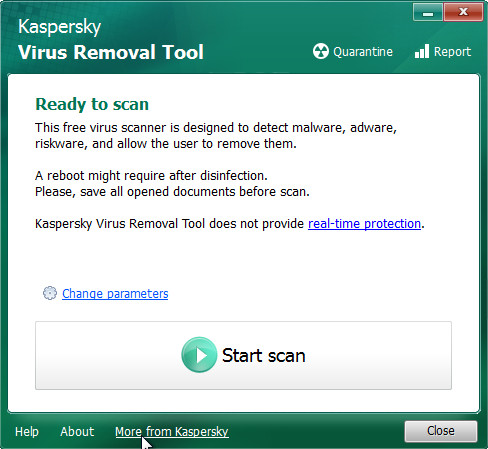
Kaspersky virus removal tool has a simple and intuitive interface. Its use is very simple. it’s almost enough to download the program, start and run the scan. KVRT has one operating mode – scanning on demand of the user. The only thing the user can change is to choose what the tool will scan. This can be a separate file, an external device, a specific directory, or an entire computer. The utility also allows you to check the computer’s RAM, the Windows registry, the boot sector of the hard drive, and other places where dangerous malware may be hiding.
Kaspersky virus removal tool features
- Support for Windows 10, 8, 7, Vista, XP, 2000.
- Easy interface.
- Can be installed to an infected machine (Safe Mode supported).
- Signature detection and heuristic analyzer.
- System Analysis and interactive scripting language.
- Quarantine to hold threats and restore them at your convenience.
- Works together with other antimalware and antivirus utilities.
- Freeware.
Using Kaspersky virus removal tool
Download Kaspersky virus removal tool from here and save it directly to your Windows Desktop. When file has finished downloading you will now see an icon on your desktop similar to the one below.
Double-click on the KVRT icon found on your desktop. You may see a screen similar to the one below.
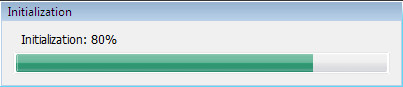
Once initialization process is finished, you will see the Kaspersky virus removal tool screen as shown below.
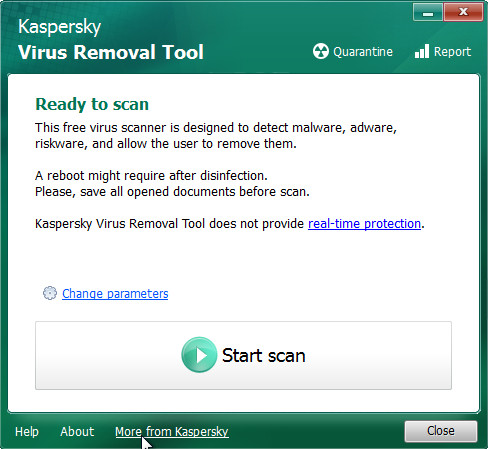
Click Change Parameters and set a check near all your drives.
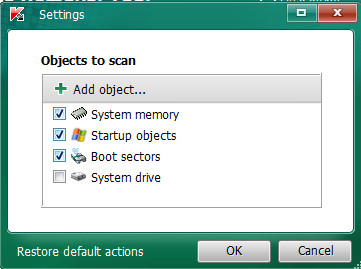
Click OK to close the Parameters window.
Click Scan button. Kaspersky virus removal tool will now start scanning your computer for known infections. This procedure can take some time, so please be patient.
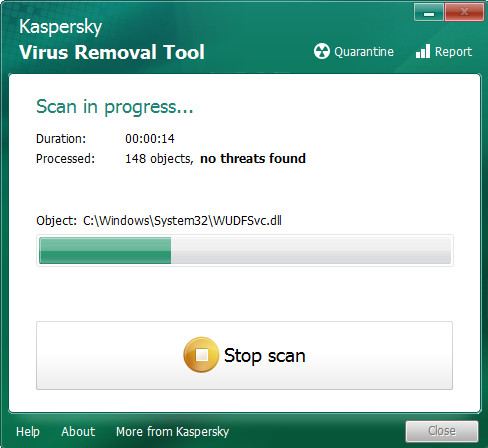
When KVRT has finished scanning, you will see a screen like shown below.
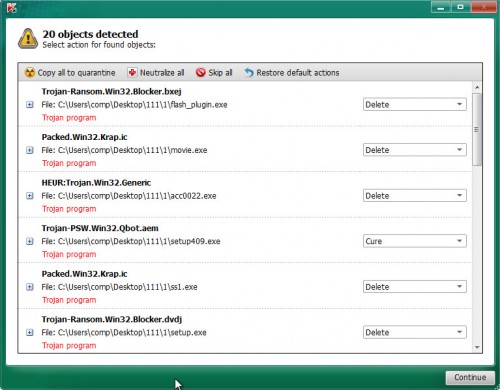
Click on Continue to start a cleaning process.





great looking tool – BUT what do I do when the virus (ccenter) has taken hold so much that the windows interface including the start key does not appear – even in safe mode?
in other words, how do install this tool, even in safe mode? can i install in dos in safe mode by executing the .exe. setup pkg?
Mike, try the instructions.
another question (i got thru the no start key):
the K tool found something called zasiyugi.dll in sys32. THe K tool prompted me do delete or not; I selected delete since I knew THIS was the one causing my problem (it kept appearing in the windows start up tasks despite my De-selecting it), BUT the K tool has just sat there unresponsive for the last 35 minutes on this one delete, and not continuing the progression thru the computer (sitting at 92 pct done).
What do I do now? you’re fine tutorial does not specify not does kaspersky which normally gives the user a lot of the info that is needed to proceed.
I see your link to the instructions for the ccenter removal using MBAM – thanks. After running K, I was going to run MBAM anyway. For my problem with the zasiyugi.dll removal, I do not know what to do – the skip function is not working for K at this time. it seems stuck. per task mgr, K is still running and not in a ‘not responding’ state.
I saw on teh K log that ‘the task has stopped’ was recorded at the time of finding – and me telling K to delete – the zasi virus. This must be why is was waiting for 40 mins. So I clicked ‘start scan ‘ again, and a ‘resume scan from last place’ appeared.
I was very hesitant to click the ‘start scan ‘ button since I assumed from the info on the screen that it wd have started from the beginning , which was 7 blanking hrs ago!
So note to K: in a condition when a scan is stopped , please replace the (original) start scan caption on the button to ‘resume scan’.
Looks like zasiyugi.dll is a component of Vundo trojan. Open a new topic in our Spyware removal forum. I will help you to remove this malware.
Que tal amigos ….descargue todos los antivirus que ustedes aconsejan y ninguno me detecte al malwares que tiene la extencion domnn …que puedo hacer no me deja abrir nada …ni fotos ni videos ni documentos …quedo a la espera de vuestra ayuda ….mil gracias …saludos
If your files are encrypted with .domn file extensions, then this means that these files are encrypted with a new version of STOP (djvu) ransomware. In some cases, .domn files can be decrypted. To do this, you need to use a free program called Emsisoft STOP Djvu Ransomware Decryptor.