Perfect Defender 2009 is a rogue antispyware program, that uses a trojan to install itself. Once infected, the trojan will display a fake security center alert that tells you:
Security Center Alert
To help protect your computer, Windows Firewall has blocked activity of harmful software.
Do you want to block this suspicious software?
Name: Spyware.ISpynow
Risk Level: High
Description: iSpynow is a Spyware program that records keystrokes and takes screen shots of the computer, stealing personal financial information.
If you are clicking on the enable protection button, then opens up a site asking you to download Perfect Defender 2009.
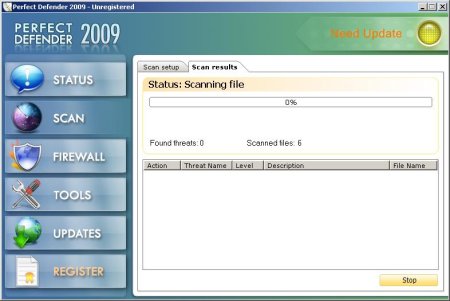
During installation, Perfect Defender 2009 configures itself to run automatically every time, when you start your PC. Perfect Defender 2009 may drastically slow the performance of your computer.
Symptoms in a HijackThis Log.
O4 – HKLM\..\Run: [Perfect Defender 2009] “C:\Program Files\Perfect Defender 2009\pdfndr.exe”
O4 – HKCU\..\Run: [SVCHOST.EXE] C:\WINDOWS\system32\drivers\svchost.exe
O4 – HKCU\..\Run: [HPsetm] “C:\Documents and Settings\user\Application Data\Google\ijdkq13324484.exe”
O4 – HKCU\..\Run: [HPseti] “C:\Users\Davit Khachatryan\AppData\Roaming\Google\dvvm.exe”
O4 – HKCU\..\Run: [WinDNN] “C:\Documents and Settings\user\Application Data\Google\klnxv19819115.exe”
Use the following instructions to remove Perfect Defender 2009 (Uninstall instructions).
Step 1. Remove TDSServ trojan. The trojan blocks user access to security websites.
- Download Avenger from here and unzip to your desktop.
- Run Avenger, copy,then paste the following text in Input script Box:
Drivers to delete:
TDSSserv.sys
clbdriver.sys
seneka.sys
seneka
Then click on ‘Execute’.
- You will be asked Are you sure you want to execute the current script?. Click Yes.
- You will now be asked First step completed — The Avenger has been successfully set up to run on next boot. Reboot now?. Click Yes.
- Your PC will now be rebooted.
Step 2. Remove Perfect Defender 2009 file, registry keys and associated malware.
- Please download OTM by OldTimer from here.
- Run OTM, copy,then paste the following text in “Paste Instructions for Items to be Moved” window (under the yellow bar):
:processes
explorer.exe
:reg
[HKEY_CURRENT_USER\Software\Microsoft\Windows\CurrentVersion\Run]
"SVCHOST.EXE"=-
"winhpdrv"=-
"HPseti"=-
"HPsetm"=-
"nah_Shell"=-
"windpipe"=-
"WinDNN"=-
"wclock"=-
"realtecg"=-
"ckcixg"=-
"realtehs"=-
"realtekg"=-
"realtecs"=-
"realtechs"=-
"realtecss"=-
"realtecks"=-
[HKEY_LOCAL_MACHINE\Software\Microsoft\Windows\CurrentVersion\Run]
"Perfect Defender 2009"=-
"realteczs"=-
"winclock"=-
"realteks"=-
:files
%WinDir%\system32\drivers\svchost.exe
%UserProfile%\nah_eere.exe
%APPDATA%\Google\ijdkq13324484.exe
%APPDATA%\Roaming\Google\dvvm.exe
%APPDATA%\Roaming\Google\mscclock.exe
%APPDATA%\Google\xtgoj6119471.exe
%APPDATA%\Google\teuaa1726165.exe
%APPDATA%\Google\runhh6110411.exe
%APPDATA%\Google\fhexj6825097.exe
%APPDATA%\Google\klnxv19819115.exe
%APPDATA%\Google\yfijv17721328.exe
%APPDATA%\Google\xpsdg6420222.exe
%APPDATA%\Google\kpldpl.dll
%APPDATA%\Google\vgwsn871850.exe
%APPDATA%\Google\djvlg2072387.exe
%APPDATA%\Google\fbabj220320.exe
%APPDATA%\google\torsi2225487.exe
%APPDATA%\google\lptspcp.dll
%APPDATA%\ckcixg.exe
%APPDATA%\google\ocboo1892823.exe
%APPDATA%\google\sysspc.dll
%APPDATA%\google\phtrc345015.exe
%APPDATA%\google\pfysw721318.exe
%APPDATA%\google\jxzub5410451.exe
%APPDATA%\google\tjwuh601471.exe
%APPDATA%\google\sqean9524272.exe
%APPDATA%\google\mcscrlp32.dll
%APPDATA%\google\jbzey222486.exe
%programfiles%\Perfect Defender 2009
:Commands
[emptytemp]
[start explorer]
[Reboot]
- Click the red Moveit! button.
- When the tool is finished, it will produce a report for you.
- Download MalwareBytes Anti-malware (MBAM). Close all programs and Windows on your computer.
- Double Click mbam-setup.exe to install the application. When the installation begins, keep following the prompts in order to continue with the installation process. Do not make any changes to default settings and when the program has finished installing, make sure a checkmark is placed next to Update Malwarebytes’ Anti-Malware and Launch Malwarebytes’ Anti-Malware, then click Finish.
- If an update is found, it will download and install the latest version.
- Once the program has loaded, select “Perform Quick Scan”, then click Scan.
- The scan may take some time to finish,so please be patient.
- When the scan is complete, click OK, then Show Results to view the results.
- Make sure that everything is checked, and click Remove Selected.
- When disinfection is completed, a log will open in Notepad and you may be prompted to Restart.
If you need help with the instructions, then post your questions in our Spyware Removal forum.





I do not have that trojan on my list. Does it go by something else?
Skip step 1 and goto step 2.
Great work – thank you!! Removing TDSServ trojan was the missing key in all other websites. Thanks again.
Hey bro, I have been trying to get rid of this Perfect Defender bullshit for two weeks now. I can’t find the tsserv thing under the plugs. So now what? Is it under a new name? I’ve downloaded and bought Spyware Doctor and they are looking at specific files on my comp that they requested where they think it is. If that doesn’t work though, please respond and help a brother out! thanks bro!
Joe, please follow these steps. I will help you.
How do I know if this ‘Perfect Defender’ is completely removed? Previously I used to get that pop-up. As I followed your instructions I found that I did not have TDSSserv.sys trojan. Subsequently I ran MalwareBytes Anti-malware (MBAM) and did not find any infected items.
Does this mean that my computer is free from Malware?
Jae, if you still having popups then follow these steps.
i haven’t downloaded perfect defender 2009. I looked for the trojan but didn’t find it. The security alert keeps coming. What do i do?
waz, then follow these steps.
When i go to the non plug and play drivers there is no file called TDSServ but i keep getting the pop up telling me that im infected and is telling me to buy perfect defender 2009
Steve, then skip step 1, and go to step 2. If you sitll having problems with your computer, then follow these steps.
Thanks so much for this… I had totally fallen for it! Only problem is, when I try to open either of my internet browsers to try to download the software you recommend to my laptop, they instantly shut down. It’s like the malware has got at them too.(I’m writing this on my blackberry!) What do I do?
Alex, try to use another computer for downloading these applications.
My comp got infected from Perfect Definder 2009 several days ago and I ran into this webpage and tried serval times to remove the junk following the instructions. I failed in the past tries but finally it seems to work!. The symptoms that had been persisting in my comp have disappered. I hope that the bullshit has completely been shovled away. Thanks bro, great job!
BTW, can McAfee prevent the rouge ware from entering my computer again?
Maybe yes 🙂
Use an antispyware software + good firewall for additional protection.
I can’t seem to get this thing removed, I’ve downloaded malwarebytes and can’t install it. I’ve downloaded AVG and can’t install it. I can’t seem to get to any of the websites to download any of the recommended solutions. What can I do to get this fixed?
I got this stupid thing like a month ago and was able to get rid of the main issues(pop ups and the like. I have done everything on every list and the only thing that keeps on showing up is realtehs in my registry under hkey local user. Malwarebytes deletes it and it comes back.I manually delete and it comes back. I’ve looked for everything else on the list and thats the only thing (realtehs). My internet runs a little slow but no pop ups or anything suspicious. Do I just ignore it or what do i do?
Nick, follow these steps. I will help you at our forum.
Looks like it worked! Thanks for the cure.