SpywareGuard2008 is a rogue antispyware application. The software was found being advertised on a fake online antispyware scanners. If you have the misfortune to run the rogue anti-spyware program, SpywareGuard2008 is set to start automatically when your computer starts. It then scans your computer for supposed spyware and malware and displays a list of the items found. It is quite funny, though, as it finds its own components and labels them as spyware as shown in the image below.
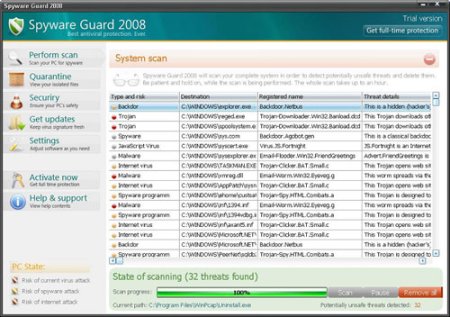
If you get infected with this rogue antispyware app, please do not be fooled into buying it. Instead use the instructions below to remove the software.
Symptoms in a HijackThis Log
O4 – HKCU\..\Run: [spywareguard] C:\Program Files\Spyware Guard 2008\spywareguard.exe
Use the following instructions to remove SpywareGuard2008.
- Download MalwareBytes Anti-malware (MBAM). Close all programs and Windows on your computer.
- If you cannot download or run Malwarebytes Anti-malware, then probably your computer also infected with TDSSserv trojan. Follow these instructions: How to remove trojan TDSSserv (TDSSserv.sys).
- Double Click mbam-setup.exe to install the application. When the installation begins, keep following the prompts in order to continue with the installation process. Do not make any changes to default settings and when the program has finished installing, make sure a checkmark is placed next to Update Malwarebytes’ Anti-Malware and Launch Malwarebytes’ Anti-Malware, then click Finish.
- If an update is found, it will download and install the latest version.
- Once the program has loaded, select “Perform Quick Scan”, then click Scan.
- The scan may take some time to finish,so please be patient.
- When the scan is complete, click OK, then Show Results to view the results.
- Make sure that everything is checked, and click Remove Selected.
- When disinfection is completed, a log will open in Notepad and you may be prompted to Restart.
SpywareGuard2008 creates the following files.
c:\Windows\reged.exe
c:\Windows\spoolsystem.exe
c:\Windows\sys.com
c:\Windows\syscert.exe
c:\Windows\sysexplorer.exe
c:\Windows\vmreg.dll
c:\Documents and Settings\%Username%\Desktop\Spyware Guard 2008.lnk
c:\Documents and Settings\%Username%\Start Menu\Programs\Spyware Guard 2008\Spyware Guard 2008.lnk
c:\Documents and Settings\%Username%\Start Menu\Programs\Spyware Guard 2008\Uninstall.lnk
c:\Program Files\Spyware Guard 2008\conf.cfg
c:\Program Files\Spyware Guard 2008\mbase.vdb
c:\Program Files\Spyware Guard 2008\quarantine.vdb
c:\Program Files\Spyware Guard 2008\queue.vdb
c:\Program Files\Spyware Guard 2008\spywareguard.exe
c:\Program Files\Spyware Guard 2008\uninstall.exe
c:\Program Files\Spyware Guard 2008\vbase.vdb
c:\Documents and Settings\%Username%\Application Data\Microsoft\Internet Explorer\olesys.dll
If you are still having problems with your computer, then I would recommend you follow the instructions.





This spywareguard found it’s way into my computer and i am having aheck of a time keeping it out, , my computer will not actually allow me to remove it..please guide me through this removal, is there anyone to guide me
Barbara, please follow these steps.