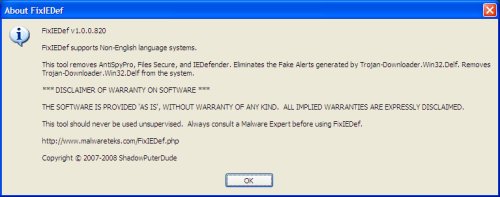
Found new rogue antispyware applications: XP Guard, AntiVir64, MSAntivirus, Power Antivirus, SpywarePrevent, XpertAntivirus. These programs uses scare tactics (such as pop-ups and fake system notifications), infects systems via misleading advertising on free download, warez and porn websites, outdated versions of the Sun Java platform, trojans and browser security holes. Rogue antispyware reports false or exaggerated system security threats on the computer. The user is then prompted to pay for a full license of the application in order to remove the errors.
SpywarePrevent
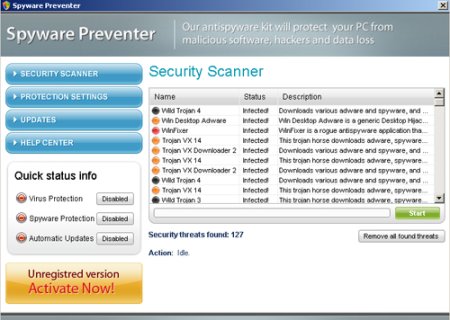
SpywarePrevent spreads from spywarePreventer.com : 216.255.186.253.
HijackThis shows infection:
O4 – HKLM\..\Run: [Antivirus] C\Program Files\SPP\SPP.exe
O4 – HKCU\..\Run: [Antivirus] C\Program Files\SPP\SPP.exe
XP Guard
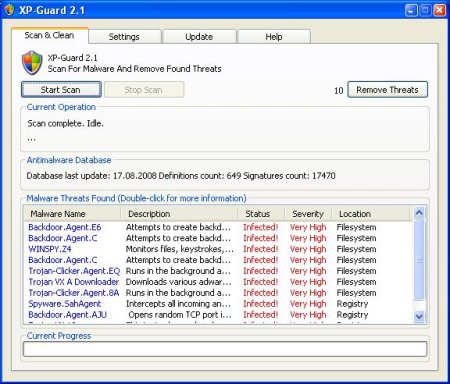
Homesite: XP-Guard.com; IP Address: 92.62.101.35
AntiVir64
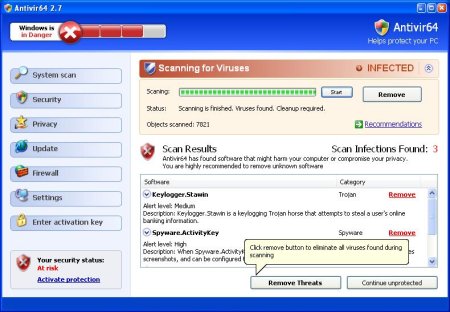
Homesite: Site Name: Antivir64.com; IP Address: 78.157.142.7
MSAntivirus
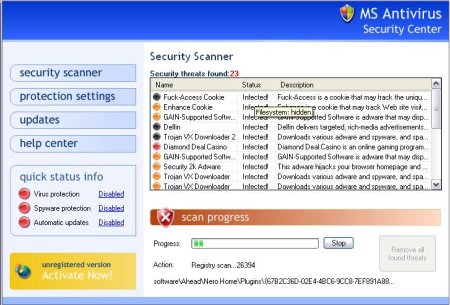
MSAntivirus spreads from msantivirusxp.com : 91.208.0.229; msscanner.com : 91.208.0.228.
HijackThis shows infection:
O4 – HKLM\..\Run: [Antivirus] C:\Program Files\MSA\MSA.exe
O4 – HKCU\..\Run: [Antivirus] C:\Program Files\MSA\MSA.exe
Power Antivirus
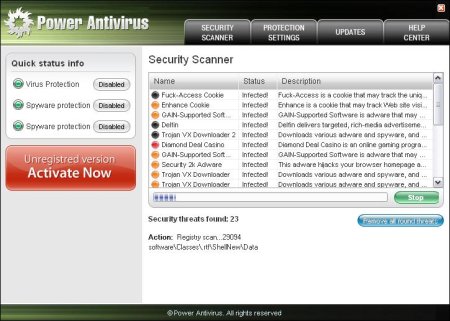
Power Antivirus spreads from pwrantivirus.com : 91.208.0.231, scanner-pwrantivirus.com : 91.208.0.246.
XpertAntivirus
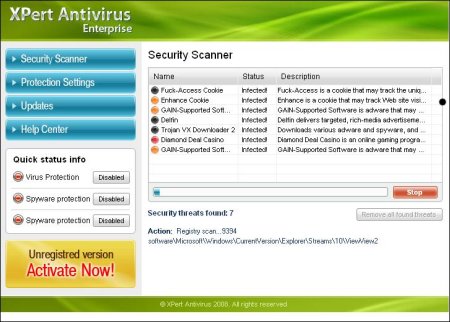
XpertAntivirus spreads from xpertantivirus.com : 91.208.0.230, scanner-xpertantivirus.com : 91.208.0.246.
Use the following instructions to remove XP Guard, AntiVir64, MSAntivirus, Power Antivirus, SpywarePrevent, XpertAntivirus (Uninstall instructions).
Using Malwarebytes Anti-Malware.
- Download MalwareBytes Anti-malware (MBAM). Close all programs and Windows on your computer.
- Double Click mbam-setup.exe to install the application. When the installation begins, keep following the prompts in order to continue with the installation process. Do not make any changes to default settings and when the program has finished installing, make sure a checkmark is placed next to Update Malwarebytes’ Anti-Malware and Launch Malwarebytes’ Anti-Malware, then click Finish.
- If an update is found, it will download and install the latest version.
- Once the program has loaded, select “Perform Quick Scan”, then click Scan.
- The scan may take some time to finish,so please be patient.
- When the scan is complete, click OK, then Show Results to view the results.
- Make sure that everything is checked, and click Remove Selected.
- When disinfection is completed, a log will open in Notepad and you may be prompted to Restart.
Using SmitfraudFix.
- Download SmitfraudFix.
- Reboot your computer in Safe Mode by doing the following:
1. Restart your computer
2. After hearing your computer beep once during startup, but before the Windows icon appears, press F8.
3. Instead of Windows loading as normal, a menu should appear
4. Select the first option, to run Windows in Safe Mode. - Double-click SmitfraudFix.exe.
- Press the number 2 on your keyboard and the press the enter key to choose the option Clean (safe mode recommended).
- You will be prompted : “Registry cleaning – Do you want to clean the registry ?“; answer “Yes” by typing Y and press “Enter” in order to remove the Desktop background and clean registry keys associated with the infection.
- The tool will now check if wininet.dll is infected. You may be prompted to replace the infected file (if found); answer “Yes” by typing Y and press “Enter”.
- The tool may need to restart your computer to finish the cleaning process; if it doesn’t, please restart it into Normal Windows.
If you need help with the instructions, then post your questions in our Spyware Removal forum.